-
Written By Rohan Wiese
-
Updated on March 12th, 2026
How to Resolve SQL Server Error 5123 When Attaching a Database
 4.9 based on 1809 user reviews
Summary: In today’s world, many SQL Server users see the SQL Server Error 5123 but do not understand why this error occurs. In this blog, we will discuss the common causes and the best way in 2026 to fix the error. Follow this guide to retrieve your data, and for faster recovery, use the Data Recovery Freeware SQL Recovery Tool. This advanced tool helps you to scan your data and recover it.
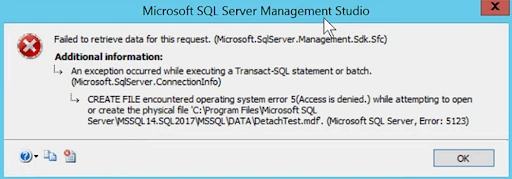
What is the MS SQL error 5123
Generally, this error message is related to insufficient permissions. When users are unable to attach their .mdf and .ldf files to a database instance during operations such as attaching or restoring a database.
Common Causes of Microsoft SQL Server Error 5123
Now, we will discuss the causes due to which the SQL server error arises:
- If it has insufficient file or folder permissions.
- Incorrect file ownership with .mdf & .ldf files.
- Most importantly, database files are uploaded to a protected system directory.
- The SQL Server Service runs under a restricted account.
- If it conflicts with Windows security policy.
Sometimes, this error is linked to the permission denied issue. Proceed further with the solutions to resolve Microsoft SQL Server Error 5123 Attaching Database.
Solutions to Fix the SQL Server Error 5123
Above, you see the common issues that cause your server to show error 5123. Now, we will discuss the solutions to recover SQL error 5123.
Solution 01: Check SQL Server Service Account Permission
- To begin the process, open SQL Server Configuration Manager on your system.
- Now, check the SQL Server service account and navigate to the folder containing MDF and LDF files.
- Then, grant full control permission to the SQL Server service account.
Solution 02: Change the File Ownership
Moreover, the incorrect file ownership can block SQL Server from accessing your database files.
Follow the steps:
- Further, right-click on the MDF/LDF file, and then Properties, then go to Security >> Advanced.
- Now, change the Owner to the SQL Server service account or Administrators.
- Afterward, apply all the changes and try to attach to the database.
Solution 03: Move Database Files to a Trusted Location
Avoid attaching databases from restricted directories like Downloads, Desktop, or Program Files.
Recommended Locations:
- C:\Program Files\Microsoft SQL Server\MSSQL\Data.
- Next, a custom folder with proper permissions.
- After moving the files, reattach the database.
Solution 04: Run as Administrator SQL Server Management Studio (SSMS)
- Sometimes, limited user privileges cause the SQL error 5123.
- Now, close SSMS completely, and then right-click and then Run it as Administrator.
- Further, try to connect with the database again.
Solution 05: Verify the File Integrity
- Now, if the database files are corrupted or incomplete, then SQL Server may fail to attach them.
- In such cases, using a reliable SQL database recovery tool can help repair and attach the database without errors.
Now, we will discuss the advanced method that will easily fix the problem. Using the professional tool made your work easier and faster.
Solution 06: Use the Advanced Tool for SQL Server Error 5123
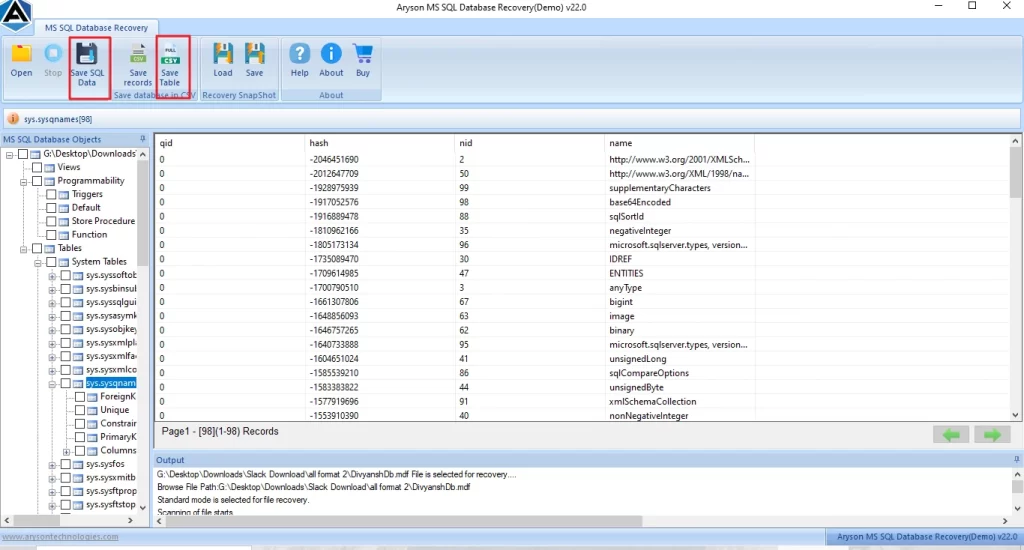
The SQL Recovery Tool is made to repair all types of errors, including SQL Server Error 5123. The SQL tool has an embedded scan feature for major and minor errors. Also, for SQL Server Error 5 Access Denied, you can use the same tool. For the working process, follow the given steps:
- To initiate the process, download and install the SQL Recovery Tool on your system.
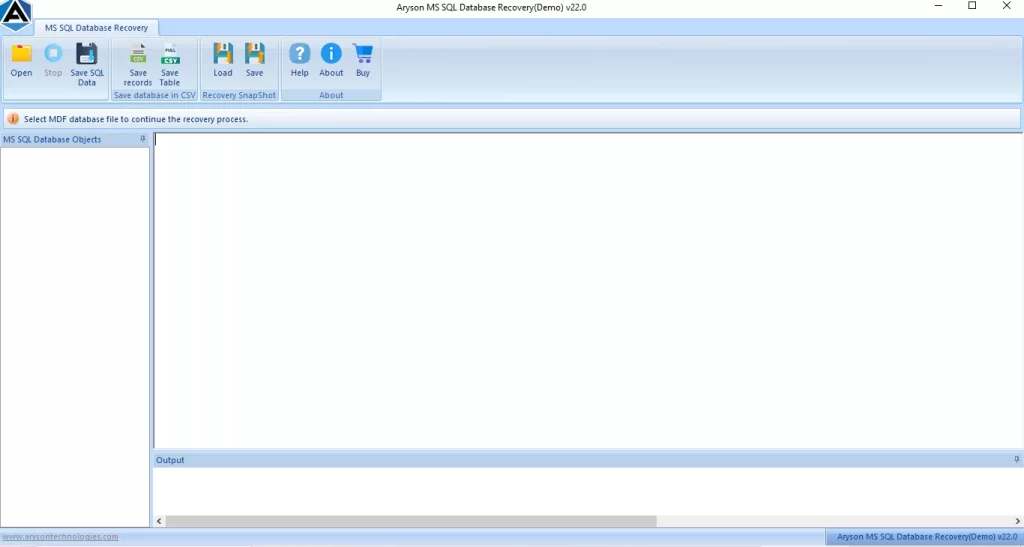
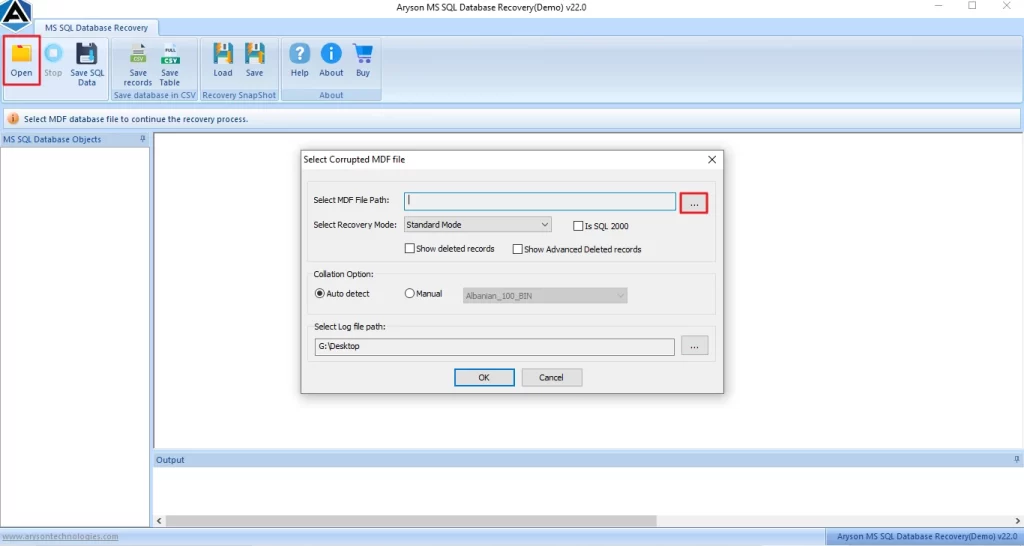
- Further, click on Open from the menu bar and select the corrupted .mdf file.
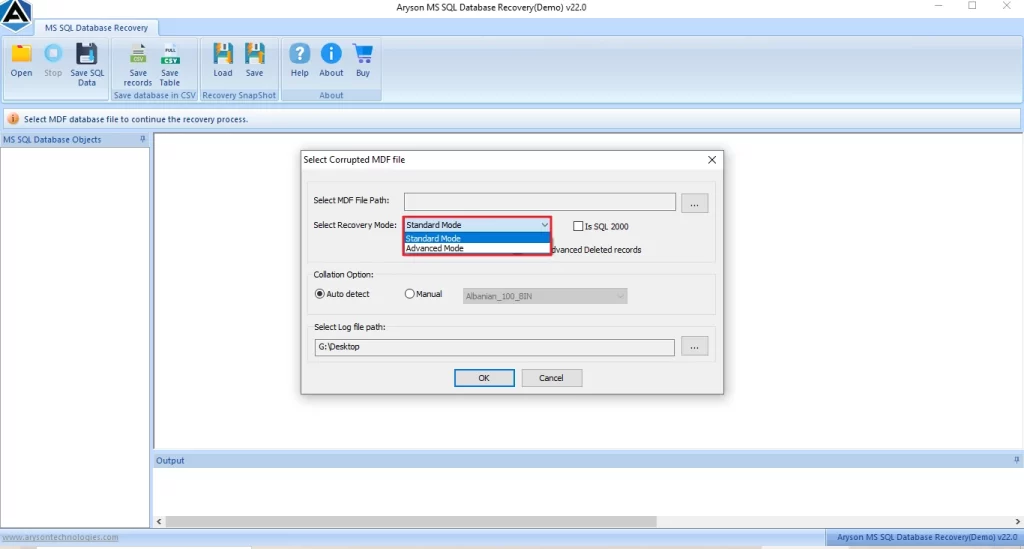
- Then, select the mode to scan the MDF file: the Standard Mode or the Advanced Mode.
- Now, you can Preview the recovered MDF files from the tree structure.
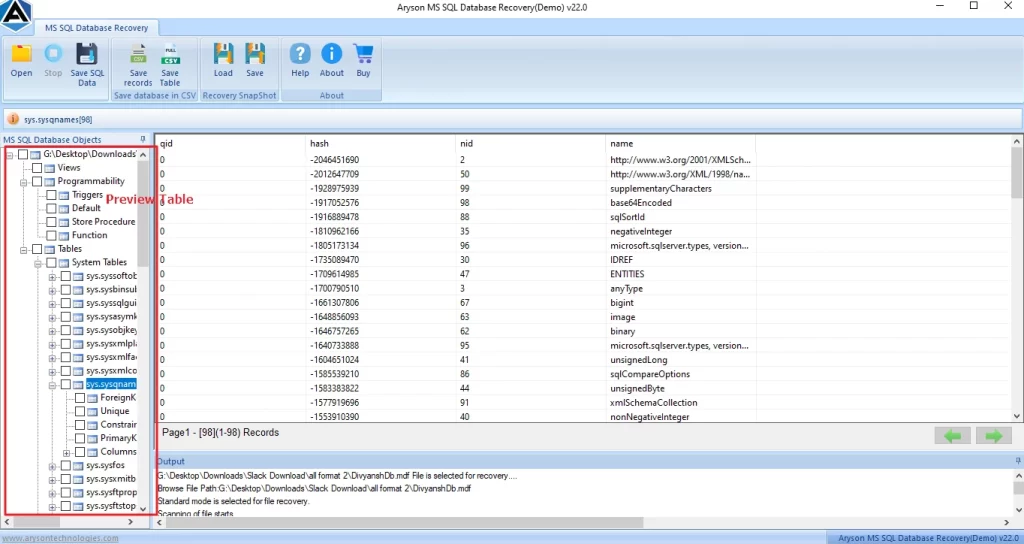
- Lastly, save the file by clicking on Save CSV data or Save SQL data on the computer for future access.
Why is the SQL Recovery Tool Successful?
- Initially, it uses powerful scanning algorithms to recover data from severely corrupted MDF and NDF files.
- Additionally, it is compatible with all major versions of Microsoft SQL Server.
- Moreover, it recovers tables, views, triggers, and indexes and prevents data loss.
- Apart from that, it preserves the original structure and metadata.
- Above all, it efficiently repairs databases affected by logical corruption, hardware failure, or unexpected shutdowns.
- Further, it allows users to save recovered data in SQL Server databases, scripts, or other supported formats.
Writer’s Advice
As per the above observation, we have covered all the aspects that cause the error 5123 along with their solutions. Read the blog and understand what issue was created in your server because of that, which shows SQL Server error 5123. After that, follow the reliable method to resolve the issue and run your SQL smoothly.
Frequently Asked Questions
1: Why does SQL Server Error 5123 occur when attaching a database?
Ans. This error occurs when SQL Server does not have sufficient permissions to access the MDF or LDF files during the attach process.
2: Which SQL Server account needs permission to resolve Error 5123?
Ans. The SQL Server service account must have full control over the folder where the database files are stored.
3: Can incorrect file ownership cause SQL Server Error 5123?
Ans. Yes, if the database files are owned by another user or system account, SQL Server may not be able to access them.
4: Is SQL Server Error 5123 related to Error 5 Access Denied?
Ans. Yes, both errors are permission-related and often occur together when SQL Server is denied access to database files.
5: Does SQL Server Error 5123 occur during database restore?
Ans. Yes, this error can occur during both database attach and restore operations if SQL Server lacks the required file permissions.
4.9 based on 1809 user reviewsAbout The Author:

Rohan Wiese is a content and website optimization expert who helps blogs and businesses grow organically. He specializes in enhancing content quality, improving site structure, and increasing online visibility through smart, practical, and easy-to-implement strategies that drive long-term results.
Related Post