-
Written By Rohan Wiese
-
Updated on February 24th, 2026
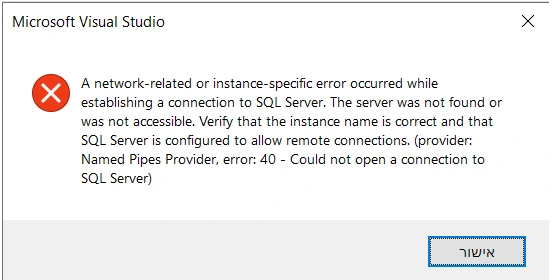
How to Fix SQL Server Error 40: Could Not Open a Connection
 4.9 based on 1809 user reviews
SQL Server Error 40 occurs when a client program fails to establish a connection with the SQL Server instance. This issue is linked to incorrect configuration, blocked ports, or network problems. In this guide, you will see the main reasons behind the error and their solution, including SQL Recovery Software, a hassle-free way to fix errors.
Why does the SQL Server Error Occurs?
SQL Error 40 generally means the client is not able to connect or establish communication with the SQL Server instance. This can happen due to several reasons:
- When users use an incorrect instance or server name.
- An error appears when the remote connection is disabled.
- Moreover, when the users configured an incorrect port number.
- Thereafter, the TCP/IP protocol is disabled.
- Furthermore, when the SQL Server browser is not running.
Step-by-Step Method to SQL Server Error 40
Moving further, we will discuss the most appropriate methods that help you to resolve the error in a simplified way. Now, follow the methods below to fix the SQL Server connection issues:
- Use Manual Method
- Automated Software
Method 01: Manual Way to Solve Error 40 in SQL Server
If you could not open a connection to SQL Server, follow this free method to solve the error.
Step 01: Start SQL Server Instance
- To start the process, open Services from the Windows menu.
- Then, locate your SQL Server instance (for example, MSSQLSERVER).
- After that, right-click on it and select ‘Start‘ if it is not running.
If the service is stopped, the server will not accept any connections.
Step 02: Enable TCP/IP Protocol
- Next, you have to open SQL Server Configuration Manager.
- Thereafter, navigate to SQL Server Network Configuration.
- Now, click on Protocols for [Your Instance] >> enable TCP/IP.
- Furthermore, double-click TCP/IP and set the default port to 1433.
- At last, click OK and restart the SQL Server service.
TCP/IP must be enabled for network-based connections.
Step 03: Allow Remote Connection
- Now, open SQL Server Management Studio (SSMS).
- Then, right-click the server name and choose ‘Properties‘ from the menu.
- Afterward, go to the Connections tab and check the option.
- In addition, allow remote connections to this server >> click OK.
Note: If remote connections are disabled, external systems cannot connect.
Step 04: Configure Firewall Settings
Windows Firewall may block SQL Server ports.
- For this, you have to first open the Control Panel.
- Later, select the Windows Defender Firewall.
- Add inbound rules to allow:
- TCP port – 1433
- UDP port – 1434
- sqlbrowser.exe
After you allow the firewalls, check the connection again.
Step 05: Test Server Connectivity
- Further, use this command prompt to ping the server: ping ServerName
- If it fails, try connecting using the IP address: ServerIP\InstanceName
If ping does not respond, there may be a network-level issue.
Step 06: Check SQL Server Browser Service
- Open SQL Server Configuration Manager.
- Ensure SQL Server Browser is running.
- Alternatively, run: sc query sqlbrowser.
You have to start the service if it is stopped.
Step 07: Verify the instance Name
Make sure you are using the correct format:
- For the default instance: MachineName
- For the named instance: MachineName\InstanceName
Remember: even if you write a small spelling mistake, it can cause Error 40.
Step 08: Confirm the port number
- Now, open SSMS and go to SQL Server Logs.
- After that, check the latest log file.
- Then, identify the port used by TCP/IP.
Make sure the same port is allowed in firewall settings and configured correctly.
Method 02: Automated Software for SQL Server Error 40
If the manual methods fail to solve your error 40, you can use the SQL Recovery Software. This software consists of advanced scanning options that will scan your corrupt files as well. It is specially made to resolve both major and minor issues that stop you from using the SQL Server. Along with that, this software provides a preview of the scanned files. If you encounter the SQL Server Error 5120, go through this complete guide. It will help you to solve the 5120 error.
Follow the Steps to Resolve the Error:
- To start, download the SQL Recovery Software on your system.
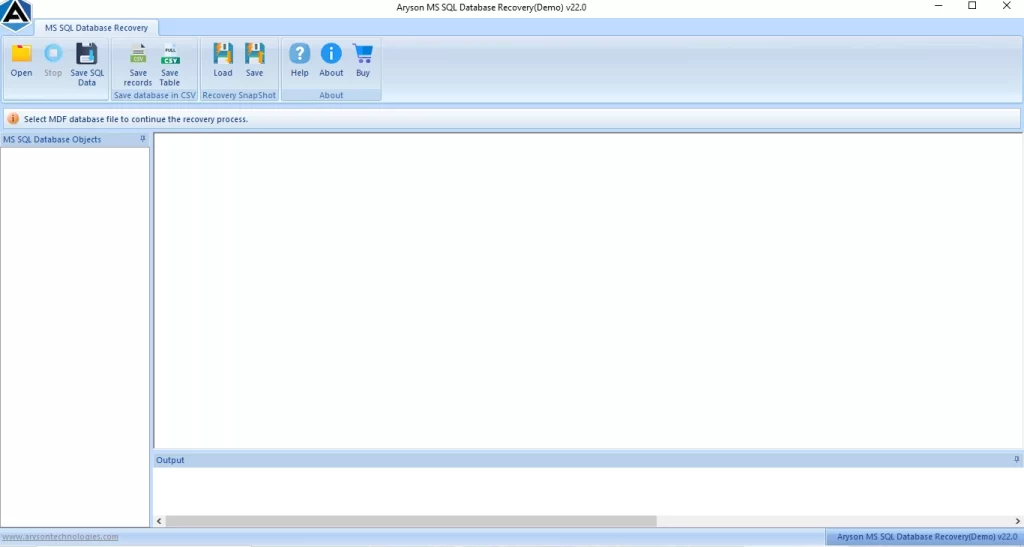
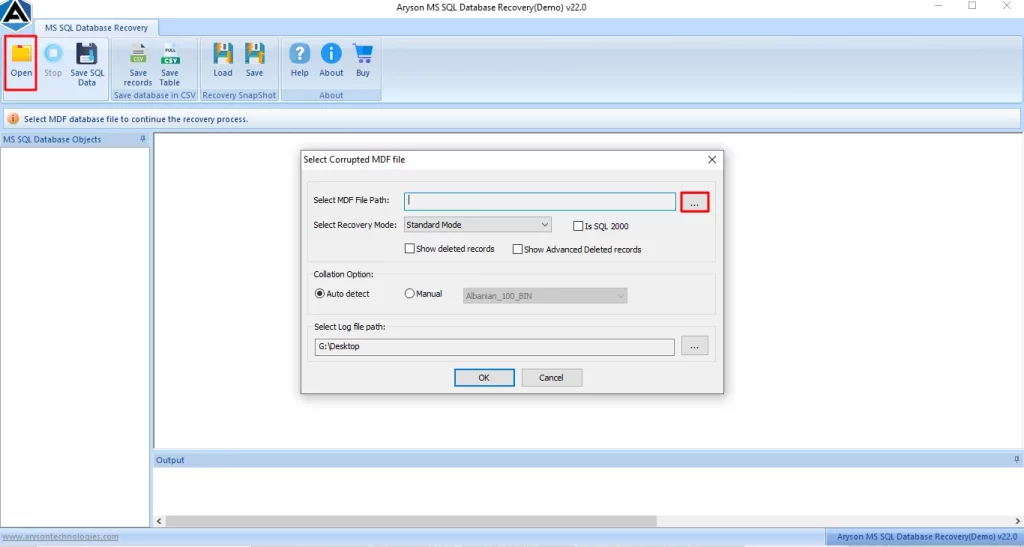
- After installation, select the open option from the menu bar >> browse .mdf files.
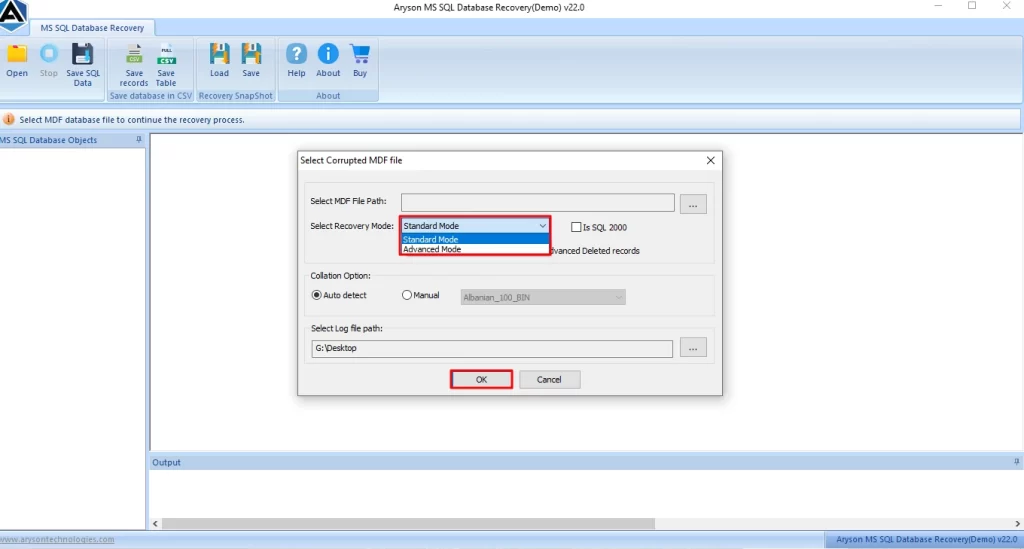
- Then, pick the scanning mode – Standard or Advanced to analyse the selected files.
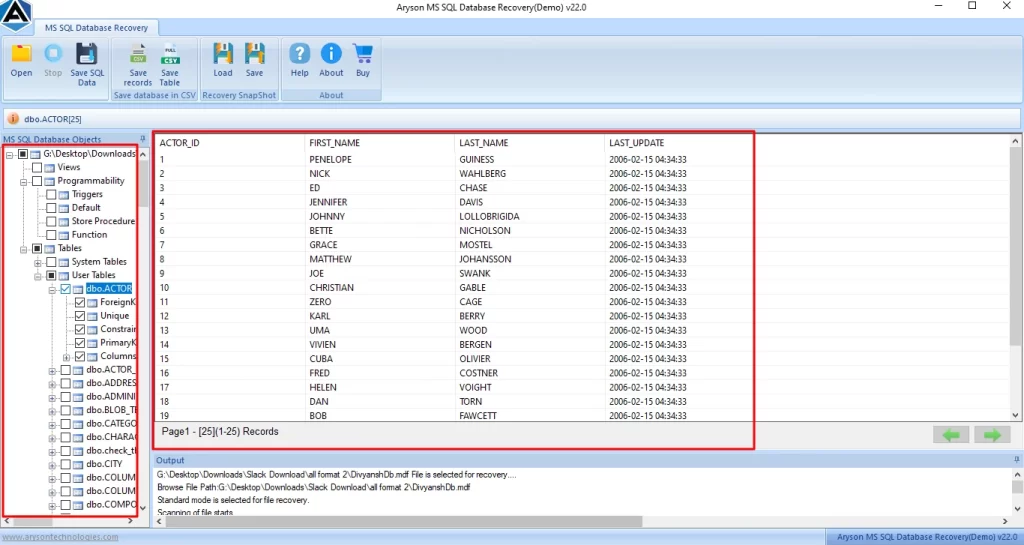
- Once the process is finished, review the recovered MDF files data through folders.
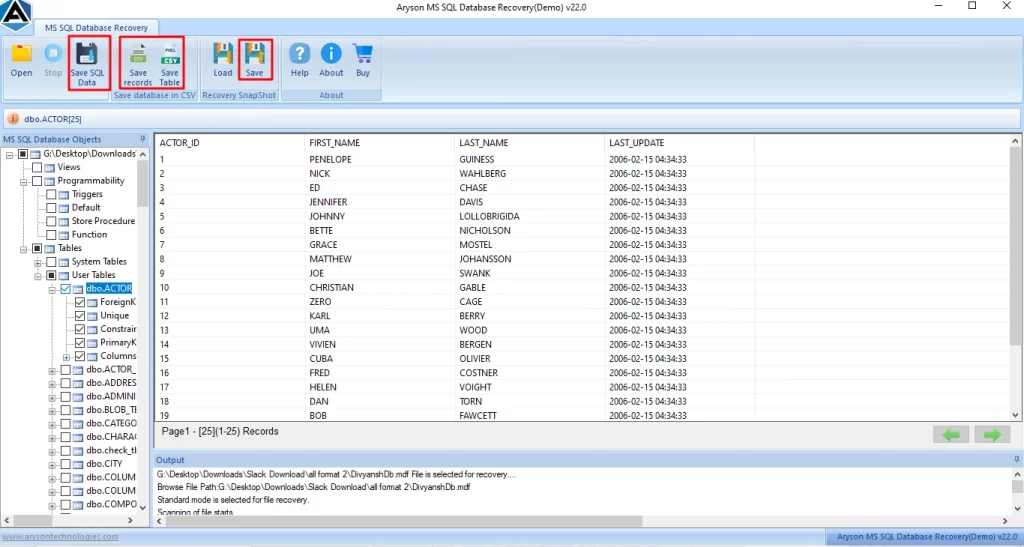
- In the end, export and save the recovered files data in CSV or SQL format.
Ending Quote
In conclusion, we covered all the aspects of how SQL error 40 occurs and its solutions. It is important to choose the right option to solve the error in an easy and hassle-free way. In this guide, we discussed both manual and automated methods to resolve the error. Therefore, you can opt for any method that is suitable for you that will resolve your error 40.
Frequently Asked Questions
1. How do I check if SQL Server is running for Error 40?
Ans. First, open Services or SQL Server Configuration Manager and check the SQL Server service status. If you do not see it running, then start the service immediately.
2. Does SQL Server Error 40 occur on remote connections?
Ans. Yes, it often occurs during remote connections. For example, if you disable remote access, turn off TCP/IP, or block required ports in the firewall, the server refuses the connection.
3. Can Error 40 occur if the SQL Server instance name is wrong?
Ans. Yes, it can. If you enter the wrong server or instance name, SQL Server cannot identify the target instance and fails to establish the connection.
4. Can SQL Server Error 40 happen after updates?
Ans. Yes, sometimes it happens after updates. For instance, updates may change firewall settings, disable protocols, or modify service configurations, which interrupt connectivity.
5. Can firewall or antivirus settings trigger SQL Server Error 40?
Ans. Yes, they can. If your firewall or antivirus blocks port 1433 or related SQL services, the system prevents client applications from connecting.
6. Does TCP vs Named Pipes matter for Error 40?
Ans. Yes, it does matter. Specifically, you must enable TCP/IP for remote connections; otherwise, SQL Server will not accept external requests.
4.9 based on 1809 user reviewsAbout The Author:

Rohan Wiese is a content and website optimization expert who helps blogs and businesses grow organically. He specializes in enhancing content quality, improving site structure, and increasing online visibility through smart, practical, and easy-to-implement strategies that drive long-term results.
Related Post