-
Written By Isha Singh
-
Updated on January 6th, 2026
How to Fix SQL Server Error 5120 (Access Denied Error)
 4.9 based on 1809 user reviews
Overview: When using SQL Server, users often encounter the “Access Denied” error. Some common issues faced by many users nowadays are. This can occur when the server service account lacks the file system permission. Due to this error, it triggered the account that does not have permission to use MDF files. To solve the corruption file SQL Server Error issue, use the SQL Recovery Tool. Now, proceed with the upcoming section to get the verified solution to fix SQL Server Error 5120 with complete data accuracy.
Common Causes of SQL Server Error 5120
The reason for the occurrence of the MS SQL Server Error 5120 is due to access being denied on the operating system. Here are some common causes:
- Trying to attach the database to a false account without admin permission.
- Additionally, corrupted MDF files cause the issue of improper database functioning.
- Either no space is available, or the system sends incorrect information about the access generator.
- The main cause of improper database functioning is corruption of MDF files.
Next, we will discuss the method to resolve the error 5120.
Solution 01: Grant Full Permissions via File Properties (Manual Method)
Before you start fixing the Server Attach Database SQL Error 5120. First, you must identify the SQL Server service account using SQL Server Configuration Manager. Once you have the correct account, proceed with the steps below.
- To initiate the process, right-click on the database file and select Properties.
- Next, move to the Security tab and then click on Edit.
- After that, choose Add to include a new user.
- Now, enter the object name NT Service\MSSQL$SQL and click Check Names to verify it.
- Further, once the service account is recognized, click OK to continue.
- Then, grant the Full Control permissions to the added account and click OK again to save the changes.
- At last, try attaching the MDF file one more time. In many cases, this resolves SQL Server Error 5120 successfully.
Solution 02: Solve Microsoft SQL Server Error 5120 Using an Admin Account
Now, solve the issue by running the SQL Server Management Studio with administrator privileges.
- First, shut down the SSMS completely.
- Now, run as administrator by double-clicking on the SSMS icon.
- Thus, SSMS obtains full administrative rights, allowing it to perform database operations without any access restrictions.
- In the end, the “Access Denied” error is eliminated, and now you can attach to the database smoothly.
Solution 03: Fix SQL Server Access Denied Error 5120 Using an Advanced Tool
If the manual methods fail to fix the corrupted file problem, then using a professional tool is the best solution. The SQL Recovery Tool is the best and most reliable tool made specifically to repair SQL Server errors, including Error 5120. This tool scans all the major and minor issues and repairs them. You can also use this software to attach MDF and LDF files in SQL Server.
Follow the Process to Repair the Error
- Firstly, download and install the SQL Recovery Tool.

- Next, click on Open from the taskbar and browse the corrupted .mdf file.
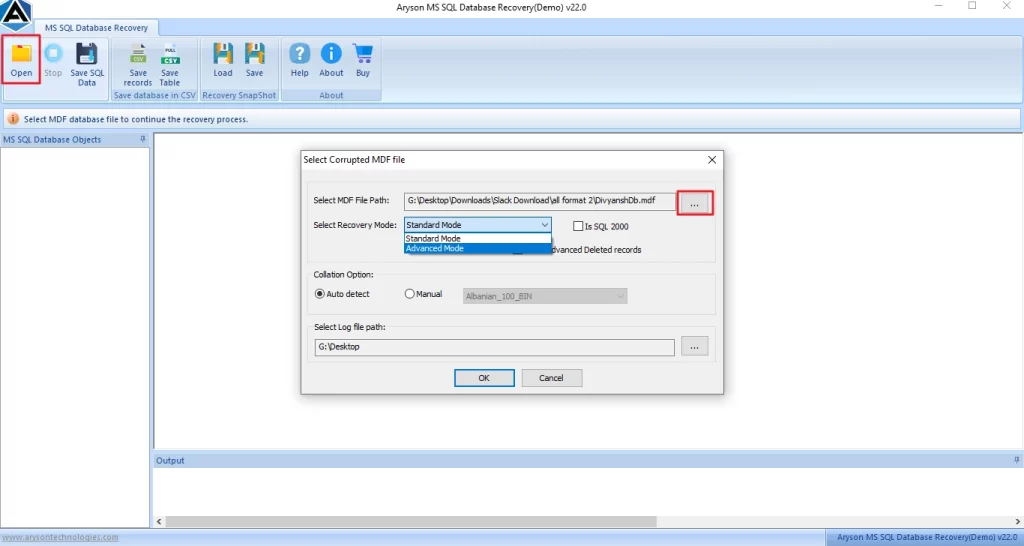
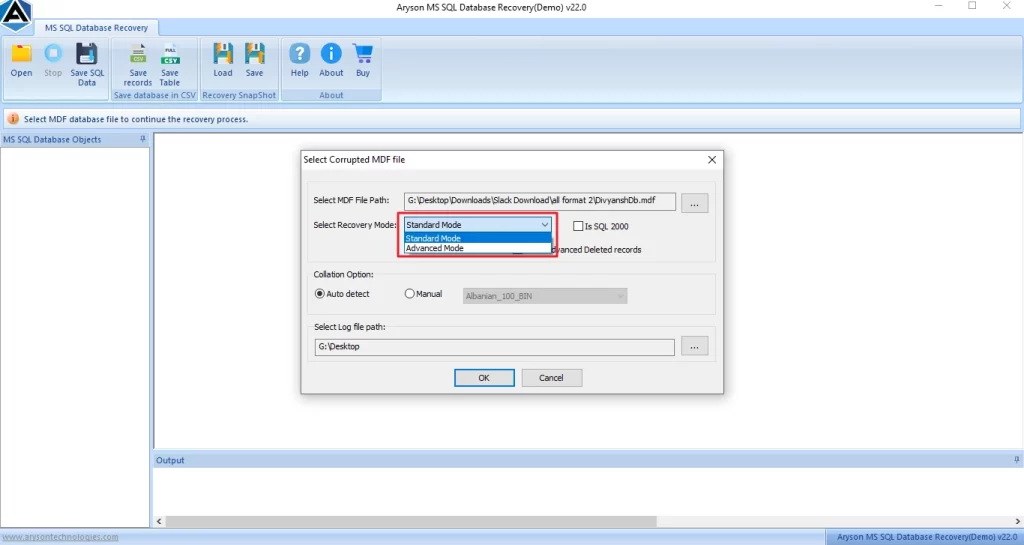
- Then, choose the standard mode or advanced mode to scan the .mdf file.
- After completing the scan, preview the MDF files from the tree structure.
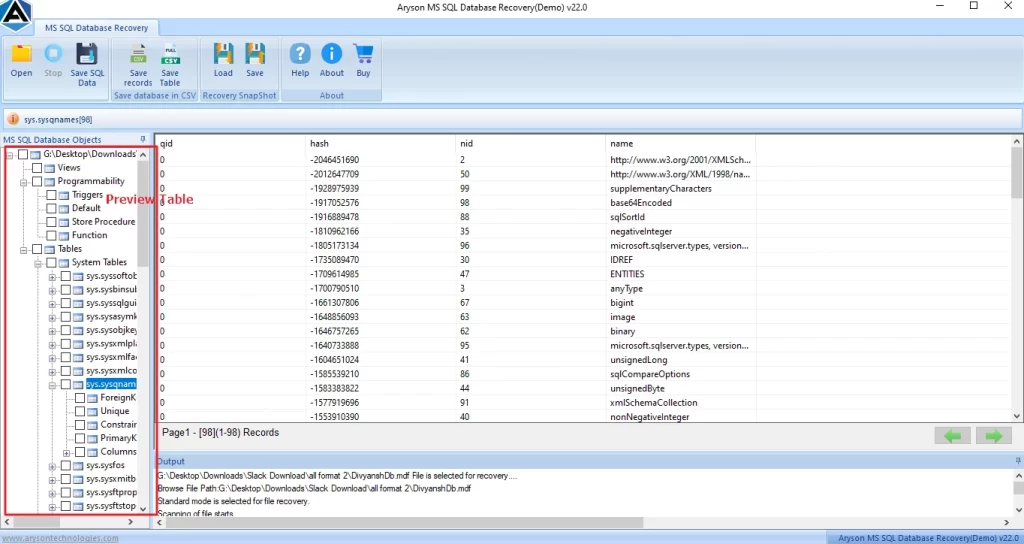
- Finally, save the file in the CSV data or SQL data on the computer

Advantages of Using this Automated Solution
- This utility recovers damaged MDF and NDF files while maintaining data integrity.
- The software recovered data as SQL Server-compatible scripts, including schemas, usernames, and table structures.
- It allows users to save recovered table data in CSV format for easy access.
- This software tool offers a user-friendly interface.
- Making the recovery process easy for both tech and non-technical users.
- Thus, this tool is compatible with all major Windows operating systems.
Conclusion
To finish it, facing the “Access Denied” issue is very annoying. To solve your SQL Server Error 5120 problem, we will cover every possible solution. Follow the steps discussed in this blog to easily access the server. Additionally, you can recover the corrupted files and damaged files.
Frequently Asked Questions
Q-1: What is SQL Server Error 5120?
Ans. The SQL Server error 5120 occurs when the operating system server denies access.
Q-2: Why does SQL Server Error 5120 say “Access is Denied”?
Ans. This error occurs when SQL Server lacks permission to access database files or folders.
Q-3: Can SQL Server Error 5120 occur while attaching MDF and LDF files?
Ans. Yes, it can occur while attaching MDF and LDF files due to permission issues or file corruption. In those cases, SQL Recovery Tool helps repair damaged MDF/LDF files and restores database access efficiently.
Q-4: Which permissions are required to resolve SQL Server Error 5120?
Ans. To resolve SQL Server Error 5120, the SQL Server service account must have Full Control (read, write, and modify) permissions on the MDF, LDF, and their parent folder.
Q-5: Is SQL Server Error 5120 related to database corruption?
Ans. Yes, it can be related to database corruption, especially when MDF or LDF files are damaged, and SQL Server cannot access or attach them properly.
4.9 based on 1809 user reviewsAbout The Author:

Isha Singh is a content and website optimization expert who helps blogs and businesses grow organically. She specializes in enhancing content quality, improving site structure, and increasing online visibility through smart, practical, and easy-to-implement strategies that drive long-term results.
Related Post