-
Written By Rohan Wiese
-
Updated on March 12th, 2026
How to Resolve SQL Server Error 1814 (TempDB Creation Failed)
 4.9 based on 1809 user reviews
User Query 
Overview: Sometimes, when the system cannot create or access the TempDB database during startup, the error SQL Server Error 1814 occurs. It usually happens because of the file path, which is incorrect, permissions are insufficient, or the disk does not have enough space. To fix this issue, you need to verify the TempDB file location, check disk availability, and grant the proper permissions to the SQL Server service account. For corrupt files, use the DataRecoveryFreeware SQL Recovery Tool and fix the corruption issue with ease.
Why do you face SQL Error Code 1814?
There are many factors that can cause the SQL server to show the error 1814. The following factors are listed one by one. Go through each of the scenarios to analyse the SQL Error 1814 issue occurring in your server:
- Not sufficient space on the Google Drive where it tried to create the DB, especially the (tempDB).
- Sometimes, this error occurs when you try to create the database with an already existing name.
- The physical location of the database does not exist.
- The SQL Server files are corrupted by themselves and are preventing the engine from accessing the file.
- Sometimes, the SQL Server service account is lacking due to the necessary permission issues.
Now, to solve the error, SQL Server could not create tempdb. We will explain the methods to fix the issues.
Solution to resolve the SQL Server Error 1814
There are many solutions to resolve the issues by knowing the root of their cause. Now, we will discuss the best solution to resolve the issue one by one. Go through each of the solutions, analyse the cause of the error occurring in your server, and use the methods to resolve the issue SQL Error code 1814.
Solution 1 – Fix Google Drive Space
- To initiate the process, open the Google Drive and click on Storage.
- Now, click on the Clean up storage, and analyse the unnecessary files.
- Delete all the unnecessary, large files to get the space on the drive.
If the drive space is the problem, then with these steps, your issue will be resolved. Or you can expand the drive space by purchasing the premium.
Solution 2 – Use Correct File Path
- First, Open SQL Server Management Studio (SSMS) and connect to the SQL Server instance.
- Then, check the database .mdf and .ldf file paths mentioned in the error message.
- Verify that the specified physical path and folder actually exist on the system.
- Confirm that the disk drive letter in the file path has not been changed or removed.
- Likewise, ensure the database file names are correct and match the actual files stored on the disk.
- Moreover, if the file path is incorrect, update it with the correct location before performing any operation.
- Now, if the database folder is deleted accidentally, recreate the folder at the same location to resolve the issue.
- After that, restore or reattach the database files to the newly created folder.
- Eventually, restart the SQL Server server and confirm that it resolves the error successfully.
If the file path is the issue, then follow the above steps to resolve the Error Code 1814 SQL Server.
Solution 3 – Steps to Resolve Permission Issue
- Identify the SQL Server Service Account from SQL Server Configuration Manager.
- Now, open File Explorer and locate the database data, backup, and log file folders.
- Right-click on the folder, and select Properties, then go to the Security tab.
- Further, click Edit and add the SQL Server Service account if it is not already listed.
- Grant Full Control or at least Read, Write, and Modify permissions.
- Then, apply the permissions to all subfolders and files.
- Click OK to save the changes.
- Restart the SQL Server service to apply the updated permissions.
- At last, retry the database operation to resolve the SQL Server error 5120.
Solution 4 – Repair Corrupted or Damaged Files
If the files are corrupted and cannot be repaired or recovered, then use the reliable SQL Recovery Tool. It will help you to recover the inaccessible lost data, including tables, stores, and indexes, from the server database. This tool helps to enable the merging of MDF and NDF files within an SQL Server to solve SQL Server Error 1814. It has the feature to scan the files based on standard and advanced modes. Follow the steps to recover the files:
- To start with, download and launch the SQL Recovery Tool.

- Then, click on Open from the taskbar and browse the .mdf file.
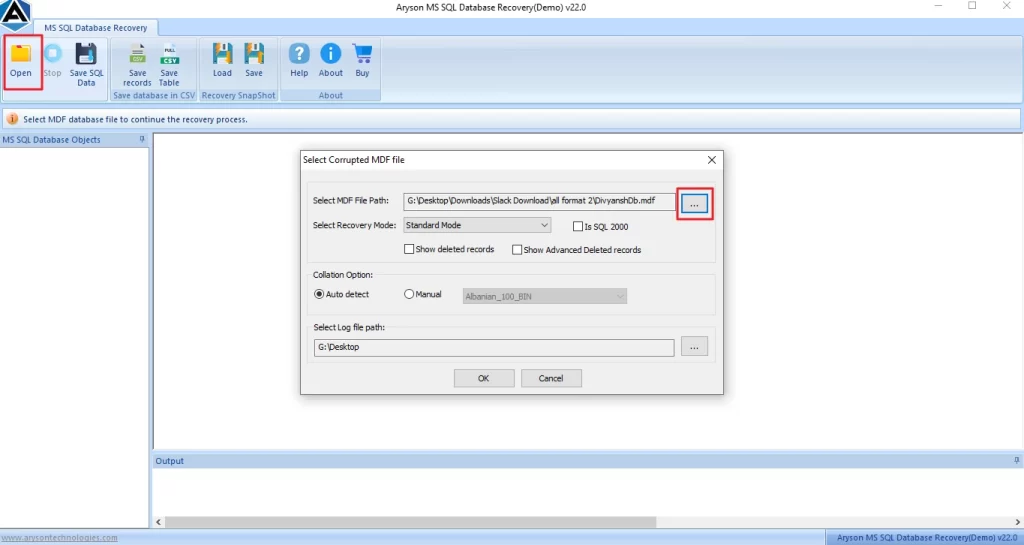
- Now, select the standard or advanced mode to scan the file.

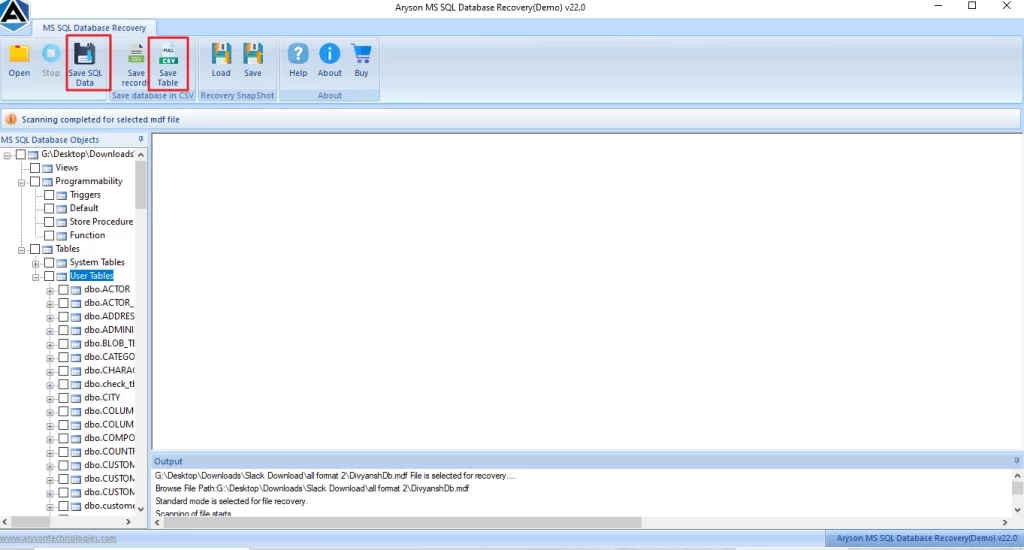
- After scanning, preview the MDF files from the tree structure.

- At last, save the file in the CSV data or SQL data.
Conclusion
You can resolve the SQL server error 1814 by verifying the tempdb file path, ensuring the required folder exists or not. Also, check the disk availability and grant proper permission to the SQL server account. For corrupted files, use the SQL Recovery Tool, whose demo version allows you to preview the files.
Frequently Asked Questions
Q-1: What is SQL Server Error 1814?
Ans. SQL Server Error 1814 occurs when SQL Server cannot find or access the database files at the specified location. This usually happens if the file path is incorrect, the drive letter has changed, the folder was deleted, or required permissions are missing.
Q-2: What causes SQL Server Error 1814 (TempDB Creation Failed)?
Ans. SQL Server Error 1814 occurs when SQL Server cannot create or access TempDB files due to invalid file paths, permission issues, drive changes, or insufficient disk space.
Q-3: Can SQL Server Error 1814 prevent the service from starting?
Ans. Yes, SQL Server Error 1814 can prevent the service from starting because SQL Server must successfully create and access the TempDB database during startup to run properly.
Q-4: Is there any risk of data loss while resolving SQL Server Error 1814?
Ans. No, SQL Server Error 1814 usually does not cause data loss. However, incorrect fixes or deleting database files may risk data loss. Use the SQL Recovery Tool to prevent data loss.
Q-5: Can modifying the TempDB location fix SQL Server Error 1814?
Ans. Yes, modifying the TempDB location can fix SQL Server Error 1814 if the original file path is invalid or inaccessible. Updating the path to a valid folder allows SQL Server to create TempDB successfully.
4.9 based on 1809 user reviewsAbout The Author:

Rohan Wiese is a content and website optimization expert who helps blogs and businesses grow organically. He specializes in enhancing content quality, improving site structure, and increasing online visibility through smart, practical, and easy-to-implement strategies that drive long-term results.
Related Post