-
Written By Isha Singh
-
Updated on December 24th, 2025
Fix SQL Server Error 5171 – Causes & Solutions
 4.9 based on 1809 user reviews
User Query: “My friend Elisa tried to attach my SQL Server database in SSMS, but SQL Server Error 5171 appeared. What does this mean, and how can I fix it without losing my data?”
Overview: Are you the one who is facing the SQL Server Error 5171? If you are here to find the right solution, then you are on the right webpage. Here, in this write-up, we will discuss different possible ways to resolve this error, along with its real meaning. This error usually occurs when you try to attach or restore an MDF file, and SQL Server fails to recognize it as a valid primary database file. Reading the entire blog, you’ll know exactly how to deal with this error and ensure your database remains safe and accessible using a recovery solution, that is, the Data Recovery Freeware SQL Recovery Tool.
What is SQL Server Error 5171?
SQL Server Error with code 5171 usually appears when you try to attach a database, but SQL Server is unable to identify the file as a valid primary database file. In simple terms, it means the .mdf file you are using is either damaged or it is not even a proper database file. This error usually takes place when the file gets corrupted, you have copied it incorrectly, or for many other reasons. To fix it, you generally need to check whether the file is correct or not.
Why does SQL Server Error 5171 happen?
In order to fix an error, you must first understand the reasons behind its occurrence. Below are the most common causes that trigger SQL Server Database Error 5171:
- You may face this error if the MDF file gets corrupted due to a crash, malware, or a sudden shutdown.
- If the file header is damaged, SQL Server will not read your database.
- You can also see this issue when you copy MDF or LDF files without following the right steps.
- If you try to open a database from a newer SQL Server in an older version, the error may appear.
- You may also face it when your disk has bad sectors, there is a power cut, or the hardware is faulty.
Understanding these reasons helps you decide which recovery method to try first—manual fixes or a professional recovery tool provided below.
Step-by-Step Manual Methods to Fix SQL Server Error 5171
Manual fixes are the first line of action when you face an SQL Server Error of code 5171. But there is no guarantee that these methods will work, as it completely depends on how much your database file is corrupted. The possible fixes are given below:
Method 1: Creating a New Database
This method is useful when corruption is minor and only affects metadata. Firstly, you have to create a new database with the same name as the damaged one, then simply replace the newly created MDF file with your old MDF file in the database directory. Once you restart the SQL Server services, you may become eligible to access your database again. But this method works only if the database is lightly corrupted.
- Firstly, run the SQL Server Management Studio (SSMS) on your computer.
- Then, create a new database with the same name as the corrupted one.
- Now, stop SQL Server services from SQL Server Configuration Manager.
- After that, navigate to the database directory.
- Next, replace the new MDF file with the corrupted one.
- Finally, restart SQL Server services and try attaching the database again.
Note: Remember, this method doesn’t guarantee success in cases of severe corruption, but it is worth trying as a first step.
Method 2: Repair Database with DBCC CHECKDB Command
DBCC CHECKDB is a built-in SQL Server command that checks the consistency of the database and tries to repair it. If you use the REPAIR_ALLOW_DATA_LOSS option, SQL Server will try to fix the corruption by getting rid of the damaged pages, but this may also cause some data loss. This method is a good option when you don’t have backups, but you have to use this method very carefully. Listed below are the steps to follow:
- Firstly, start the SSMS on your PC.
- Then, establish a connection to your SQL Server instance.
- Run the following command:
| DBCC CHECKDB (‘Database_Name’, REPAIR_ALLOW_DATA_LOSS); |
This command will scan the database and try to repair related issues because of which the SQL Server 5171 Error arises.
Warning: After performing this solution, you may lose your data permanently. Hence, if you have a backup, only then should you use this method to resolve SQL Server Error Code 5171.
Method 3: Restoring your Database from Backup
If you are regularly maintaining backups, then the most secure and reliable way to fix Microsoft SQL Server Error 5171 is to restore your database from the very recent backups. It makes sure that your database is recovered in a healthy state, but it’s only possible if you already have valid backup files.
- Open the SSMS on your computer.
- Right-click on Databases and choose Restore Database.
- Select your most recent backup file.
- Follow the wizard to restore the database.
This ensures a healthy and usable copy of your database, but of course, it only works if backups exist.
Note: In case none of these methods work for you, you should go for the recovery solution provided below to recover your corrupted database.
All-in-one Direct Solution to Fix SQL Server Error 5171
The Data Recovery Freeware SQL Recovery Tool is an easy and reliable way to fix SQL Server Error with Code 5171 caused by corrupted MDF or NDF files. It repairs damaged and corrupted database files and restores tables, views, triggers, and even deleted records present in that database. You can preview recovered items before saving and choose flexible export options, including SQL Server, CSV, Excel, or SQL-compatible scripts. This solution is simple, which makes it easy for beginners to learn. Yet it is powerful for professionals at the same time. The user will get their SQL database back, without any data loss.
Steps to recover your database using the software:
- Install & run the Data Recovery Freeware SQL Recovery Tool.
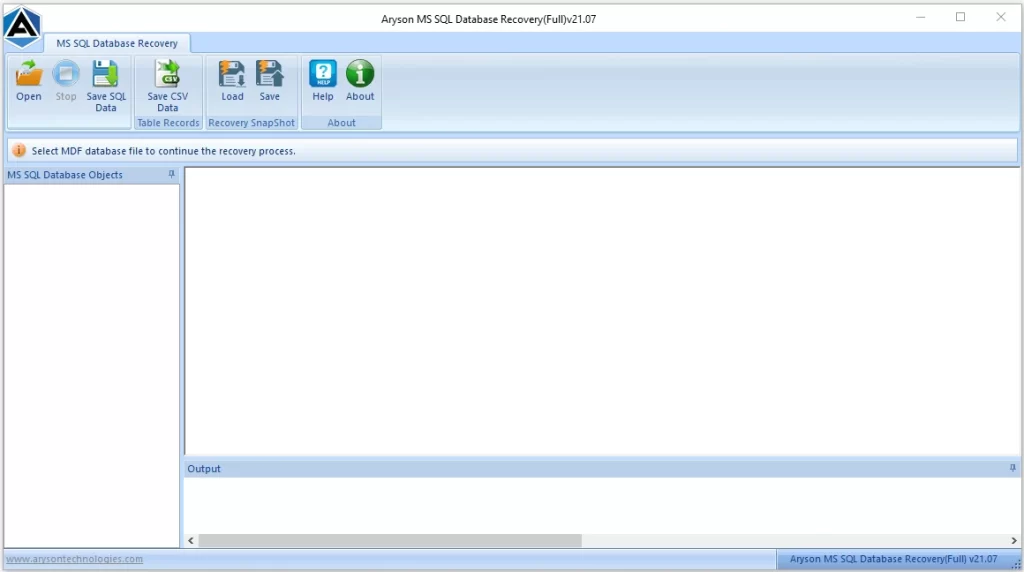
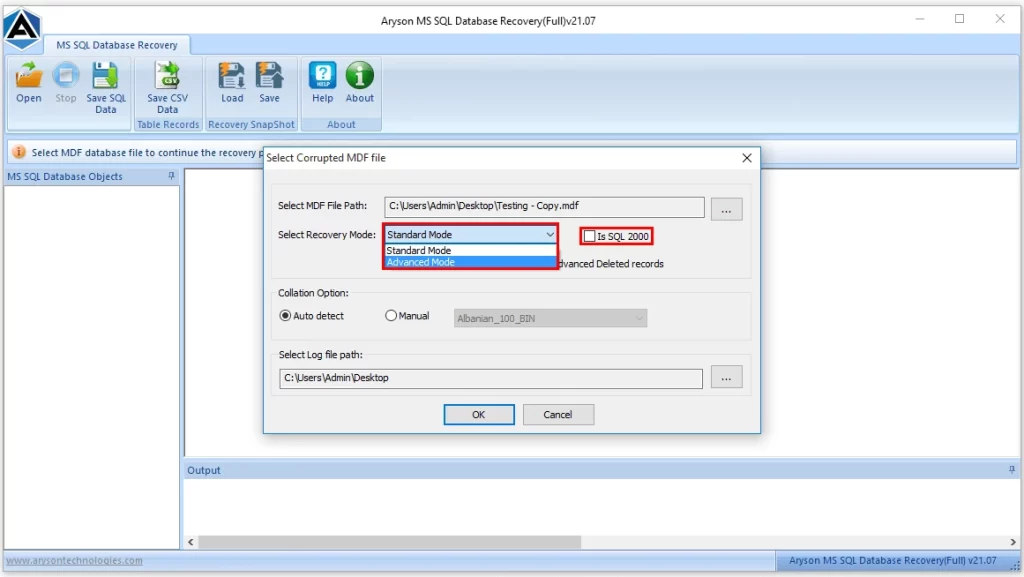
- Click Browse and select your corrupted MDF file.
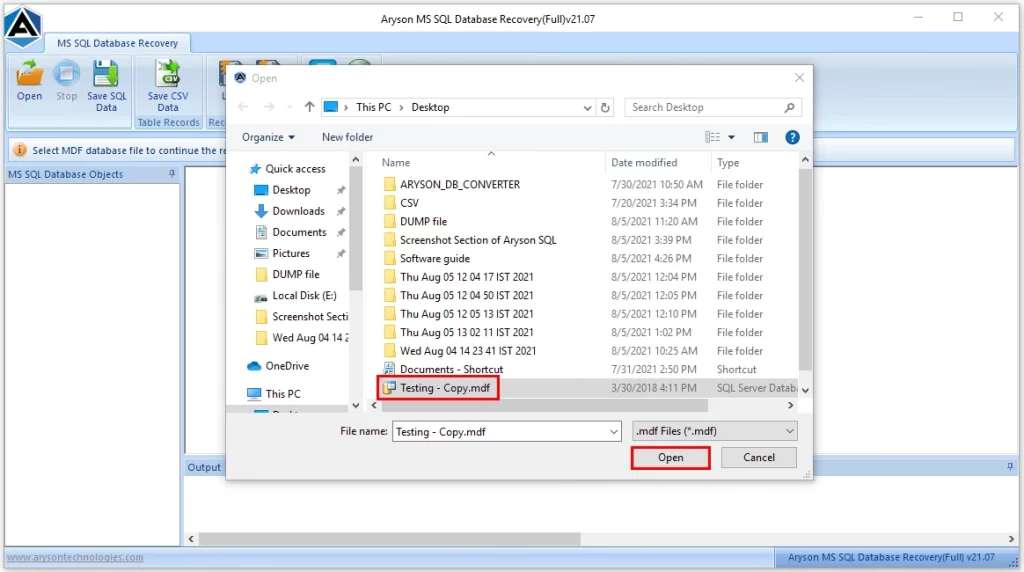
- Choose Standard or Advanced mode → then click Scan.
- Preview the recovered database objects.
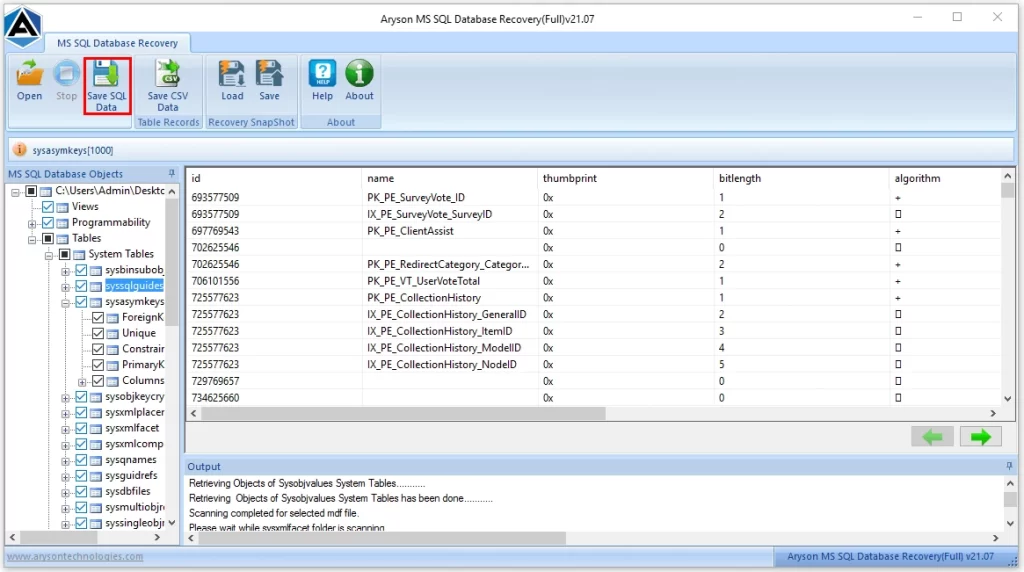
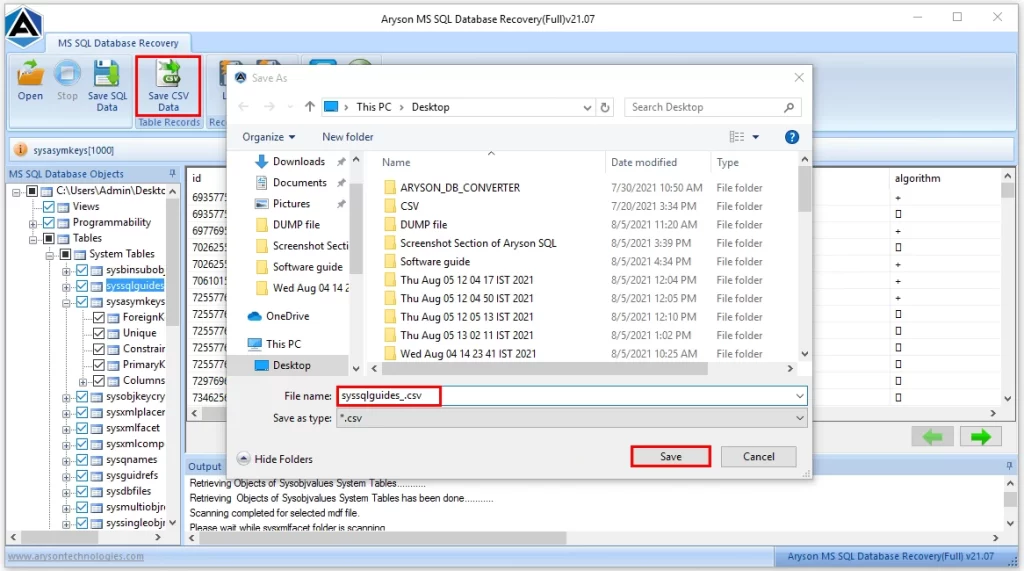
- Click Save SQL Data / Save CSV Data / Save as Excel or Script as per your need.
- Click OK to finish and restore your database.
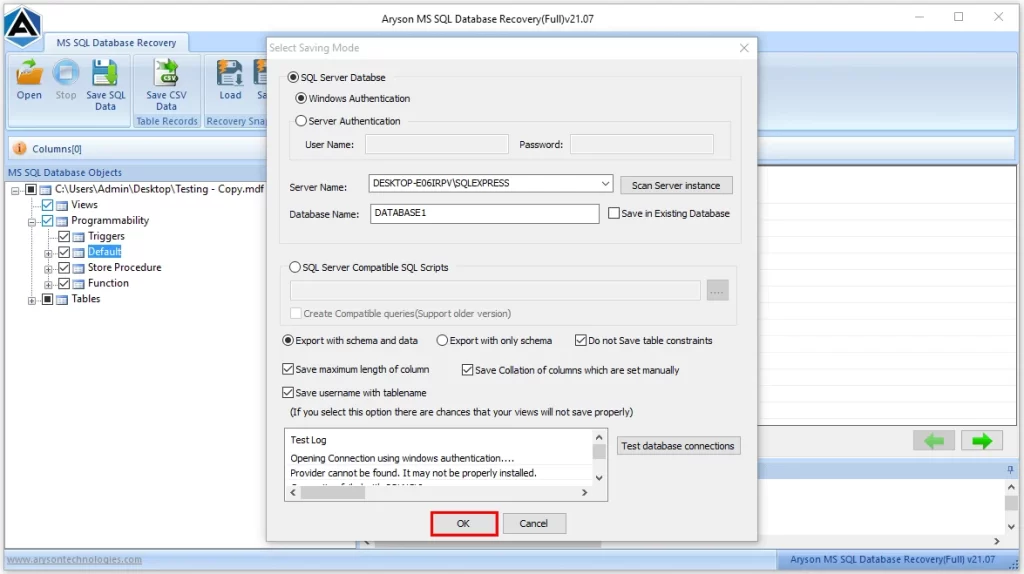
This software resolves your SQL Server Error 5171 and doesn’t just recover your database but also makes sure that all the objects present in it remain intact. Not just that, you can also resolve the MySQL Error 1064 using the same software.
Conclusion
As discussed above, the SQL Server Error 5171 appears when you try to access a corrupted database. Moreover, you can perform some of the manual fixes like creating a new database, running DBCC CHECKDB, and restoring from a backup. And, if none of them works, you can try the automated solution provided above to repair your corrupted MDF files and safely recover your database.
Frequently Asked Questions
Q.1 What causes SQL Server Error Code 5171?
Ans: It usually happens due to MDF file corruption, mismatched metadata, improper database handling, or compatibility issues between different SQL Server versions.
Q.2 Is Microsoft SQL Server Error 5171 related to hardware failures?
Ans: Yes, hardware failures such as bad sectors on a disk or power outages can damage MDF files and lead to this error.
Q.3 How can I prevent MS SQL Server Error 5171?
Ans: You can prevent this error by maintaining regular backups, avoiding manual copying of MDF/LDF files, keeping your SQL Server updated, and using reliable hardware.
Q.4 What is the best tool to resolve SQL Server Error 5171?
Ans: The DataRecoveryFreeware SQL Recovery Tool is one of the most effective solutions. It can repair corrupted files and recover all essential database objects.
Q.5 How do I fix SQL Server Error 5171 manually?
Ans: You can try creating a new database, running the DBCC CHECKDB command, or restoring from a backup. These methods work in mild corruption cases but may fail if the damage is severe.
Q.6 Can I recover data if I get SQL Server Error 5171?
Ans: Yes, recovery is possible. If backups exist, you can restore them. If not, a recovery tool can repair the MDF file and recover your data.
4.9 based on 1809 user reviewsAbout The Author:

Isha Singh is a content and website optimization expert who helps blogs and businesses grow organically. She specializes in enhancing content quality, improving site structure, and increasing online visibility through smart, practical, and easy-to-implement strategies that drive long-term results.
Related Post