-
Written By Rohan Wiese
-
Updated on December 29th, 2025
How To Fix Outlook Cleanup Not Working Issue
 4.9 based on 1809 user reviews
User Query: “Yesterday, I tried to clean my mailbox space because Outlook was constantly showing a “Mailbox Full” warning. But nothing happened, & I realized that my Outlook Cleanup not working. So, is there any secure way to resolve this issue?”
Overview: Is your MS Outlook also showing “Mailbox Full – Your mailbox is full, you may not be able to send or receive new messages” warning, and your Outlook Cleanup Not Working? . If yes, this blog is for you. Here, you will get multiple fixes to resolve the cleanup issue. You can try all these fixes and in case none of them work for you, you can use the DataRecoveryFreeware Outlook PST Recovery to fix the issue and get your data back.
What exactly is Mailbox Cleanup?
The Outlook mailbox Cleanup is a built-in feature provided by Microsoft Outlook, designed to manage the mailbox size of the user by:
- Deleting old or unnecessary emails.
- Removing data from Deleted Items and Junk folders.
- Archiving old messages to reduce mailbox clutter.
- Identifying large emails and attachments for removal.
This helps the user to free up some storage space, improve the performance of your Outlook application. This will eventually enable the user to effortlessly send/receive emails without any errors.
Why does Outlook Clean Up stop working?
Your Outlook Cleanup tool might stop working because:
- Your OST or PST files got damaged or corrupted.
- Cleanup stops running if your mailbox size limit has been reached.
- Your AutoArchive or retention settings are incorrect.
- Or there might be some Synchronization issues with Exchange or IMAP.
- You are using an Outdated or buggy version of Outlook.
To avoid this “Outlook Mailbox Cleanup Not Working” error, users can reduce Outlook Mailbox Size, delete unnecessary emails, and empty the Deleted Items and Junk folders.
Manual Fixes for Outlook cleanup troubleshooting
There are several manual methods to use when your Outlook Cleanup not working. Some of them are discussed below. Go through each of these methods for better results.
Fix 1: Restart Outlook and Your Computer
In case there is just a minor glitch affecting your MS Outlook Cleanup tool, a simple restart can resolve the issue. You just have to close Outlook >> reboot your computer >> and try the cleanup process again.
Fix 2: Run MS Outlook in Safe Mode
When you start MS Outlook in Safe Mode, the add-ins and customizations get disabled. In case the cleanup tool works fine in safe mode, it is evident that the problem was caused by the third-party apps only. To start Outlook in safe mode, follow the steps below:
- Firstly, Press Ctrl and click on the Outlook shortcut.
- In the dialog box, select Yes to start in Safe Mode.
If cleanup works in Safe Mode, disable add-ins one by one to identify which add-in is causing the issue.
Fix 3: Empty Deleted Items and Junk Folders
In Outlook, the deleted items and junk folders consist of several emails. Some of these might be corrupted or damaged. Eventually, they end up taking some storage space, which triggers the Outlook mailbox cleanup error.
To get rid of such emails:
- Go to the Deleted Items and Junk Email folders.
- Then, just Right-click and select Empty Folder.
Fix 4: Update or Repair Microsoft Office
If you are working on an outdated or corrupted version of MS Outlook, the working of the cleanup tool may be affected. To repair your MS Office, follow the steps below:
- First, Navigate to File tab>> Office Account >> Update Options >> Update Now to update.
- If issues persist, use the Repair option under Programs and Features.
Fix 5: Create a New Outlook Profile
In case your Outlook profile gets corrupted, it can cause various issues; the Outlook Cleanup Not Working issue is one of them. Therefore, the user must create a new Outlook profile
For creating a new profile:
- Go to Control Panel >> Mail >> Show Profiles >> Add.
- Then, set up a new profile and set it as the default.
Fix 6: Use the Inbox Repair Tool (ScanPST)
MS Outlook works with OST and PST files. When these files get corrupt or damaged, sometimes the cleanup feature of Outlook stops working. To fix the issue, use the Inbox Repair Tool, which is a built-in feature to repair such files. You just have to run the tool >> choose your Outlook data file >> and repair it.
Note: However, the above methods work very well; in case none of them works for you, you can proceed with the automated solution.
Automated Solution: DataRecoveryFreeware Outlook PST Recovery Tool
As we discussed above, damaged OST or PST files can be a reason why your Outlook Cleanup Not Working. That is why it is important to repair such files. But security and data integrity are major concerns; therefore, expert reommened to use the DataRecoveryFreeware Outlook PST Recovery Tool. This software allows you to effortlessly repair your corrupted PST files without any data loss. Moreover, it enables even non-technical users to easily repair their files within a few steps.
Some Exclusive Features of this Software
- This software can recover your data even from encrypted PST files.
- Moreover, it supports multiple file formats like MBOX, EML, MSG, and DBX.
- Also, it keeps the original directory structure, data, & attachments intact.
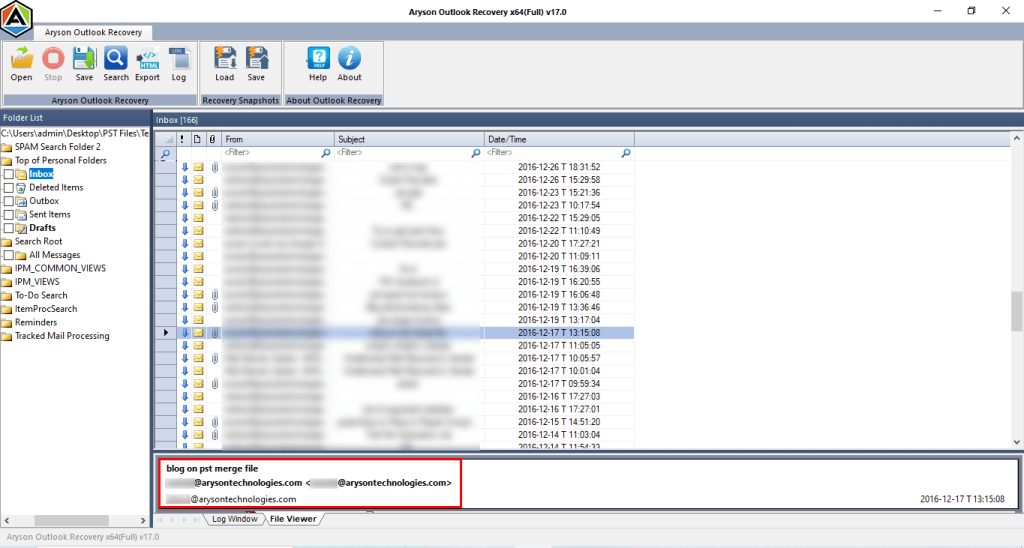
- Even you can also preview the files before recovery.
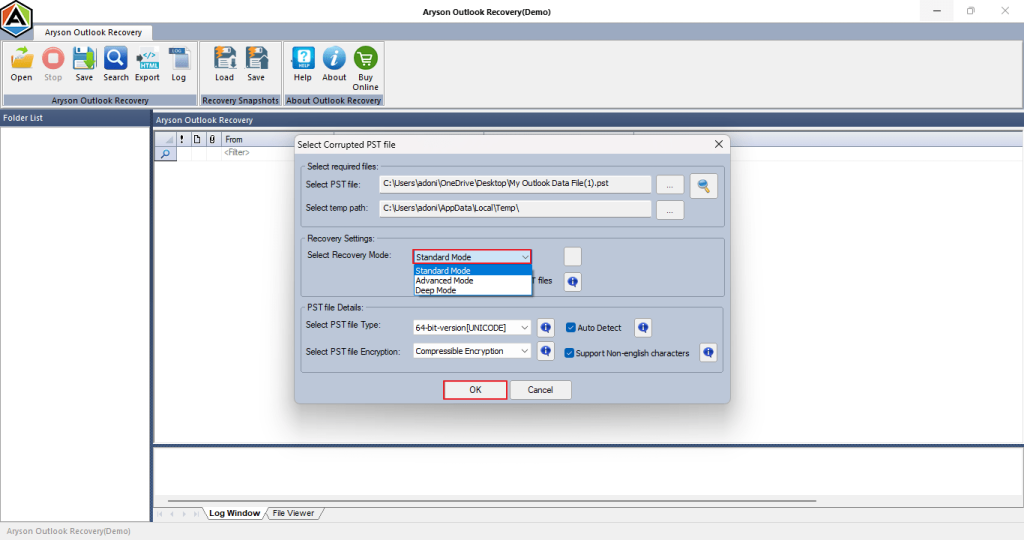
- Additionally, it has 3 different modes for recovery.
- It is compatible with almost all versions of the Windows operating system.
Steps to repair the PST file using the software:
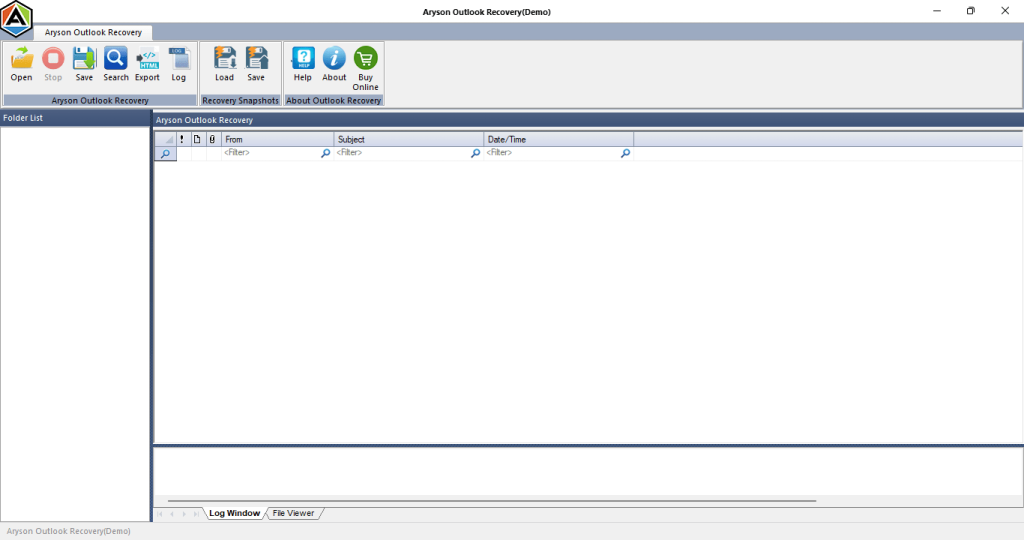
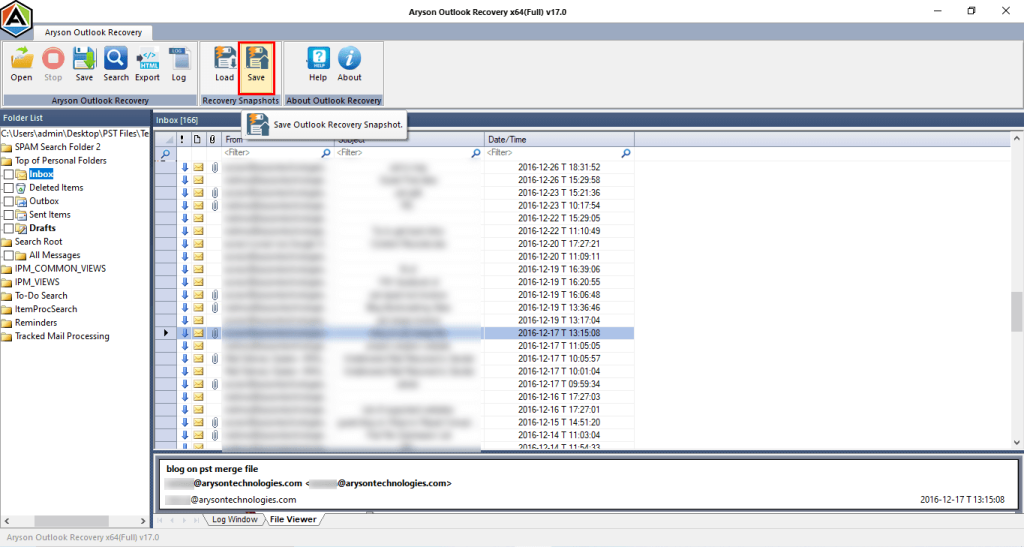
- Download and open the Outlook PST Recovery Tool.
- Then, choose the desired PST file and mode of scanning.
- After that, preview the displayed emails and attachments before recovery.
- Now, simply click the Save button to save the repaired files.
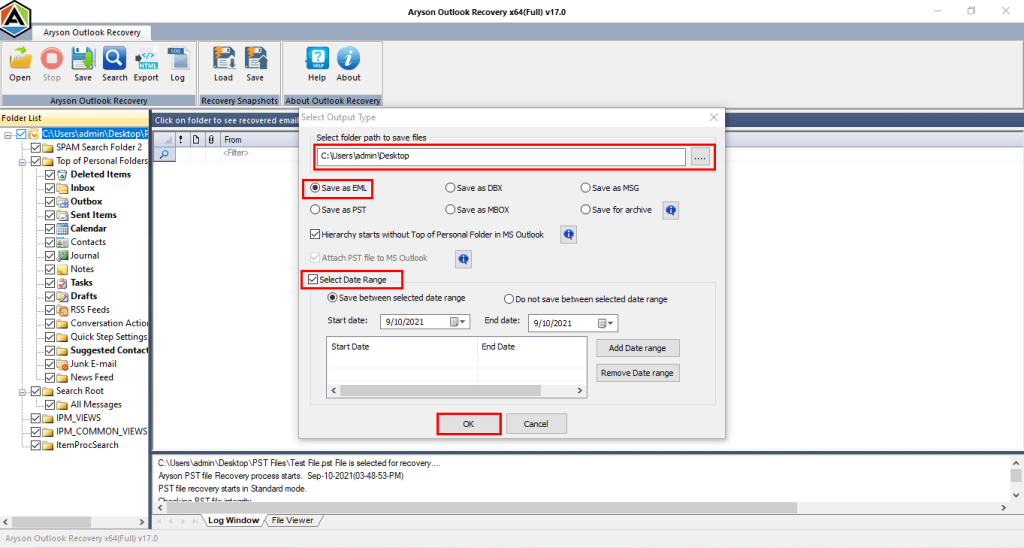
- Next, select the saving format >> adjust some settings >> OK.
Let’s sum it up
In short, if your Outlook Cleanup Not Working, it might be because of a damaged OST/PST file, an add-in interference, improper settings, etc. But it becomes important to fix this issue to work effortlessly with Outlook. To fix this issue, users should try restarting. Running Outlook in safe mode, using the updated version of Outlook. This will only resolve the issue, but in case it doesn’t, you can use the automed software for secure recovery of PST files.
Read More: Outlook Error Could Not Send the Message
Frequently Asked Questions
1. Why is Outlook Cleanup not deleting old emails?
Ans- If your Outlook mailbox cleanup not freeing up space, it can be due to corrupt PST files, incorrect cleanup settings, interference from add-ins, corrupted Outlook profile.
2. How can I free up space if Outlook Cleanup isn’t working?
Ans- You can manually delete large or old emails, empty the Deleted Items and Junk folders, and consider archiving old messages.
3. What causes Outlook mailbox cleanup errors?
Ans- Common causes for Outlook mailbox cleanup error include corrupt data files, outdated Outlook versions, conflicting add-ins, and corrupted Outlook profiles.
4. Can a corrupt PST file prevent Outlook Cleanup from working?
Ans- Yes, a corrupt PST file can hinder cleanup operations. The Inbox Repair Tool can help fix minor corruptions, but if the file is severely corrupted, you can use the automated solution for secure recovery.
5. Are there alternatives to Outlook Cleanup to reduce mailbox size?
Ans- Yes, you can manually delete unnecessary emails, archive old messages, and use the above automated solution for reducing the mailbox size.
4.9 based on 1809 user reviewsAbout The Author:

Rohan Wiese is a content and website optimization expert who helps blogs and businesses grow organically. He specializes in enhancing content quality, improving site structure, and increasing online visibility through smart, practical, and easy-to-implement strategies that drive long-term results.
Related Post