-
Written By Rohan Wiese
-
Updated on March 12th, 2026
Easy Ways To Fix Outlook Working Offline Issue In Minutes
 4.9 based on 1809 user reviews
User Query: “My Outlook has not connected to the Internet and has displayed the ‘Outlook Working Offline Issue.’ I am unable to send or receive any emails. It has been hours, and I have no idea why.”
Overview: You can use the Microsoft Outlook service in Working Offline mode. This means you can still access your mailbox on the Outlook application even without an internet connection. However, the problem arises when your system is connected to the internet and Outlook is still stuck in offline mode. This could be due to the network issues, using an outdated profile, or data files that could be corrupted. If that happens, users will be unable to send or receive any new emails, causing communication to be delayed for a long time. Therefore, to repair the corrupted PST file, users can use the Outlook PST Repair Tool. In this blog, we will look through both manual troubleshooting steps and repairs to fix the issue of Outlook Working Offline in just a few minutes.
Why Does Outlook Stay in Offline Mode?
Outlook can go into offline mode for many reasons. Common reasons include:
- Accidentally enabling the Work Offline setting – Users will click Work Offline in the Send/Receive tab without realizing it, which puts Outlook into offline mode.
- Unstable or disconnected internet connection – A poor connection will stop Outlook from connecting to the mail server.
- Outlook Data Files (OST/PST) are corrupt – If the data files are corrupted, then Outlook may not be able to sync.
- Add-ins or earlier versions of Outlook – An unstable add-in or an earlier version of Outlook may restrict you from connecting
- Antivirus/firewall – Sometimes security programs prevent Outlook from connecting to the internet
Once you determine the cause, it will make it easier to solve Outlook stuck in working offline mode.
5 Quick and Effective Ways to Fix the Outlook Working Offline Issue
Let’s now go through some tested methods to bring Outlook back online safely.
Method 1: Fix Outlook Working Offline Problems
Often, Outlook goes into offline mode if the user has set the option manually. Follow the steps below to turn it back on.
- Open Microsoft Outlook.
- Click on the Send/Receive tab.
- See if the Work Offline button is highlighted.
- If it is, click it once to return to the online mode.
- You should now see the word “connected” or “connected to exchange” at the bottom on the status bar.
Note: This is the easiest fix available and is useful in most situations when Outlook was put in offline mode mistakenly.
Method 2: Check Your Internet Connection
Before attempting any more complicated resolutions, please make sure your system is connected to the Internet.
- You can do this by opening your browser and attempting to visit any website.
- If you are unable to connect to your internet connection, restart your router or switch networks, if possible.
- You may also want to temporarily disable any VPN or proxy servers that may inhibit Outlook from working properly.
- If the internet connection is established, but Outlook is not online, please proceed to the next step.
Method 3: Solve Work Offline Outlook Not Working
When the data files on Outlook (.OST or .PST) are corrupted, it can affect synchronization. Follow these steps to repair the .PST file manually:
- First, quit Microsoft Outlook altogether because you do not want any background processes that interact with the data files.
- Next, you need to locate the ScanPST.exe tool (also known as the Inbox Repair Tool) on your system.
- Once you open this tool, you will specify that the tool is looking for your Outlook data file (.pst).
- After doing this, click the Start button to scan the items for the scan, as indicated by the tool, and repair any items that it detects.
- When the item scan process is completed, open Outlook and check if Outlook re-establishes a connection to the server or not.
Disadvantage: ScanPST can only repair minimal corruption. If the data file is highly damaged, you may need professional software to repair the Outlook files.
Method 4: Update or Reconfigure Your Outlook Profile
A corrupt Outlook profile can also be fixed when Outlook Stuck in Working Offline Mode. To resolve this concern, do as follows:
- To begin with, open the Control Panel and navigate to Mail > Show Profiles.
- Next, select your existing Outlook profile and click Remove to delete it.
- After that, click Add, enter your account credentials, and create a new Outlook profile.
- Once done, restart Outlook and check if it connects to the mail server successfully.
Additional Note: If all the above manual methods do not fix the Outlook Working Offline Issue, the reason can be a corrupted or damaged PST (Outlook Data File) or an oversized PST file. A corrupted PST file can cause Outlook not to sync with the mail server, keeping Outlook offline. It is highly advised to repair the Outlook data file so that it runs smoothly again.
Method 5: Use an Automated Tool for Advanced Outlook Repair
The Aryson Outlook PST Repair Tool is a way to substitute for ScanPST.exe when you have Outlook data files that are damaged, corrupted, or otherwise do not open successfully, or not at all. The same capabilities apply if you face an error from Outlook (“Outlook Working Offline Issue”) or if the program has simply hung up and will not respond. The least the program can do is facilitate some recovery of the corrupt PST file, which gives the user a means to recover the stability of their Outlook application. It may even allow them to get back to work in a timely manner.
Key Advantages:
- Securely repairs both PST and OST files.
- Outlook has stopped working, and other errors can also be fixed.
- Recovers emails, attachments, contacts, and calendars.
- Compatible with all versions of Outlook, including 2021 and 365.
- Keeps folder structure and metadata integrity.
- Does not need a considerable amount of technical know-how.
Outlook Offline Mode Troubleshooting with the Outlook Software
- To begin with, download the Outlook PST Repair Tool on your Windows computer.
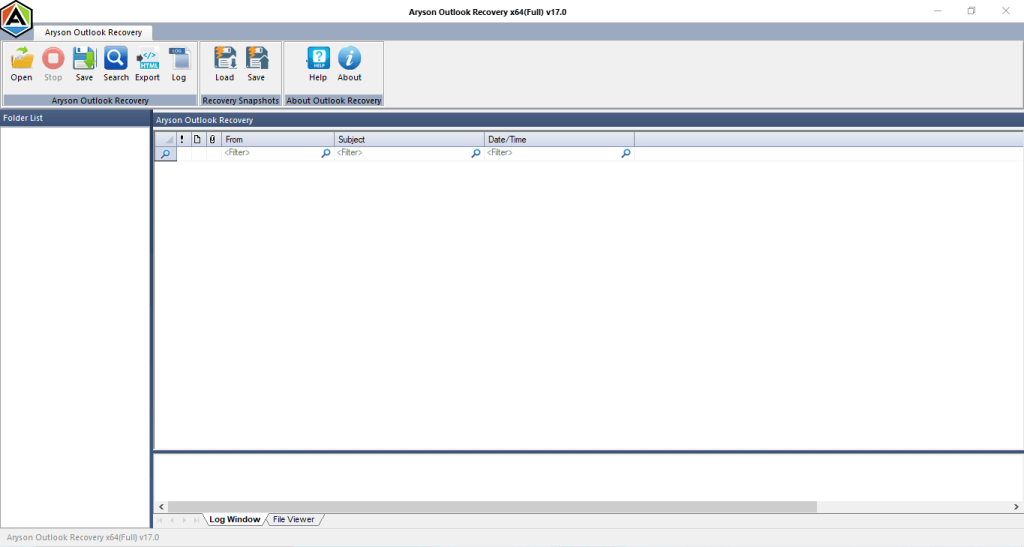
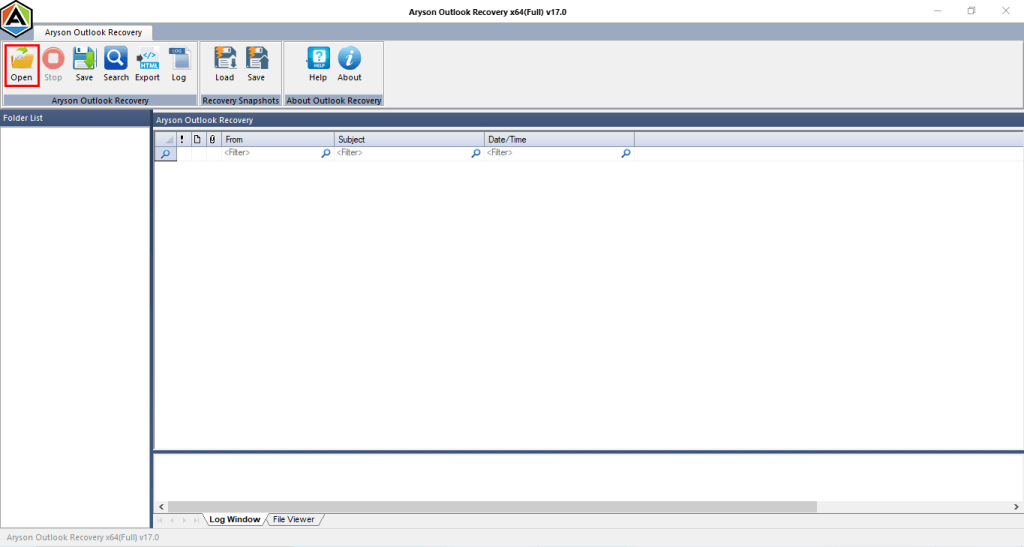
- Next, click on the Open button to browse and select your corrupted PST file.
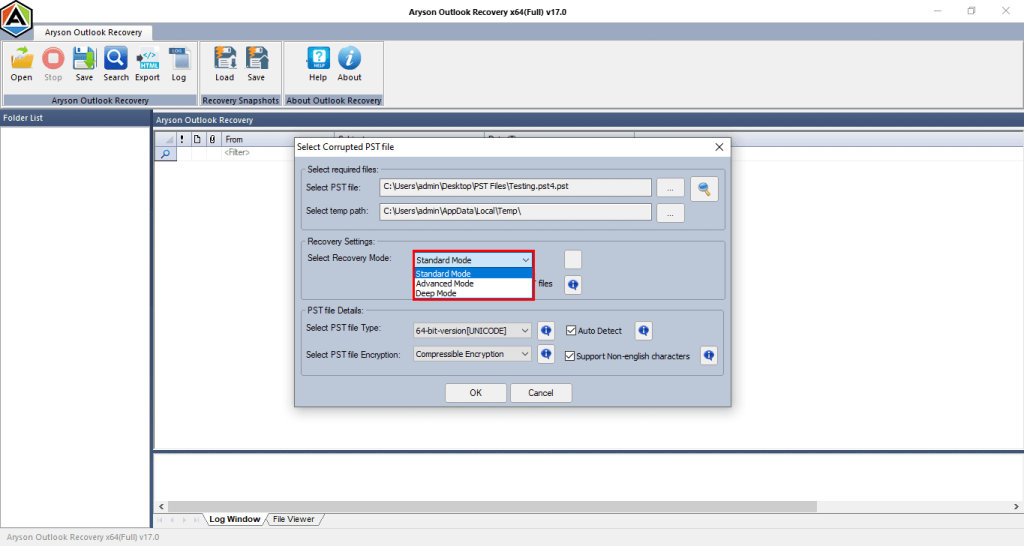
- Next, select an appropriate Recovery Mode:
- Standard
- Advanced
- Deep
- Preview of all recoverable items, which include emails, contacts, calendars, and attachments.
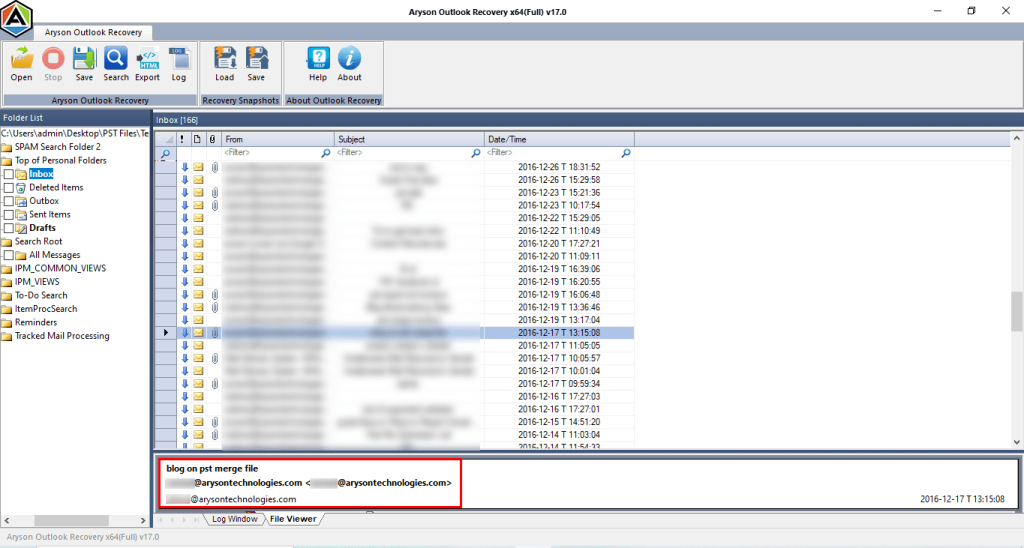
- Then, simply click Save and select the output file format.
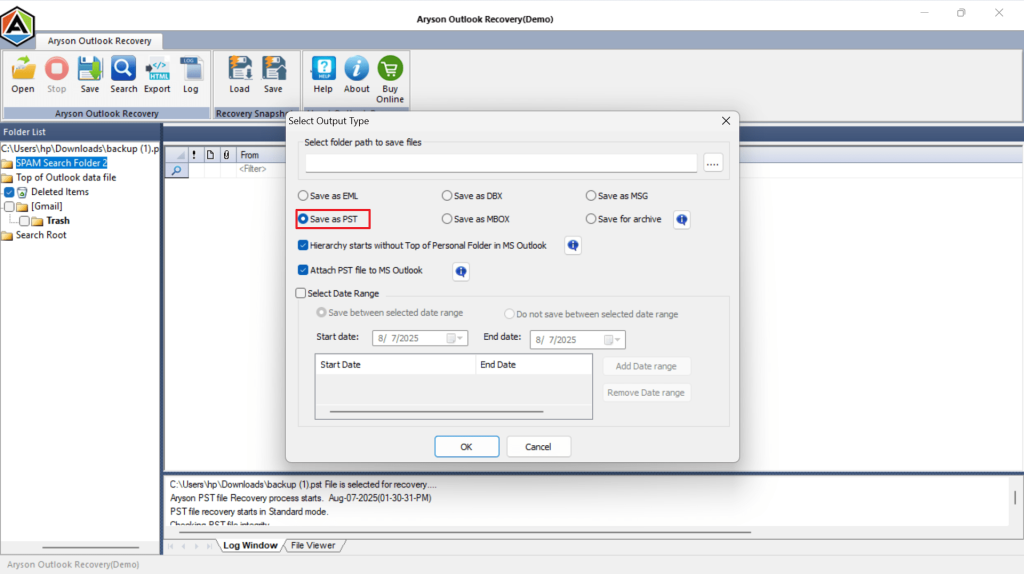
Conclusion
To summarize, the issue of Outlook working in offline mode generally results from misconfiguration problems or damaged data files. You may resolve the problem either by disabling the offline mode, or by repairing the Outlook files, or by creating a new profile. If these suspected solutions do not resolve the issue, you can attempt to use an automated Outlook repair tool that immediately restores the Outlook connection while ensuring you retain complete safety of data.
Frequently Asked Questions
1. What does “Working Offline” mean in Outlook?
Ans: It means Outlook isn’t connected to the mail server. You can still view existing emails, but new emails won’t be sent or received until Outlook goes online.
2. How do I troubleshoot Outlook offline mode?
Ans: You can disable “Work Offline” mode from the Send/Receive tab, check your internet, repair Outlook data files, or recreate your profile.
3. Will emails be lost if Outlook is offline?
Ans: No. When Outlook is offline, your emails stay stored locally and will sync automatically once you reconnect.
4. Why does Outlook keep switching to offline mode?
Ans: This can happen due to unstable internet, corrupted data files, outdated profiles, or incorrect network configurations.
5. Can antivirus or firewall settings cause Outlook offline issues?
Ans: Yes. Some antivirus programs or firewalls may block Outlook’s server connection. Try temporarily disabling them to check if the issue resolves.
6. How can I fix Outlook Working Offline problems quickly?
Ans: Start by turning off “Work Offline” mode, checking your internet connection, and repairing data files. If the issue persists, use an advanced Outlook repair tool to fix it safely.
4.9 based on 1809 user reviewsAbout The Author:

Rohan Wiese is a content and website optimization expert who helps blogs and businesses grow organically. He specializes in enhancing content quality, improving site structure, and increasing online visibility through smart, practical, and easy-to-implement strategies that drive long-term results.
Related Post