-
Written By Rohan Wiese
-
Updated on March 12th, 2026
How to Fix Outlook Error 0x80040154 — A Complete Guide
 4.9 based on 1809 user reviews
User Query: “Yesterday, when I was trying to send or receive emails in Outlook, it kept showing the Outlook Error 0x80040154. I tried to restart my system, but it didn’t resolve the issue. Why is this issue occurring again, and how can I fix it?”
Overview: Users often encounter the Error of Code 0x80040154 in Outlook, which displays the message “Class not registered.” This error usually appears when Outlook or one of its essential components (DLL files) is missing or not properly registered. This error disables the user from sending or receiving emails, which they used to do before. Therefore, it becomes essential to fix the 0x80040154 error for an efficient workflow. Hence, this write-up is written to introduce users to various possible fixes, along with the DataRecoveryFreeware Outlook PST Recovery software, to resolve the 0x80040154 Error in Outlook.
Causes of Outlook Error 0x80040154
To resolve the Error with Code 0x80040154 in Outlook, it is very important to know why it appears. Some of the reasons for this error are as follows:
- An incomplete Outlook/Office installation can result in this error.
- Your system’s DLL files (e.g., msoutl.olb, olmapi32.dll) might be missing or unregistered.
- The user’s Outlook Add-ins are faulty or incompatible.
- A damaged Outlook or Windows user profile can also trigger this error.
- Sometimes it appears because of incomplete Windows or Office updates.
- Corrupt PST files may also cause this Outlook issue.
How to Fix Error Code 0x80040154 in Outlook
There might be different reasons for the Outlook: an unexpected error has occurred 0x80040154. For each cause, there will be a different solution. Users can try any of the following methods to resolve this error. Still, if none of the fixes help them, they can use the DataRecoveryFreeware tool.
Fix 1: Repair Outlook Configuration Using Microsoft Support and Recovery Assistant
Even misconfigured account settings or damaged Outlook components can cause the Outlook Error 0x80040154. Users can easily fix such issues using the Microsoft Support and Recovery Assistant (SaRA) tool.
- Visit the official Microsoft website and download the Support and Recovery Assistant (SaRA) software.
- Open the software and select Outlook from the listed Microsoft products.
- Choose the issue you are facing (e.g., “Outlook won’t start” or “Problems sending/receiving emails”).
- After that, repair your Outlook configuration by following the instructions appearing on screen.
Fix 2: Run Outlook in safe mode to disable conflicting add-ins / external programs
Outlook sometimes encounters issues because external programs, such as Outlook Add-ins or antivirus programs, can conflict with Outlook’s regular operations, particularly external programs. Users can run Outlook in Safe Mode to easily identify whether these are the cause of Outlook Error 0x80040154.
- Use the Windows + R shortcut keys to open the Run dialog box.
- After that, type outlook.exe /safe and press Enter.
- In case the MS Outlook application starts successfully in Safe Mode, go to:
File >> Options >> Add-ins >> COM Add-ins >> Go
- Now, untick all Add-ins enabled and restart Outlook.
- After that, re-check each Add-in one at a time to find which one is causing the problem.
Note: In case disabling Add-ins doesn’t work for you, temporarily turn off the antivirus or firewall software and check if Outlook works properly.
Fix 3: Re-register the Missing ‘inetcomm.dll’ File in Windows.
A missing or unregistered inetcomm.dll file can also affect the proper working of MS Outlook, resulting in the “Class not registered” error. Users can re-register their files to restore Outlook’s communication with Windows components.
- Use the Windows + R shortcut to open the Run dialog.
- Type the command below and press Enter:
| regsvr32 inetcomm.dll |
- This will re-register your DLL files successfully.
- Now, restart your system to check whether the issue has been resolved.
Fix 4: Fixing the Corrupt PST Files Causing the Unknown Error 0x80040154
Even a corrupt PST file can cause the Outlook Error 0x80040154. Therefore, you can repair these corrupted PST files easily, using the DataRecoveryFreeware Outlook PST software to resolve the 0x80040154 error. This software enables new users to repair corrupt PST Files in Outlook without data loss. Further, it maintains intact folder structures during the recovery process. It also provides a built-in preview of the files being recovered, which is accurately displayed. This software also supports three advanced recovery modes for various levels of corruption.
Below are Quick Steps to Repair corrupt PST files:
- First, install and start the Outlook PST Recovery software on your current PC.
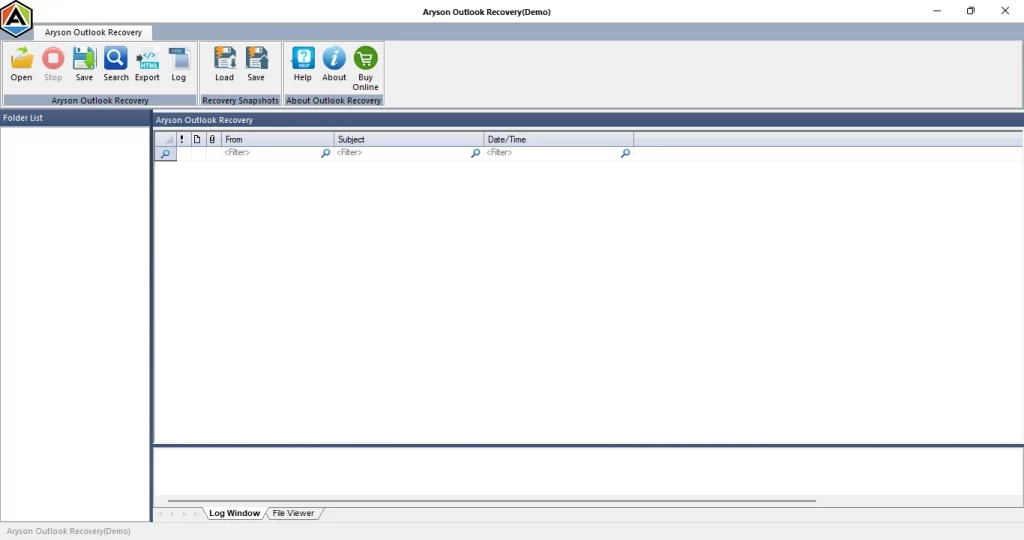
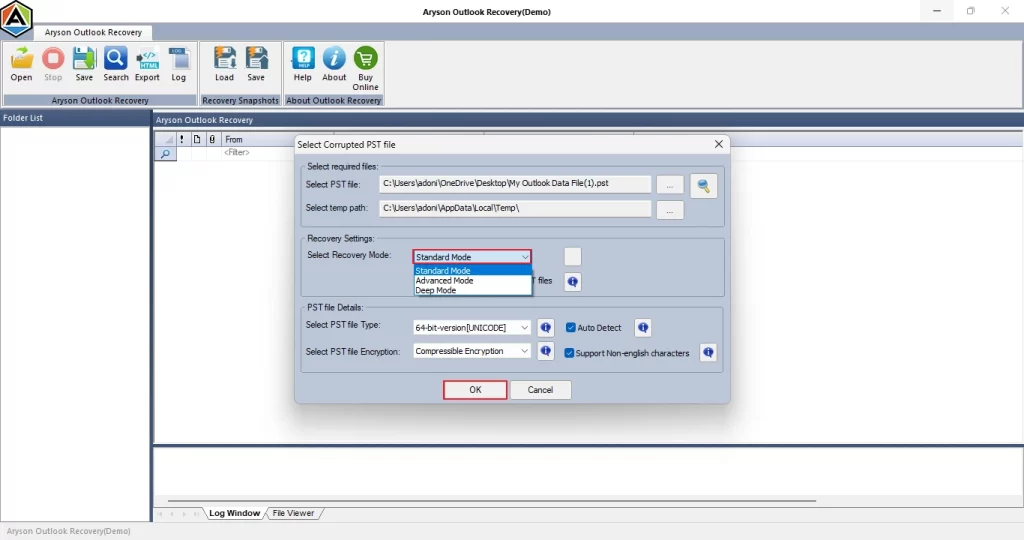
- Now, open and select the PST file you want to repair, then select a scan mode.
- After scanning is complete, preview your recovered emails and attachments.
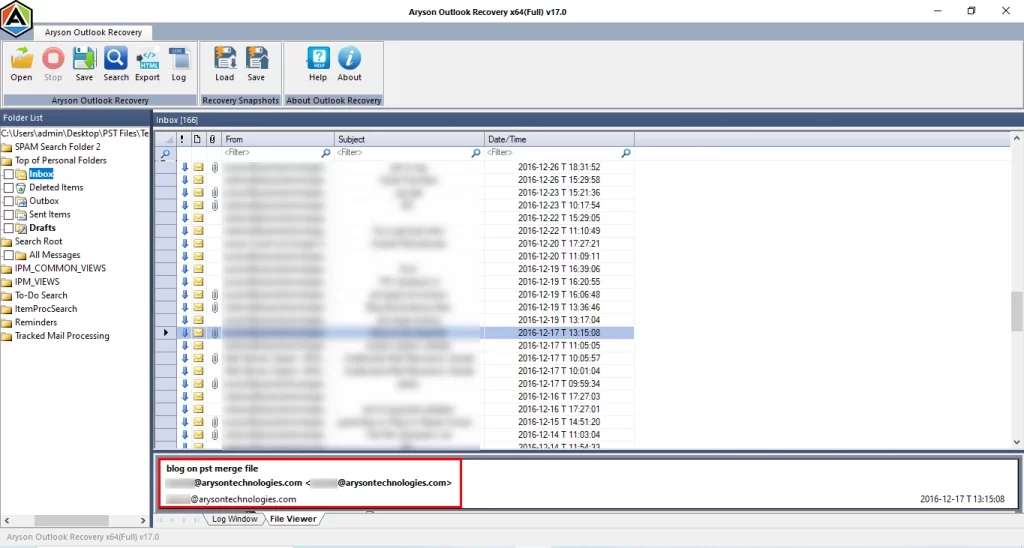
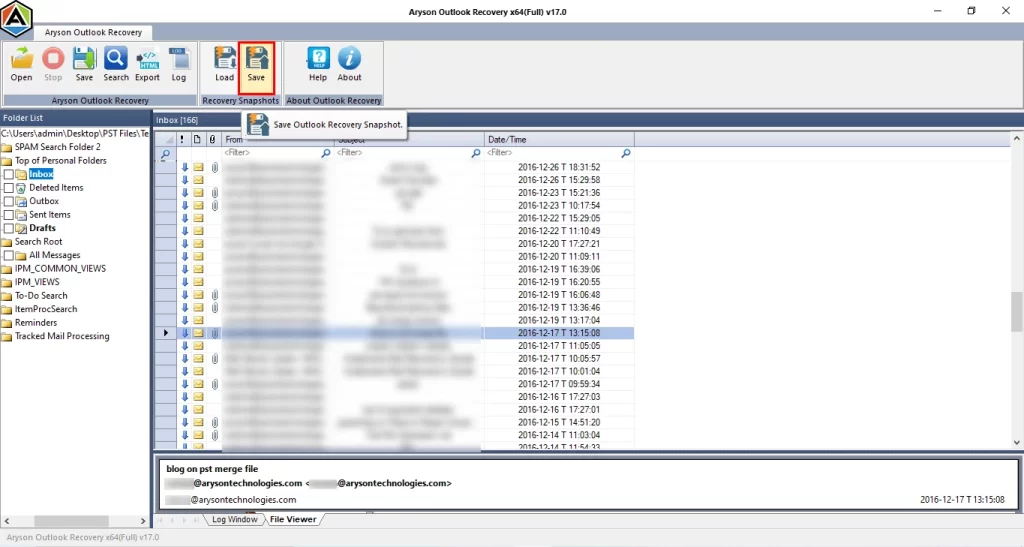
- Next, click on the Save option to extract the PST files you recovered.
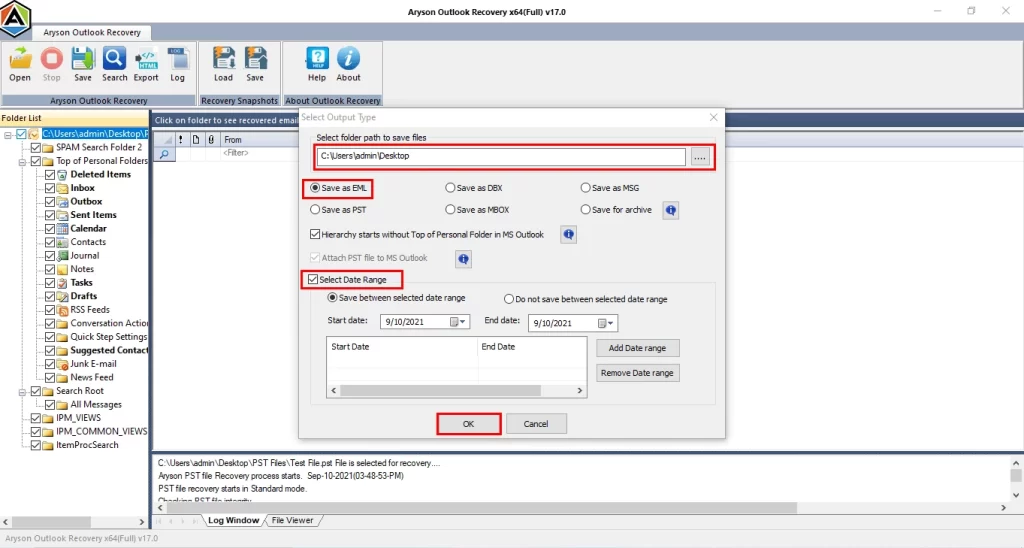
- Finally, select your format type for the saved file, apply settings, and then click OK
Conclusion
Outlook Error 0x80040154 can affect your workflow as it restricts Outlook from receiving or sending emails. This error is usually caused by unregistered DLL files, faulty Add-ins, or configuration issues. You can use the Microsoft Support and Recovery Assistant, Safe Mode, or re-registering the inetcomm.dll file, methods to quickly resolve the 0x80040154 Error. If the error persists, use the automated software to repair Outlook files and fix 0x80040154 error in outlook.
Read More: Outlook keeps asking for Password
Frequently Asked Questions
Q-1: What causes Error Code 0x80040154 in Outlook?
Ans- Outlook Unknown Error Code 0x80040154 can be caused due to:
1. Incomplete Outlook/Office installation
2. Corrupt Outlook profiles/PST files.
3. Missing/unregistered DLL files.
4. Incomplete Windows or Office updates.
Q-2: Can corrupt PST files cause Outlook Error 0x80040154?
Ans- Yes, corrupt PST files can cause the Outlook Error 0x80040154, which can be repaired using the DataRecoveryFreeware PST Recovery Tool.
Q-3: How do I repair a corrupt PST file in Outlook?
Ans- You can easily repair the corrupt PST files using the DataRecoveryFreeware Outlook PST Recovery tool. Steps to repair are as follows :
1. Open Outlook PST Recovery software on your PC.
2. Select the PST file and choose the desired scanning mode.
3. Preview recovered emails and attachments after scanning.
4. Click Save to export the repaired data.
5. Choose the output format, adjust settings, and click OK to finish.
Q-4: Is Outlook Error 0x80040154 permanent?
Ans- No, Outlook Error 0x80040154 is not permanent. It usually occurs due to missing or unregistered DLL files, a corrupt PST file, or faulty add-ins.
Q-5: Can reinstalling Outlook fix Error 0x80040154?
Ans- Yes, reinstalling Outlook can often fix Error 0x80040154 by restoring missing or corrupted program files and re-registering essential Outlook components required for smooth operation.
4.9 based on 1809 user reviewsAbout The Author:

Rohan Wiese is a content and website optimization expert who helps blogs and businesses grow organically. He specializes in enhancing content quality, improving site structure, and increasing online visibility through smart, practical, and easy-to-implement strategies that drive long-term results.
Related Post