-
Written By Rohan Wiese
-
Updated on January 24th, 2026
How To Resolve SQL Server Error 26 Connection Issues Quickly
 4.9 based on 1809 user reviews
SQL Server Error 26 is a common connectivity issue that occurs when an application cannot establish a connection to the SQL Server interface. The full error message usually shows as “SQL Network Interfaces: Error 26 – Error Locating Server/Instance Specified.” This problem mostly occurs due to incorrect instance names, disabled network protocols, or network configuration issues. In this blog, we will explain about SQL Server 26 and several approaches that address the error solution. This solution helps you to resolve the error, including the Data Recovery Freeware SQL Recovery Tool, that provide secure and smooth recovery.
What is SQL Error 26?
SQL Server Error 26 indicates that the client system cannot find the SQL Server instance that they are trying to connect to. Moreover, this error happens before the authentication, which means the server connection request never reaches the SQL Server service. You may see this error while:
- You connect to SQL Server Management Studio (SSMS).
- When you connect from a web application.
- To access SQL Server from a remote machine.
Common Causes of SQL Server Error 26
Basically, several reasons trigger Microsoft SQL Server Error 26, including:
- When you enter an incorrect SQL Server or instance name.
- Moreover, this error occurs when the SQL Server Browser Service is stopped.
- When the TCP/IP or Named pipes are disabled.
- The firewall is blocking SQL Server ports and a wrong connection string.
- Furthermore, when the remote connections are disabled on your server.
Common Scenarios Where SQL Error 26 Appears
- When you connect to a named instance.
- Connect to SQL Server from a remote system.
- When you migrate SQL Server to a new server.
- Change firewall or network settings.
- After SQL Server reinstallation or upgrade.
Solution to Resolve the Microsoft SQL Server Error 26
One by one, we will discuss the solution for each error. Analyse your server issue and perform the steps to resolve the error.
Fix 01: Verify your SQL Server Instance Name
However, an incorrect instance name is one of the most common reasons for error 26 in SQL Server.
- First, open SQL Server Configuration Manager
- Then, go to SQL Server Services
- Finally, confirm the instance name (e.g., MSSQLSERVER or SQLEXPRESS)
Make sure the same name is used in your connection string.
Fix 02: Enable SQL Network Interfaces (TCP/IP & Named Pipes)
Disabled network protocols can cause SQL Network Interfaces – Error 26.
- Open SQL Server Configuration Manager
- Go to SQL Server Network Configuration
- Select Protocols for your instance
- Enable TCP/IP and Named Pipes
- Restart the SQL Server service
Fix 03: Start SQL Server Browser Service
For named instances, the SQL Server Browser service is required.
- To begin, open your SQL Server Configuration Manager.
- After that, click SQL Server Services.
- Then, locate SQL Server Browser.
- Now, set Startup Type to Automatic.
- At this stage, you have to start the service.
Fix 04: Allow SQL Server Through Firewall
Firewall restrictions often cause SQL Server Error 26 for remote connections.
- Firstly, you have to open TCP port 1433 (default instance).
- Then, allow SQL Server Browser (UDP port 1434).
- Now, you have to add sqlservr.exe to the firewall exceptions.
Fix 05: Enable Remote Connections in SQL Server
If the remote access is disabled, SQL Error 26 can occur.
- First, open SQL Server Management Studio on your system.
- Then, right-click the server >> Properties.
- Go to Connections and then enable Allow remote connections.
- Then, restart the SQL Server.
Fix 06: Check SQL Server Service Status
Make sure the SQL Server is running properly.
- Now, Open Services.
- After that, confirm the SQL Server service is running.
- Lastly, restart the service if needed.
Fix 07: Verify Connection String
If you enter an incorrect connection string, then it triggers Microsoft SQL Server error 26.
See the correct format:
Server = ServerName\InstanceName:Database = DBName;Trusted_Connection = True;
Before proceeding further, double-check: Server name, Instance name, and Authentication method.
Fix 08: Use Automated Software SQL Network Interfaces: Error 26
If you are having corrupt files, then use this automated method. The Data Recovery Freeware SQL Recovery Software is reliable for all types of repair, including SQL Server Error 26. This software helps users to repair all types of major and minor errors. Its advanced scanning option helps to analyse and repair all the corrupt and damaged files. To know how this software works to resolve the SQL Network Interfaces – Error: 26 – Error Locating Server/Instance Specified.
Simple Steps to Resolve Error 26 SQL Server
- To initiate the process, download and install the SQL Recovery Software on your computer.
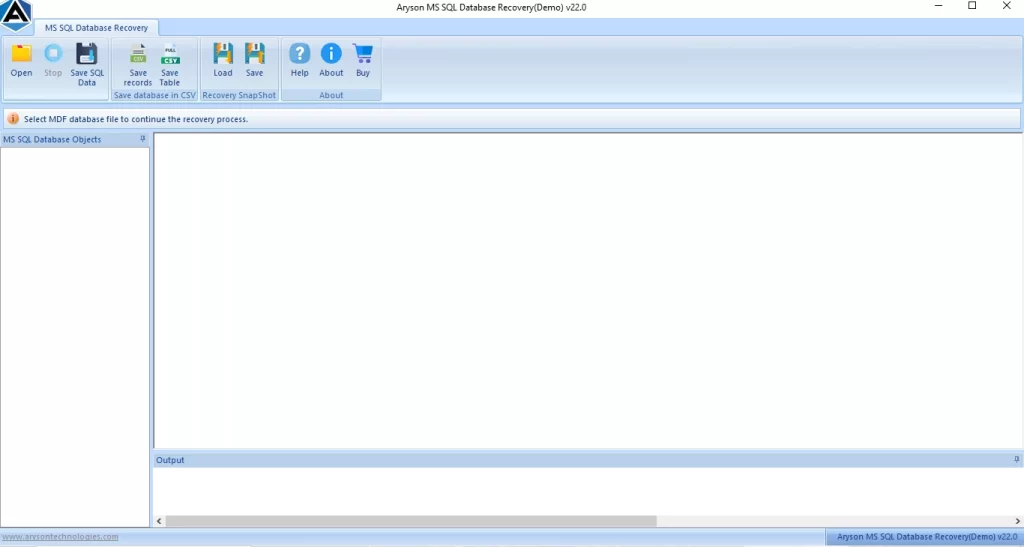
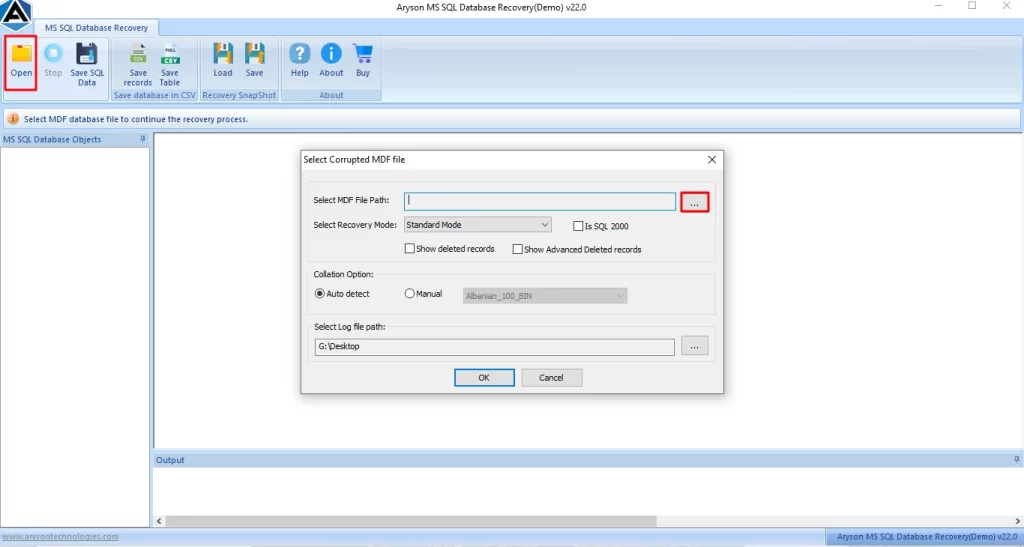
- After that, from the menu bar, click on Open and browse the .mdf files.
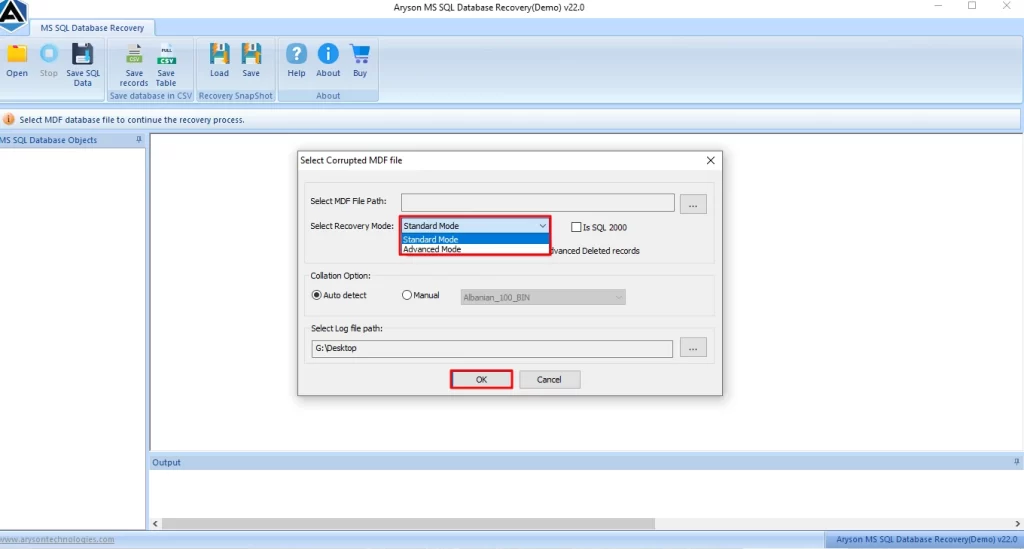
- Then, select the Standard and Advanced recovery modes to recover files, and click Ok.
- Now, you can preview the scanned folders, and attachments in tabular form.
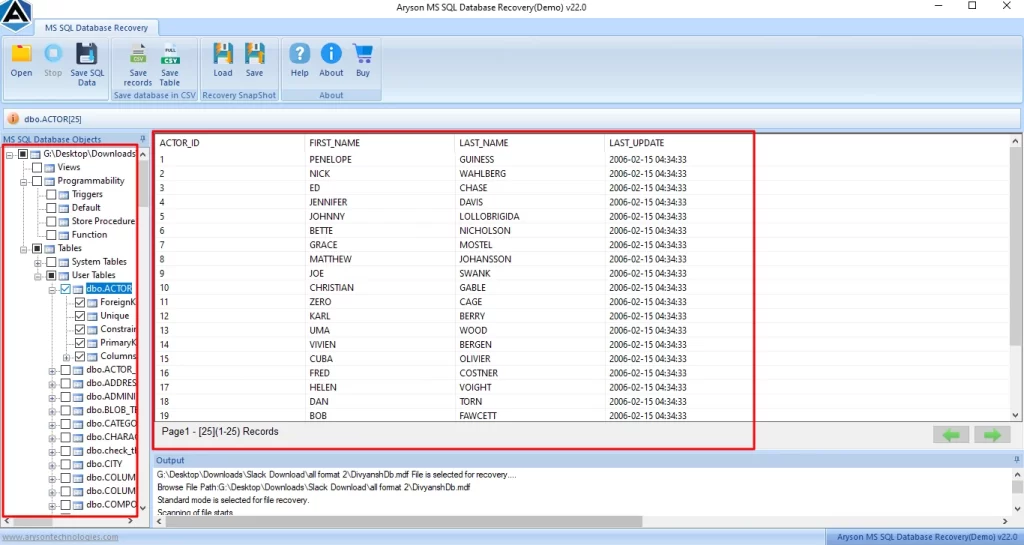
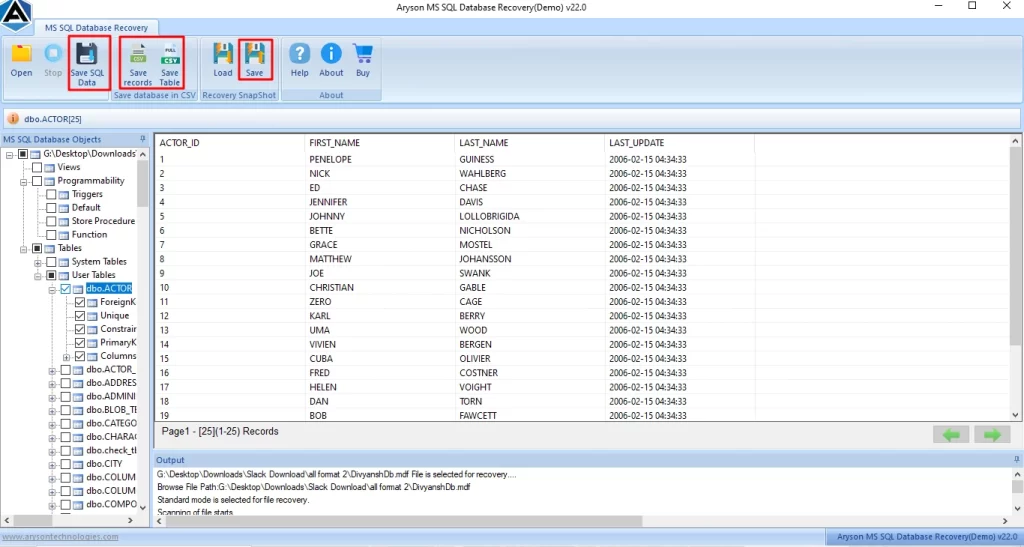
- At last, click on Save from that to save your recovery files.
Important Note: If you encounter the SQL Server Error 1814, then you can go through this complete guide to resolve SQL Server Error 1814
How is this Automated Software best for you?
- In addition, its scanning option helps users to scan their corrupt .mdf files.
- Also, it preserves the user’s data folder structure and manages the folder hierarchy.
- Further, before saving the files, the user can preview and select the folders they want to save.
- Moreover, it securely recovers tables, indexes, views, and triggers.
Conclusion
SQL Server Error 26 is a connection-related issue that mainly occurs due to network misconfiguration or incorrect instance details. By enabling SQL Network Interfaces and checking services, you can resolve this error quickly. Therefore, follow the steps provided in this guide it will help you to resolve the SQL Server error 26 efficiently.
Frequently Asked Questions
1. What is SQL Server Error 26 and why does it occur?
Ans. SQL Server Error 26 occurs when the client cannot locate the SQL Server instance. Moreover, it usually happens due to incorrect instance names, disabled network protocols, or firewall issues.
2. How do I enable SQL Network Interfaces to fix Error 26?
Ans. You can enable TCP/IP and Named Pipes from SQL Server Configuration Manager under SQL Server Network Configuration, then restart the SQL Server service.
3. Can incorrect instance names cause Error 26 in SQL Server?
Ans. Yes. A wrong or misspelled instance name is one of the most common causes of error 26 in SQL Server.
4. Why does SQL Server Error 26 occur for remote connections?
Ans. For remote connections, this error occurs if firewall ports are blocked, remote connections are disabled, or SQL Server Browser is not running.
5. Does SQL Server Error 26 happen with both default and named instances?
Ans. Yes. However, it is more common with named instances because they rely on SQL Server Browser to resolve instance names.
6. Can network configuration changes trigger SQL Server Error 26?
Ans. Yes. Changes in firewall rules, IP addresses, ports, or disabled protocols can trigger SQL Network Interfaces – Error 26.
4.9 based on 1809 user reviewsAbout The Author:

Rohan Wiese is a content and website optimization expert who helps blogs and businesses grow organically. He specializes in enhancing content quality, improving site structure, and increasing online visibility through smart, practical, and easy-to-implement strategies that drive long-term results.
Related Post