-
Written By Isha Singh
-
Updated on December 24th, 2025
How to Reduce Outlook Mailbox Size Without Losing Emails?
 4.9 based on 1809 user reviews
Steffi’s User Query: “It has been 3 to 4 days since my Outlook application has been showing the Mailbox Full warning. Due to which I’m not able to send or receive new emails. Unfortunately, I don’t know how to resolve this issue. Provide me with a secure way to fix the issue quickly.”
Overview: If you are an Outlook user, you might be familiar with the frustrating issue of a full mailbox. A large mailbox can slow down Outlook performance, prevent the incoming of new emails, and create storage-related problems. Therefore, it is important to reduce Outlook Mailbox Size without losing your important emails. Hence, this blog provides you with various manual ways for the same, as well as introduces you to the Aryson PST Compress Tool for quickly reducing the mailbox size with ease.
Why Users Might Need to Reduce Outlook Mailbox Size?
There are multiple reasons why a user would need to reduce their Outlook Mailbox size, but the most important ones are:
- To avoid the “Mailbox Full” warning & continue sending or receiving new emails.
- For improving Outlook’s performance and preventing its lagging.
- To reduce the chances of PST/OST file corruption.
- The user might want to speed up the syncing and backup processes.
- To keep emails organized and make mailbox management easier.
Considering these reasons, it becomes important for you to reduce the Outlook Mailbox Size. You can refer to and try using the manual methods below. And, in case none of those methods help you, you can use the automated software below.
5 Effective Methods to Reduce Outlook Mailbox Size
Now, let’s start the process of reducing mailbox size, using the five methods below.
Method 1: Deleting Unnecessary Data
In case you have some unnecessary emails or attachments in your Outlook, keeping them as they are is a waste of storage. Therefore, you’d better delete them only, using the steps below.
- Start the MS Outlook application and open your account.
- Then, find your desired emails and attachments to delete.
- Next, delete the unwanted emails and attachments.
- After that, simply go to your Trash folder.
- And delete all your unimportant emails permanently.
Cons: This method is very time-consuming and may cause some data loss. So, if you want, you can proceed further.
Method 2: Archive Old Emails
Rohit was a Senior Marketing Executive who had a large number of emails in Outlook, but she couldn’t delete them as she could use them for future reference. In such a situation, you can archive your emails to separate PST files instead of deleting them.
- Start MS Outlook & click on the File tab.
- Navigate to Info >> Tools >> Clean Up Old Items.
- Then, Select Archive this folder & all subfolders.
- After that, choose the folder you want to archive.
- Pick a location to save the archived emails.
- Finally, click OK to start the archiving process.
Cons: Archived emails are saved in separate folders and are not deleted from Outlook. This process is manual unless AutoArchive is enabled. In case, Outlook Archive Not Reducing Mailbox Size, you can move ahead with the next fix provided.
Method 3: Using the Outlook Cleanup Tool
Outlook Mailbox Cleanup is a built-in feature provided by Microsoft for clearing the mailbox.
- Launch MS Outlook on your PC & click the File tab.
- Then, Go to Tools >> Mailbox Cleanup.
- You can click View Mailbox Size to see folder-wise storage usage.
- Now, you can use filters to find large or old emails.
- Next, enable AutoArchive & empty the Trash and Junk folders
- Delete or save large attachments externally to free up space.
Cons: This method works only for emails, not for messages.
Method 4: Reduce Mailbox Size by Compacting the PST File
If your Outlook Mailbox Size Not Reducing After Archiving, try compacting the PST file. Compacting your PST files will help reduce the mailbox size.
- Go to File >> Account Settings >> Data Files.
- Select your Outlook file >> Settings >> Compact Now.
Cons: This method is not effective or unless you remove some space.
Additional Note: In case none of these methods work for you, you must try to recover your PST files to be able to reduce the Outlook Mailbox size. For that purpose only, you can use the Aryson PST Compress Tool.
Method 5: Automated Way to Reduce Outlook Mailbox Size
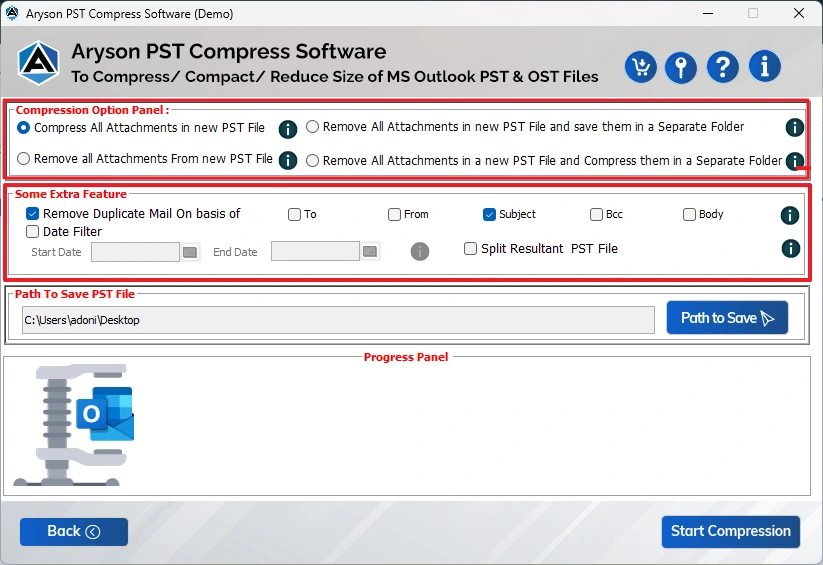
The Aryson PST Compress Tool safely compresses large Outlook PST files to free up storage and improve Outlook’s performance. This helps the user to reduce Outlook PST File Size Without Splitting. Moreover, it allows users to perform bulk compression, remove attachments while saving them separately, eliminate duplicate emails, and apply a date filter on the emails for targeted compression. The tool can split oversized PSTs and retain the original folder structure. And, it supports all Outlook versions from 2010 to 2021 on Windows 11, 10, 8, and 7.
Note: In case the user wants to repair and restore a corrupt Outlook PST file, they can use the Outlook PST Recovery Tool.
How to Compress PST Files to Reduce Mailbox Size
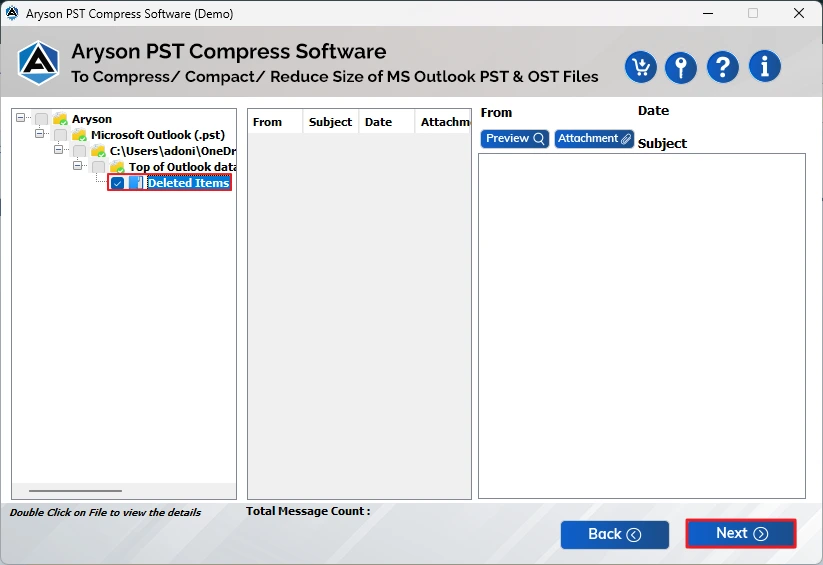
- Download and open the PST Compress Tool on your computer.
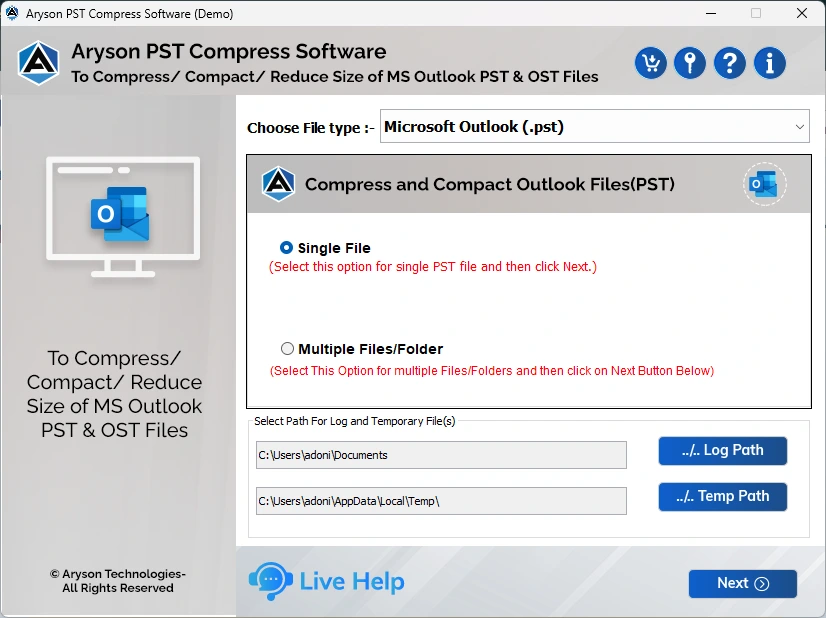
- Then, open the PST file you want to compress.
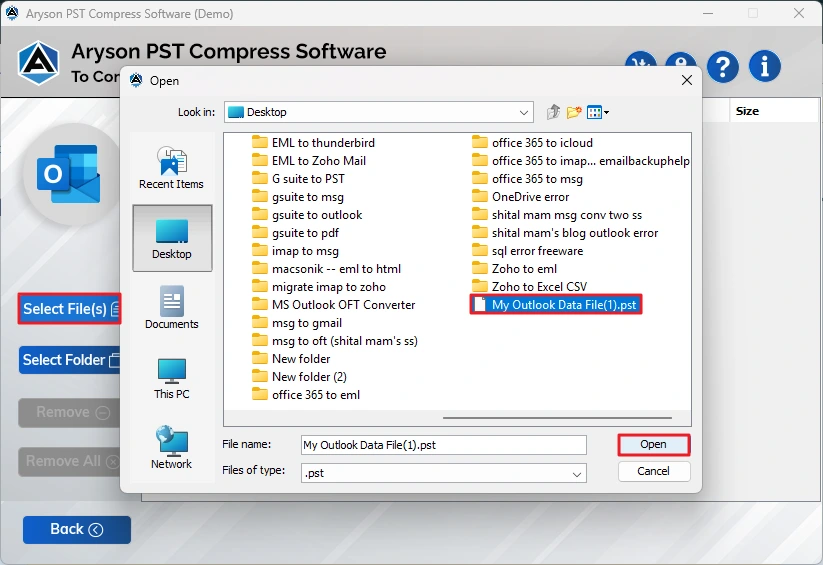
- After that, select & preview the files displayed in the tree structure and hit Next.
- Apply the additional features as per your requirement.
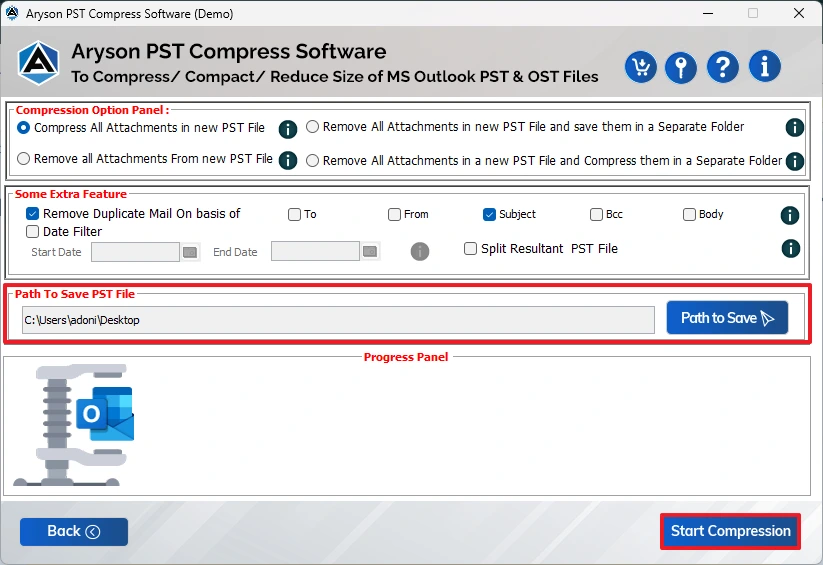
- Provide the desired file path to save the resultant file & start compression.
Priya’s Success Story
Priya Sharma, a Senior Marketing Executive, California, encountered an issue when her Outlook mailbox hit the 50 GB storage limit due to numerous emails and heavy attachments. She initially tried all manual fixes, but nothing helped her. Therefore, to free up some space without losing any essential data, Priya decided to use the Aryson PST Compress Tool, which helped her compact her mailbox safely. As a result, MS Outlook started running again, the “Mailbox Full” warning disappeared, and all her emails and attachments remained intact.
Conclusion
In short, to avoid mailbox full issue in Outlook, users must reduce their mailbox size. The user can do it by Deleting Unnecessary Data, Archiving Old Emails, using the Outlook Cleanup Tool, and compacting the Outlook PST file. But if none of these methods work for you, you’d better compress their files using the automated solution above.
Frequently Asked Questions
Q-1: What causes my Outlook mailbox to become full?
Ans- Your Outlook Mailbox Full Issue might arise due to the accumulation of emails with large attachments, excessive sent items, calendar entries, or cached data. Regular heavy usage without cleaning or archiving also contributes to the mailbox reaching its storage limit.
Q-2: Does archiving old emails help reduce mailbox size?
Ans- Yes, archiving moves older emails to a separate PST file, freeing up space in your primary mailbox. However, it only works if archived emails are actually removed from the main mailbox. Otherwise, size reduction might not be noticeable.
Q-3: Why isn’t my mailbox size reducing after archiving emails?
Ans- If your Outlook Mailbox Size Not Reducing After Archiving, it may be due to items being copied instead of moved, cached data, or the Deleted Items folder not being emptied. Outlook needs manual cleanup to reflect true mailbox size reduction.
Q-4: Can I prevent Outlook from filling up again in the future?
Ans- Yes, by regularly archiving old emails, deleting unnecessary attachments, emptying the Deleted Items folder, and using mailbox cleanup tools. Setting size alerts or auto-archiving rules can also help maintain optimal mailbox storage over time.
Q-5: Why is my mailbox size still large after moving emails to another folder?
Ans- Moving emails between folders doesn’t always reduce size because Outlook stores a copy in the original folder’s cache. Additionally, attachments and hidden items may still occupy space, requiring proper cleanup or compacting of the mailbox to reclaim storage.
4.9 based on 1809 user reviewsAbout The Author:

Isha Singh is a content and website optimization expert who helps blogs and businesses grow organically. She specializes in enhancing content quality, improving site structure, and increasing online visibility through smart, practical, and easy-to-implement strategies that drive long-term results.
Related Post