-
Written By Isha Singh
-
Updated on May 7th, 2026
How to Fix Microsoft Outlook Error 0x800ccc97 (Complete Guide)
 4.9 based on 1809 user reviews
When you see the Microsoft Outlook error 0x800CCC97 out of nowhere, it occurs especially when your emails just stop downloading. Moreover, this one usually pops up with POP3 connections and tends to show up right in the middle of sending or receiving. In this guide, we will walk you through exactly why this error happens and show you simple fixes along with Outlook PST Recovery Software to fix the error.
What is Microsoft Outlook Error 0x800CCC97?
When Outlook can’t take emails from a POP3 server, that’s when this error 0x800CCC97 appears. Outlook reaches out to fetch your messages, but the connection drops or the data gets interrupted before it finishes. At that point, your screen might throw up something like Outlook send/receive error 0x800CCC97, POP3 POPID out of range error, or receiving reported error 0x800CCC97.
Why does Outlook send/receive error 0x800ccc97 occur?
There isn’t just one cause. In most of the cases, the issue is triggered by one of the following:
- Emails that are too large or somehow corrupted on the server can stop Outlook from pulling down your messages the right way.
- Sometimes the POP3 connection just drops halfway, and the whole email retrieval process gets cut short.
- Wrong account settings can also get in the way, making it hard for Outlook to even reach the mail server.
- And if the server takes too long to respond, Outlook can simply give up and fail right during the send/receive process, which shows Outlook receiving reported error 0x800CCC97.
- On top of that, your antivirus or firewall might be quietly blocking incoming email connections without you realizing it.
Fixing the Microsoft Outlook Error 0x800CCC97
This error usually means Outlook couldn’t connect to your incoming mail server, either the settings are off, the server is temporarily down, or something on your machine is blocking the connection. Work through the fixes below:
Fix 01: Delete Problematic Emails from the Server
A single large or corrupted email can quietly block everything else from coming through.
- First, log in to your email through webmail.
- Then take a look at your inbox for anything that looks unusually large or out of place.
- Delete those emails, then restart Outlook and see if messages start coming in again.
Fix 02: Increase Server Timeout Settings
Sometimes, a slow internet connection is all it takes to throw off the entire Outlook POP3 POPID out of range error, so bumping up the server timeout is worth a shot.
- Open Outlook and head over to File.
- Then Account Settings, and click Account Settings again.
- Pick your email account from the list and hit Change.
- From there, click More Settings and jump over to the Advanced tab.
- Find the Server Timeout option and push it up somewhere between 2 and 5 minutes.
- Hit OK, restart Outlook, and check if things are back to normal.
Fix 03: Disable Antivirus Email Scanning
- Afterward, go into your antivirus settings & turn off email scanning.
- Then restart Outlook and see if the error has cleared up.
Note: Just remember to switch your protection back on once you’re done testing, don’t leave it off for too long.
Fix 04: Repair Outlook Data File (PST)
A damaged PST file can absolutely cause send and receive errors to pop up inside Outlook, so it’s worth checking that out Microsoft Outlook Error 0x800ccc97.
- Find the Inbox Repair Tool on your system, which is also known as SCANPST.exe.
- Open it up, select your PST file, and hit Repair.
- Once it’s done, restart Outlook and see if the problem is gone.
Fix 05: Reduce Mailbox Size
A mailbox that’s packed with old emails can slow everything down and even interrupt the POP3 server connection error Outlook syncing process along the way.
- For a smoother process, go through your inbox and delete unwanted emails.
- Move older data to an archive so it’s out of the way but still accessible if you ever need it.
- Also, make sure you’re emptying your Deleted Items and Junk folders regularly, because those pile up faster than most people realize.
Fix 06: Reconfigure Your Outlook Account
If nothing has worked so far, sometimes just removing your email account and setting it back up again is all it really takes.
- Head into Account Settings and delete your email account from there.
- Once it’s gone, add it back fresh with the right POP3 settings in place.
- After that, give Outlook a restart and see if the whole thing starts behaving normally again.
Fix 07: Professional Software For Microsoft Outlook Error 0x800ccc97
If you have a corrupted PST file, then use an Outlook PST Recovery Software. This software is used to repair corrupt or damaged PST files. With the help of this software, you can repair corrupt Outlook PST file with ease. It is made to resolve the alignment problem and make sure to not affect your data.
Steps to Resolve Outlook Error
- First, install and launch the Outlook PST Recovery Tool on your device.
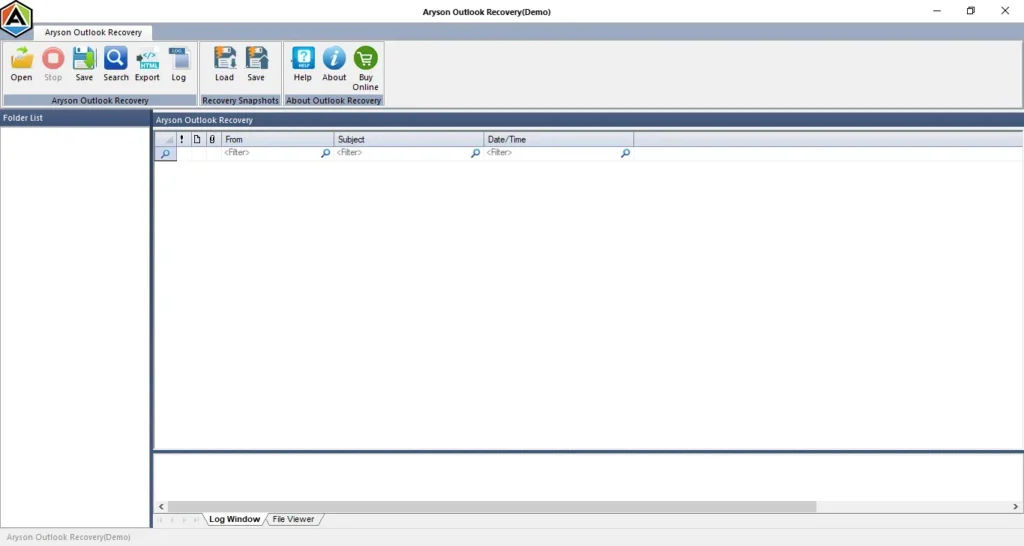
- After that, select the PST file you want to repair from your system.
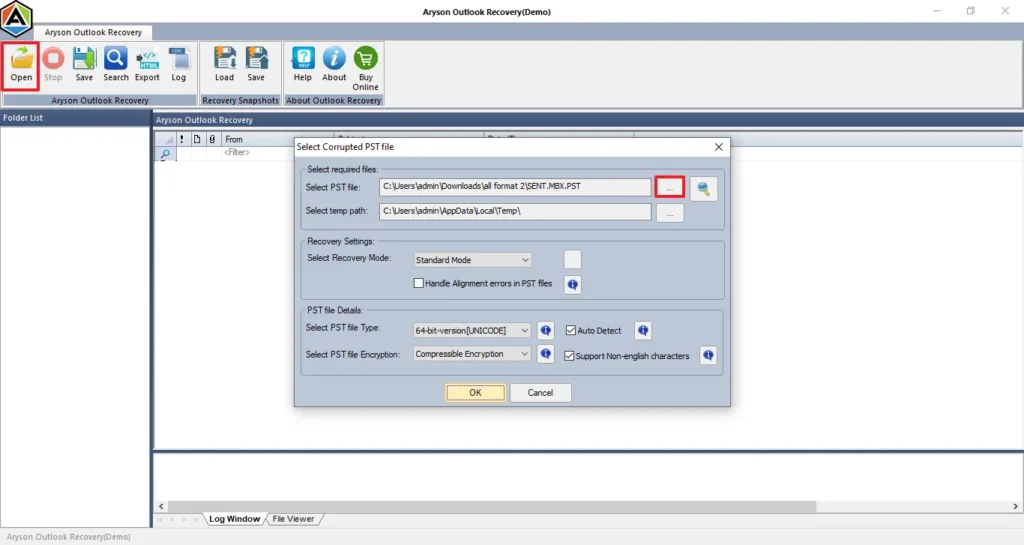
- Now, choose the required scanning mode option and proceed to Next step.
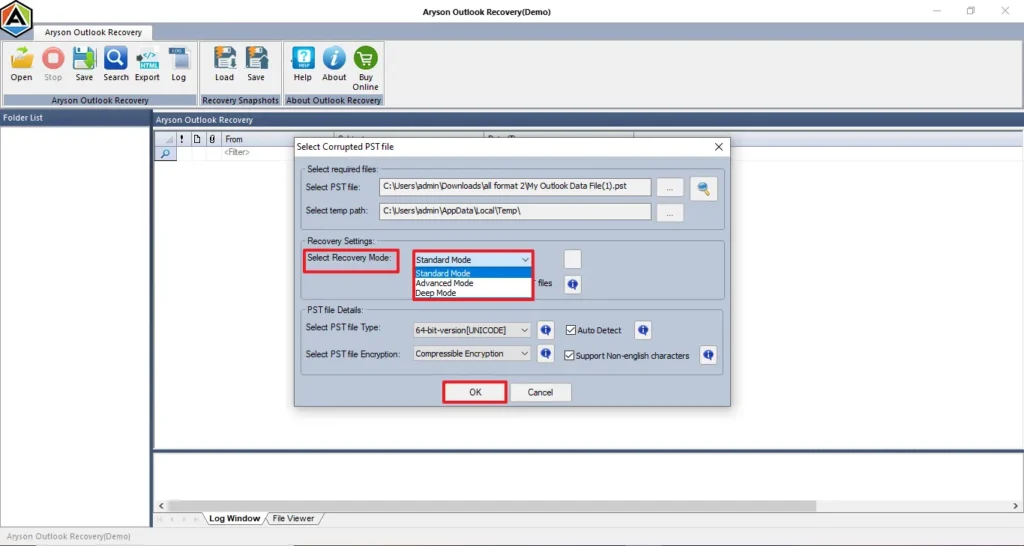
- Thereafter, you have to preview the recovered emails in the tree structure.
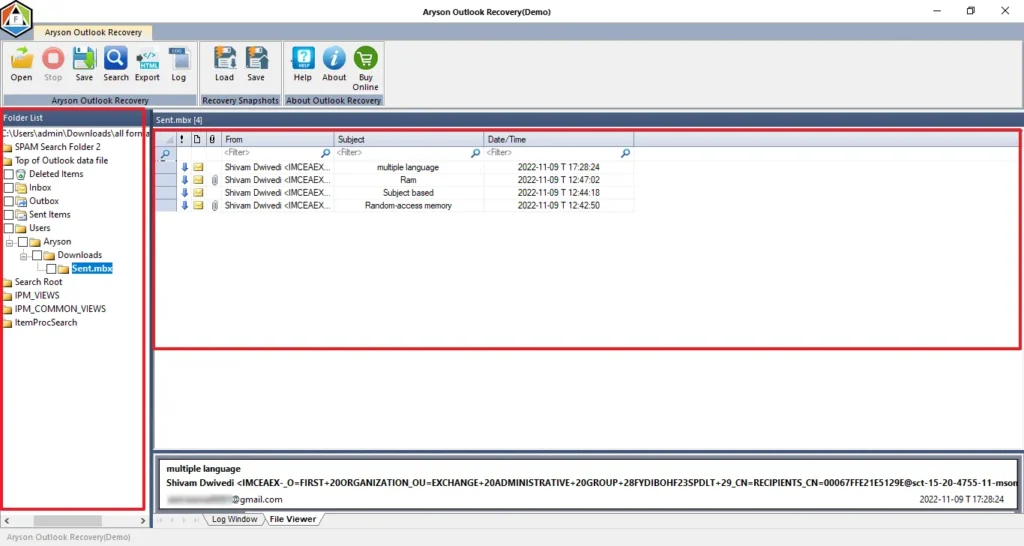
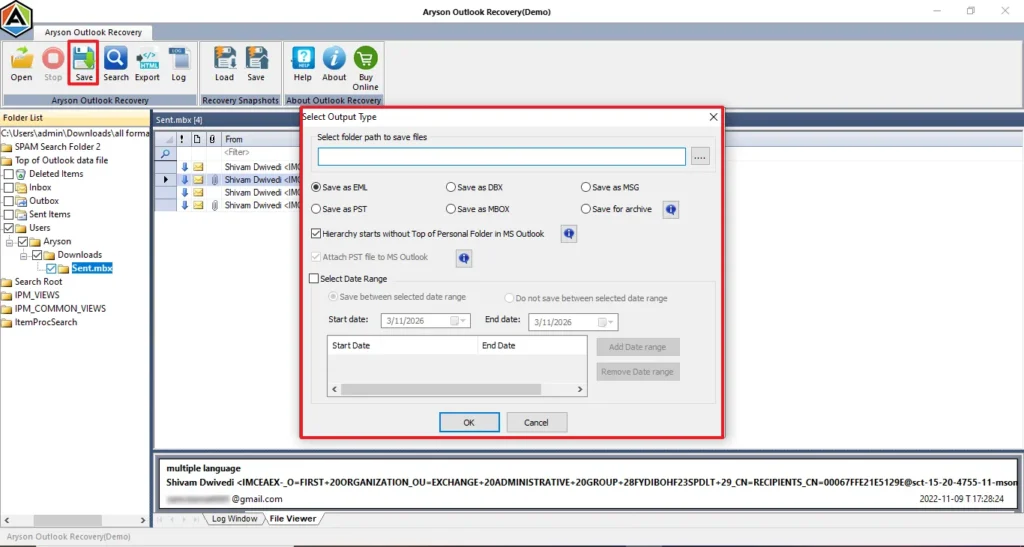
- In the end, select a saving format, apply any needed filters & complete the process.
Preventive Tips to Avoid Errors
- Try not to download large attachments over POP3 since that’s one of the quickest ways to run into interruptions.
- Always keep your Microsoft Outlook updated because an outdated version can cause issues.
- It’s also a good idea to clean out your mailbox now and then, so syncing doesn’t slow down over time.
- Make sure you’re on a steady internet connection whenever you’re transferring emails, because even a small drop can break the process.
- Don’t forget to back up your PST file regularly, for future use.
Conclusion
In this guide, we covered that the Microsoft Outlook error 0x800CCC97 is usually linked to POP3 receiving issues. In most cases, remove problematic emails or adjust settings can resolve the issue. For more problems like PST corruption, it is best to repair them. Follow the step-by-step approach, and you should be able to restore normal email flow without any issues.
Frequently Asked Questions
Q1. Why am I getting error 0x800CCC97 in Outlook?
Ans. This error usually occurs due to POP3 connection issues, corrupted emails, or incorrect account settings.
Q2. Is error 0x800CCC97 related to POP3 only?
Ans. Mostly yes. It is commonly associated with POP3 accounts, especially during email retrieval.
Q3. Can antivirus software cause error 0x800CCC97?
Ans. Yes, antivirus programs with email scanning features can interrupt Outlook’s connection and trigger this error.
Q4. Can a large email cause this problem?
Ans. Yes. Oversized or corrupted emails can block the receiving process and lead to this error.
Q5. Why does Outlook fail to receive emails but can send them?
Ans. Sending uses SMTP, while receiving uses POP3. If POP3 settings or the connection fail, Outlook may still send emails but won’t receive them.
4.9 based on 1809 user reviewsAbout The Author:

Isha Singh is a content and website optimization expert who helps blogs and businesses grow organically. She specializes in enhancing content quality, improving site structure, and increasing online visibility through smart, practical, and easy-to-implement strategies that drive long-term results.
Related Post