-
Written By Rohan Wiese
-
Updated on October 10th, 2025
How to Fix SQL Server Error 50000 and Backup Failures?
 4.9 based on 1809 user reviews
User Query: “It has been three years since I started using SQL to manage my employees’ data. But recently, when I was trying to run my backups, I faced the SQL Server Error 50000. As a result, the backups are not completing. Can anyone guide me on how to fix SQL Server Error Code 50000 quickly?”
Overview: Just like the above user, if you are also facing the SQL Server Error 50000, it might be occurring because of various reasons, including insufficient database permissions, a corrupted database file, unavailable disk space, etc. To make sure that the user’s SQL commands run properly, it is advised to fix this error as quickly as possible. For that reason, this write-up includes both manual fixes and the DataRecoveryFreeware SQL Recovery Tool to help you recover your databases.
Understanding SQL Server Error 50000
Once you understand the core of an error, half of your problem will be resolved. SQL Server Error Code 50000 indicates that something went wrong within a database object, like a stored procedure, trigger, or script execution, but what it means exactly depends on how the error was created by the user or app. Before moving on to the fixes, it’s important to be well aware of the root causes of this error and the backup failures it often accompanies.
Common Causes of Error 50000 in SQL Server
Among all possible reasons behind the Error 50000. Here, we will discuss the most relevant and frequently observed ones.
- Incorrect user-defined scripts or stored procedures raise manual errors through RAISERROR or THROW statements.
- The SQL Server Backup Failed Error 50000 can occur if there are insufficient database permissions that don’t allow the backup to complete and queries to execute.
- Corrupted database files or damaged system tables can interrupt the query or backup.
- Unavailable disk space or an inaccessible backup destination leads to backup failure.
- If the SQL Server Agent isn’t set up correctly or is turned off, your scheduled backups might not run as expected.
Quick Fixes to resolve the SQL Server Error 50000
Although there are several fixes available for SQL Server Error Code 50000, we will dive deep into the most relevant ones here. However, the suitable fix might vary from user to user as there might be different root causes for the error as well.
Fix 1: Reinstall the SQL Server Native Client
Sometimes, the SQL Server Native Client might stop working properly due to a faulty or incorrect setup, which can cause error 50000.
Steps to fix the Error 50000 in SQL Server
- Firstly, go to Control Panel >> Add/Remove Programs and uninstall the SQL Server Native Client.
- After uninstalling, reinstall SQL Server or its specific component again.
- Once reinstalled, reboot your system to apply all changes properly.
This reinstalls the faulty components and resolves the issue if it was due to a faulty installation.
Fix 2: Verify SQL Server and Native Client Compatibility
The users must make sure that they are using the correct versions of SQL Server and SQL Server Native Client. Even a version mismatch can lead to backup failures. Keeping both the SQL Server and SQL Server Native Client updated and compatible helps to maintain stability and prevents SQL Server Error 50000 from recurring during backup or restore operations.
Fix 3: Repair the Corrupted BAK File
In case none of the above fixes work for you, the issue might lie within your SQL backup (BAK) file itself. A corrupted or incomplete BAK file can restrict the SQL Server from processing the backup correctly.
In that case, the user will need to repair the damaged BAK file to restore functionality. Since it is not possible to manually repair the BAK file, you can use a reliable automated software that is designed to repair and recover SQL BAK files safely. Once the file is repaired, try the backup or restore process to eliminate SQL Server Error 50000.
Note: Although all the above fixes are proven by different users, if none of them helped you resolve the error, you should go for a recovery solution. For that purpose, we have discussed an automated recovery solution below.
Automated Recovery Solution to SQL Server Error 50000
When the MDF/NDF files of the user get corrupted, SQL Server can’t properly read or write data, leading to errors during operations like backups, restores, or queries. For that only, the user can use the Data Recovery Freeware SQL Recovery Tool to repair corrupted MDF/NDF files and restore the deleted records without any data loss. This software also recovers essential database components like tables, triggers, views, and stored procedures. Along with that, it provides the user with two different recovery modes: Standard and Advanced Recovery. Also, the user can preview all your recovered files. Additionally, this software is fully compatible with SQL Server 2005–2019. Not just this error, but the user can also fix SQL Server Error 5171 with this software.
Steps to Fix SQL Server Backup Error 50000 are as Follows:
- Download and launch the SQL Recovery Tool on your PC.

- Then, browse & upload the corrupted MySQL database file into the program.

- After that, select a recovery mode, either Standard or Advanced, accordingly & start scanning.

- Once scanning completes, preview all your restored database items in detail.
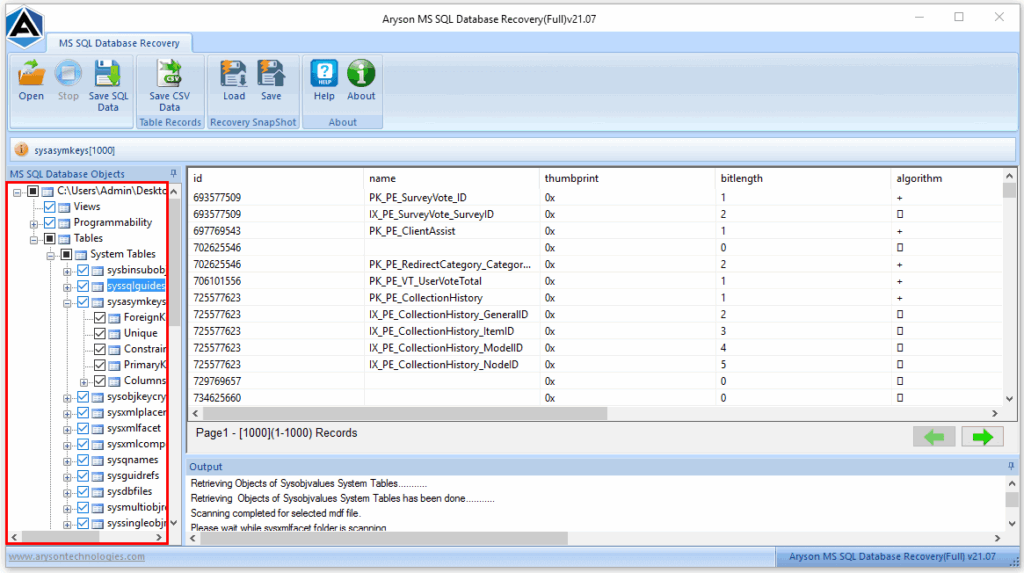
- Now, to save the retrieved data, click on the Save as CSV option and export your results in CSV format.

- Next, you can also use the Save as SQL option, adjust your output settings, & click OK.

- When the saving completes successfully, click OK to finish and close the process.

Let’s sum it up
In conclusion, the SQL Server Error 50000 indicates permission errors, unavailable disk space, or corrupted database files. By checking on the configurations, repairing backup files, or using recovery solutions, you can easily resolve SQL Server Error Code 50000 and avoid any future backup failures. But in case none of the manual fixes help the users, they can recover their MDF/NDF files using the automated solution to resolve the error.
Frequently Asked Questions
Q-1: Why does SQL Server Backup fail with Error 50000?
Ans- Error 50000 in SQL Server usually occurs due to permission issues, insufficient disk space, or custom-defined errors in stored procedures or triggers that interrupt the backup process and prevent successful completion.
Q-2: How can I resolve SQL Server Backup Failed Error 50000?
Ans- To resolve SQL Server Error 50000 backup failure, verify user permissions, ensure enough storage space, check SQL logs for custom error messages, and review triggers or scripts that might interfere with the backup execution process.
Q-3: Is Error 50000 related to other SQL Server errors like 5171?
Ans- No, Error 50000 is user-defined or generic, while Error 5171 indicates database file corruption or inaccessibility. They’re separate issues, though both can affect database operations and backups.
Q-4: How do I know if my backup failed due to Error 50000?
Ans- You can confirm Error 50000 by checking SQL Server logs, job history, or Management Studio notifications. The detailed error message will explicitly display Error 50000 during or after the failed backup attempt.
4.9 based on 1809 user reviewsAbout The Author:

Rohan Wiese is a content and website optimization expert who helps blogs and businesses grow organically. He specializes in enhancing content quality, improving site structure, and increasing online visibility through smart, practical, and easy-to-implement strategies that drive long-term results.
Related Post