-
Written By Rohan Wiese
-
Updated on March 11th, 2026
How to Fix Outlook Error 0x800ccc0e (IMAP Error) Quickly
 4.9 based on 1809 user reviews
Microsoft is one of the most widely used platforms for communication. However, users sometimes encounter technical issues that interrupt email operations. One common problem is Outlook Error 0x800ccc0e, which usually appears when Outlook fails to connect to the email server when sending or receiving messages. This error often occurs in IMAP-configured accounts and prevents Outlook from syncing mail with the mail server. In this guide, we will explain all aspects of errors and how you can fix them, along with the Outlook PST Recovery Software for corrupt files.
What is Outlook Error Code 0x800ccc0e?
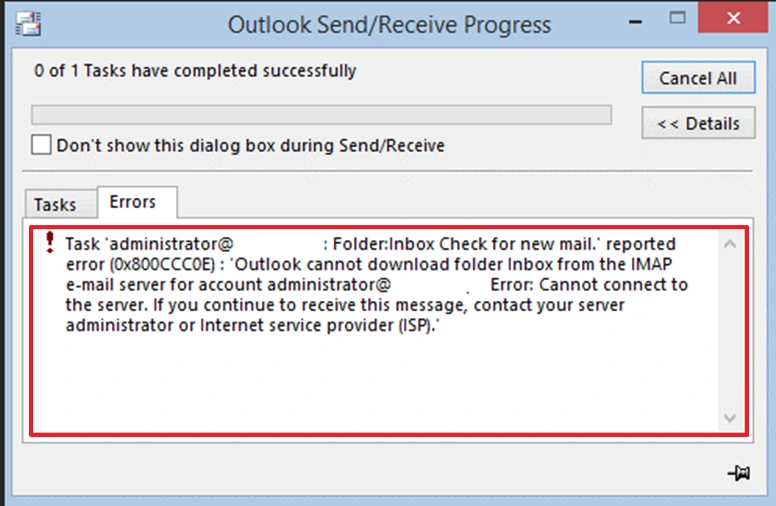
It is a connection-related error that appears when Microsoft Outlook cannot communicate with the incoming or outgoing mail server. Moreover, the error message typically occurs during send/receive operations:
The message appears like this:
| “Outlook cannot synchronize subscribed folders for your account. Error 0x800ccc0e: cannot connect to the server.” |
This issue is commonly associated with an IMAP account configuration problem, incorrect server settings, firewall restrictions, or network connectivity issues.
Common Causes of Microsoft Outlook IMAP Error 0x800ccc0e
It is important to understand the possible reasons behind the error in Microsoft Outlook. See the listed causes below:
- Even a minor mistake in the configuration setting may trigger this error.
- If the internet connection is not stable, then it may affect proper synchronization.
- Moreover, a corrupt OST or PST file can disrupt the email synchronization.
- A damaged Outlook profile caused by a configuration problem may lead to a connection issue.
- An incorrect port number for IMAP or SMTP may lead to connection failure.
Methods to Fix Microsoft Outlook Error Code 0x800ccc0e
Now, we will discuss several methods that help you to resolve the IMAP error 0x800ccc0e in Outlook. Analyse the problem that encounters the error and resolve it.
Method 01: Check Your Internet Connection
The first step is to ensure that your system is connected to the internet.
- Initially, access a web browser on your computer.
- After that, visit any website to confirm connectivity.
- Subsequently, you may need to restart the router to fix the issue.
- Then, restart Outlook and try sending or receiving emails again.
Note: You should have a stable internet connection for Outlook to communicate with the IMAP servers.
Method 02: Verify Outlook Server Settings
Incorrect email configuration is the most common cause of this error.
- Initially, open Microsoft Outlook on your computer.
- Then, go to File and then click on Account Settings.
- Next, choose your email account and select the change option.
- In the end, verify the following settings:
| Incoming Mail Server (IMAP): imap.domain.com Port: 993 Encryption: SSL/TLS |
| Outgoing Mail Server (SMTP): smtp.domain.com Port: 465 or 587 Encryption: SSL/TLS |
Make sure all details match the configuration provided by the email service provider.
Method 03: Enable SMTP Authentication
However, some email servers require authentication for sending emails.
- Here, you need to open Outlook on your system.
- Then, from the top menu, go to File >> Account Settings.
- After that, highlight your email account and choose Change.
- Now, click More Settings and then open the Outgoing Server tab.
- Next, enable My outgoing server (SMTP) requires authentication.
- Thereafter, select Use same settings as my incoming mail server.
- Finally, click OK and restart Outlook.
Also, when you enable SMTP authentication, it makes sure that Outlook is properly verified by the mail server.
Method 04: Create a New Outlook Profile
- First, you need to open the Control Panel on your system.
- After that, click Mail (Microsoft Outlook) and select Show Profiles.
- Then, click Add to create a new profile and enter your email credentials.
- Lastly, set the new profile as the default.
This method helps resolve configuration issues caused by damaged Outlook profiles.
Method 05: Increase Server Timeout
- Thereafter, to prevent server timeout, open Outlook Account Settings.
- Then, select your email account and click Change.
- Consequently, click More Settings and then open the Advanced tab.
- Now, increase the Server Timeout slider.
This will allow Outlook more time to communicate with the mail server.
Method 06: Update Microsoft Outlook
The old Outlook has compatibility issues with updated email servers. So it is important to update your Outlook on time.
- Consequently, you need to open Outlook on your device.
- After that, you need to go to File >> Office Account.
- Now, click Update Options >> Update Now.
Moreover, the updated Outlook version helps to resolve bugs and connectivity issues.
Method 07: Automated Software for Outlook Error 0x800ccc0e
If you face the error due to corrupt OST or PST files, then use the Outlook PST Recovery Software. An admin-friendly interface that allows IT administrators to repair their corrupt PST files. Moreover, it offers advanced recovery mode options to repair corrupt PST files. Also, it supports bulk conversion of .pst files to repair multiple files at once.
- To begin the process, download and launch the Outlook PST Recovery Software.
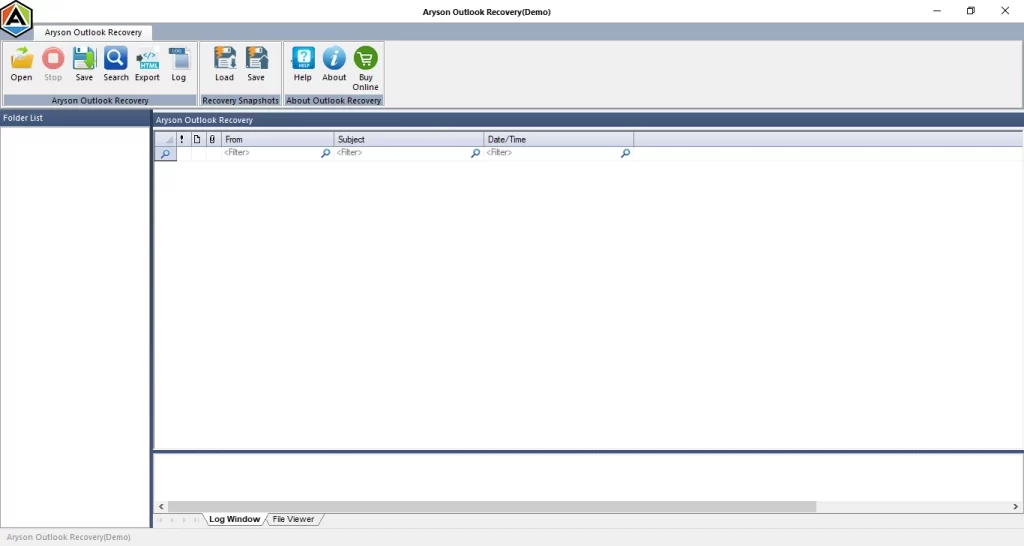
- After that, click on Open and browse the .pst files on your system.
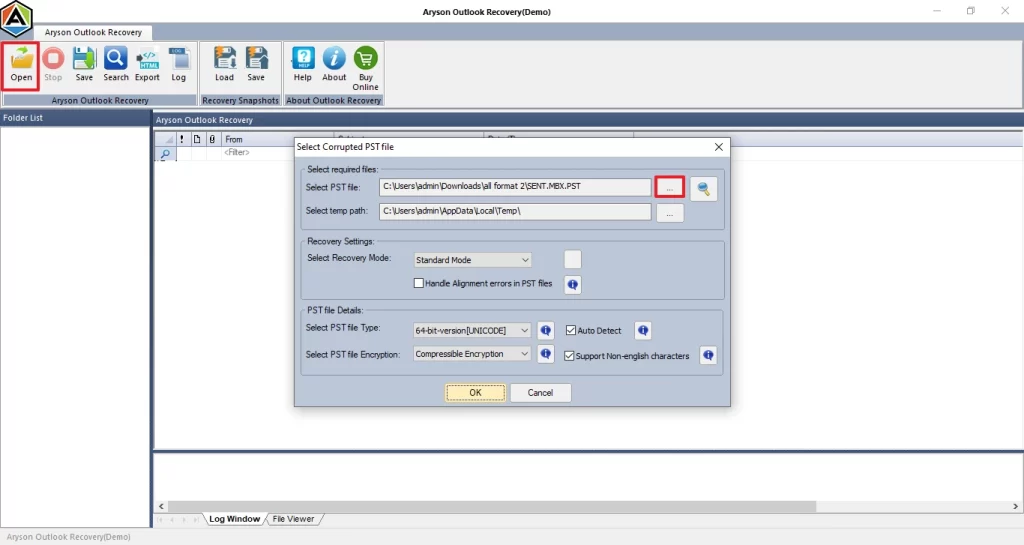
- Then, select the recovery mode and click on Ok for scanning the corrupt files.
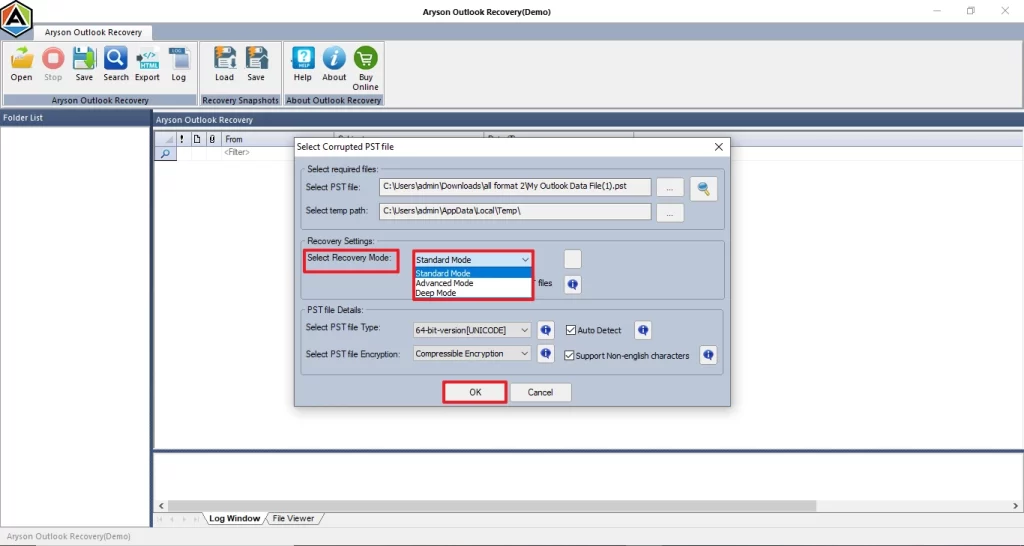
- Next, preview the recovered files and view their attachments.
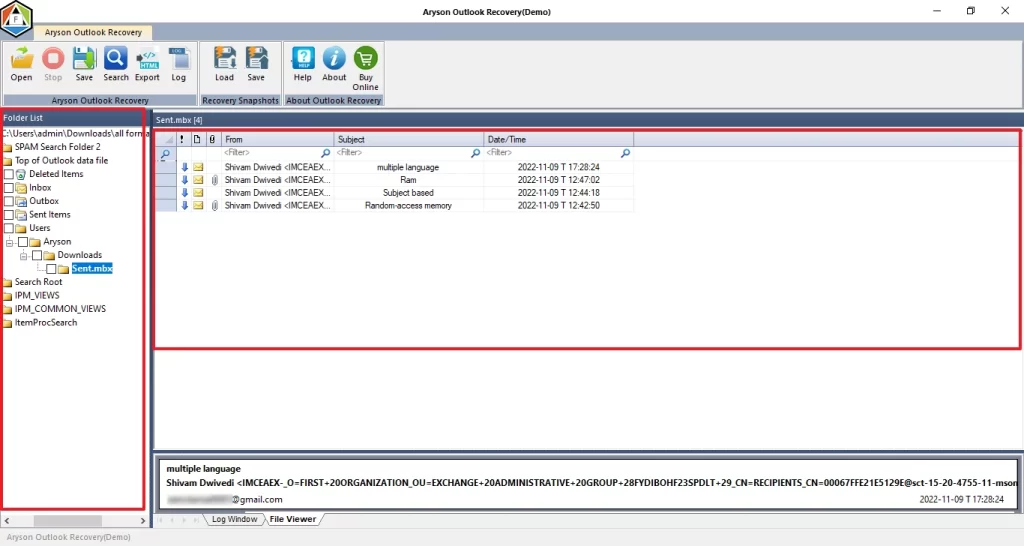
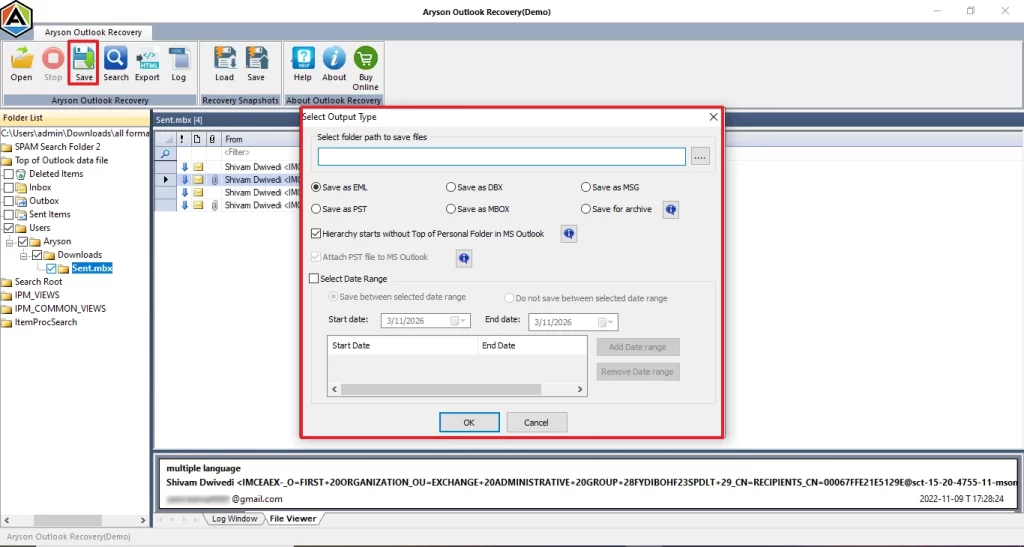
- Finally, click on Save and apply the filters, and click Ok to save recovered files.
Additional Resource – If you encounter error code 0x80070021, then go to this detailed guide – Repair Corrupt PST file, Error Code 0x80070021 in Microsoft Outlook.
Preventive Tips to Avoid IMAP Error Code 0x800ccc0e
- It is important to use the correct IMAP or SMTP settings.
- Moreover, always keep your Outlook updated.
- Furthermore, make sure you have stable internet connectivity.
- Keep this thing in mind to avoid installing too many add-ins.
- Use reliable security software that does not block Outlook connections.
- In addition, always take a backup of your Outlook data files for future use.
Conclusion
Outlook Error 0x800ccc0e is a common issue that occurs when Outlook cannot connect to the mail server. The error generally occurs due to incorrect server settings, corrupted Outlook files, or network issues. Fortunately, the error can be resolved through simple troubleshooting methods, such as enabling SMTP authentication or creating a new antivirus profile. If the error persists, then use the automated software that helps you to repair Outlook files.
Frequently Asked Questions
1: Why does the IMAP Error 0x800ccc0e occur in Microsoft Outlook?
Ans. The error usually occurs when Outlook cannot connect to the IMAP or SMTP due to incorrect settings, firewall restrictions, or corrupt Outlook data files.
2: Can antivirus or firewall software cause Error 0x800ccc0e?
Ans. Yes, antivirus or firewall programs may block Outlook’s communication with the email server, which can trigger the error during send or receive operations.
3: What SMTP and IMAP settings should I use to avoid this error?
Ans. A typical configuration includes:
Incoming Server (IMAP): Port – 993 with SSL/TLS
Outgoing Server (SMTP): Port – 465 or 587 with SSL/TLS
4: Can Outlook Error 0x800ccc0e happen even if settings look correct?
Ans. Yes, the error may persist due to antivirus interference, corrupt Outlook profiles, or server connection issues.
5: Can duplicate email accounts in Outlook trigger this error?
Ans. Yes, if multiple duplicate accounts are configured with the same settings, Outlook may encounter synchronisation conflicts that result in an error (0x800ccc0e).
4.9 based on 1809 user reviewsAbout The Author:

Rohan Wiese is a content and website optimization expert who helps blogs and businesses grow organically. He specializes in enhancing content quality, improving site structure, and increasing online visibility through smart, practical, and easy-to-implement strategies that drive long-term results.
Related Post