-
Written By Rohan Wiese
-
Updated on March 12th, 2026
SQL Server Error 9002: How to Fix “Transaction Log is Full” Issue
 4.9 based on 1809 user reviews
User Query: “Yesterday, when I ran multiple large updates on my SQL Server database, some of my transactions failed with Error 9002. But I don’t know why this error occurred, as I have not made any changes in the settings either. So, can anyone tell me why this error happens and how I can fix it?”
Overview: Usually, when users work with SQL Server, they often face the SQL Server Error 9002. This error can interrupt the ongoing operations and affect the database performance if you don’t resolve it properly. In this blog, we will discuss various fixes for SQL Error 9002, including some manual fixes with simple steps. Along with these fixes, we will also explore the SQL Recovery Tool for efficient and secure recovery of your database.
What is SQL Server Error 9002?
SQL Server Error Code 9002 generally occurs when the transaction log file of a database becomes full and cannot take in more transactions. Because of this issue, further database operations will remain stopped until the space is freed up or you take any additional action. Below are the main causes behind this error:
- The transaction log file has reached its maximum allocated size and cannot grow further.
- A long-running or uncommitted transaction is consuming excessive log space.
- Database recovery or backup operations are pending, causing the log to remain occupied.
- An improper log backup strategy results in the transaction log not being truncated regularly.
- Insufficient disk space restricts the transaction log file from expanding further.
Manual Fixes to Resolve SQL Server Error 9002
If you are encountering the SQL Server Error Code 9002, here are some proven manual methods that you can perform to resolve the error. You just have to follow the steps carefully to clear some space in the log and get your database back again.
Method 1: Create a Transaction Backup File
One of the major reasons behind this SQL Error Log 9002 is that a full transaction log file cannot be truncated. You can create a transaction backup log to fix SQL Server Error 9002. When you back up the log file, SQL Server automatically truncates the saved transactions & makes some space for the new ones. This method has worked well for many users. You can also try recreating the transaction log file if needed.
Method 2: Check and Change Log File Growth Settings
If your log file has limited growth restrictions, it may run out of space quickly. To avoid this, increase its size and allow more space for ongoing transactions. You can monitor log space usage with the sys.dm_db_log_space_usage command. If required, enlarge the file using the following T-SQL command:
| ALTER DATABASE [database15] MODIFY FILE ( NAME = ‘database15’, SIZE = 200MB ); |
Note: SQL Server allows a maximum log file size of up to 2 terabytes (TB).
Method 03: Shrink the Transaction Log File
If unused space within the log file is causing the error, shrinking it can help. This process removes the empty portion of the file and makes room for new transactions. Run the below T-SQL script to shrink the log file:
| USE [database15] GO DBCC SHRINKFILE (N’database15_Log’ , 0, TRUNCATEONLY) GO |
Automatic Recovery Solution to fix the SQL Server Error 9002
SQL Recovery Software helps you fix SQL Server Error Code 9002 (Transaction Log is Full) by repairing corrupted or inaccessible MDF and NDF files directly, without depending on the transaction log. This software can restore your tables, views, indexes, etc., with accuracy. Moreover, this software provides you with two different recovery modes: Standard and Advanced modes. Additionally, you can preview your recovered items before saving them to SQL Server, CSV, Excel, or script files. You can also shrink Log File in SQL Server using the same software. Now, just follow the steps given below:
Steps to fix SQL Server Error 9002 are as follows:
- First, run the SQL Recovery Tool on your system.

- Next, locate and upload the damaged MySQL database file into the software.
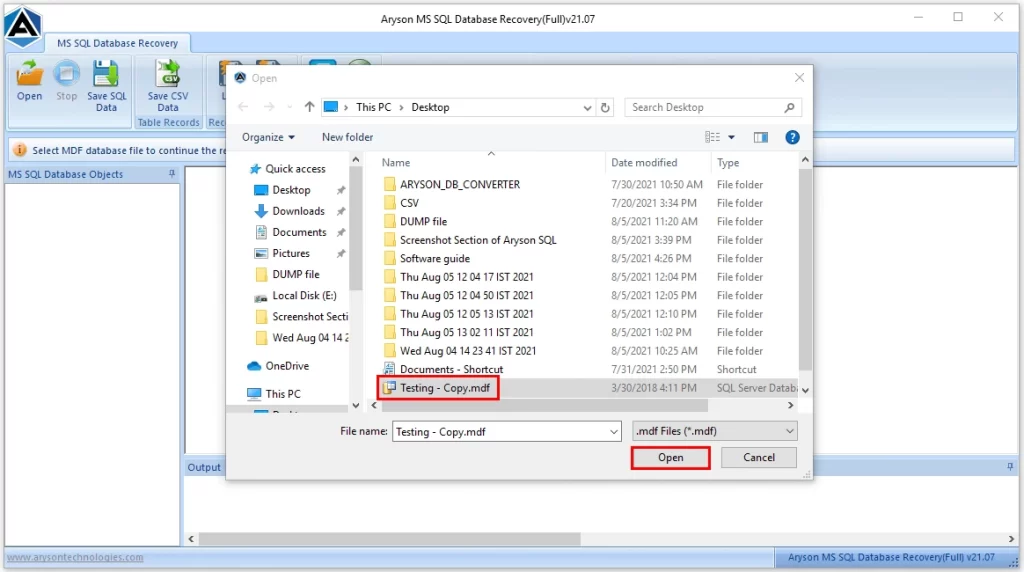
- Pick a recovery option, either Standard Mode or Advanced Mode, and begin the scan.

- Now, you can preview the restored database objects on screen.
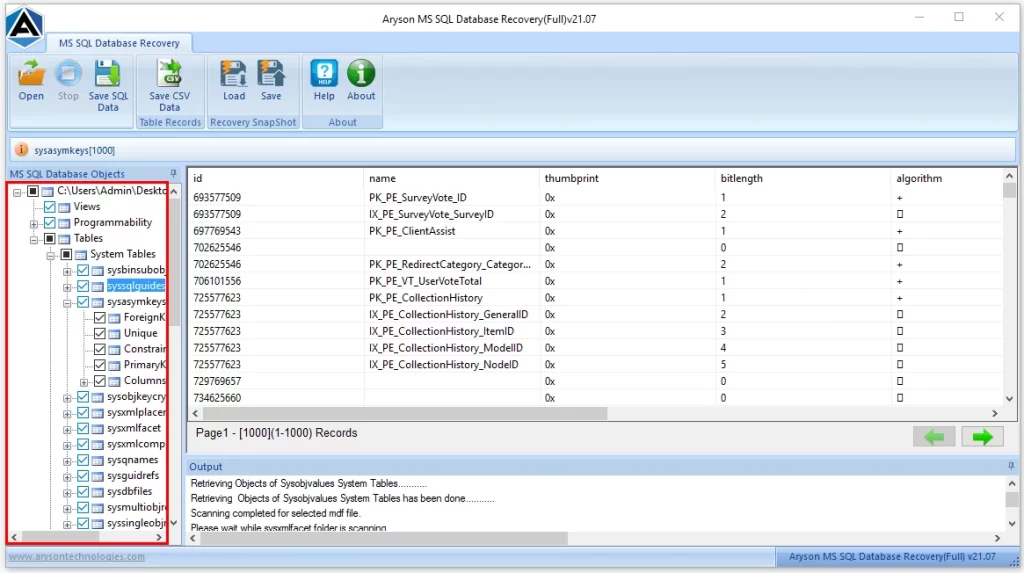
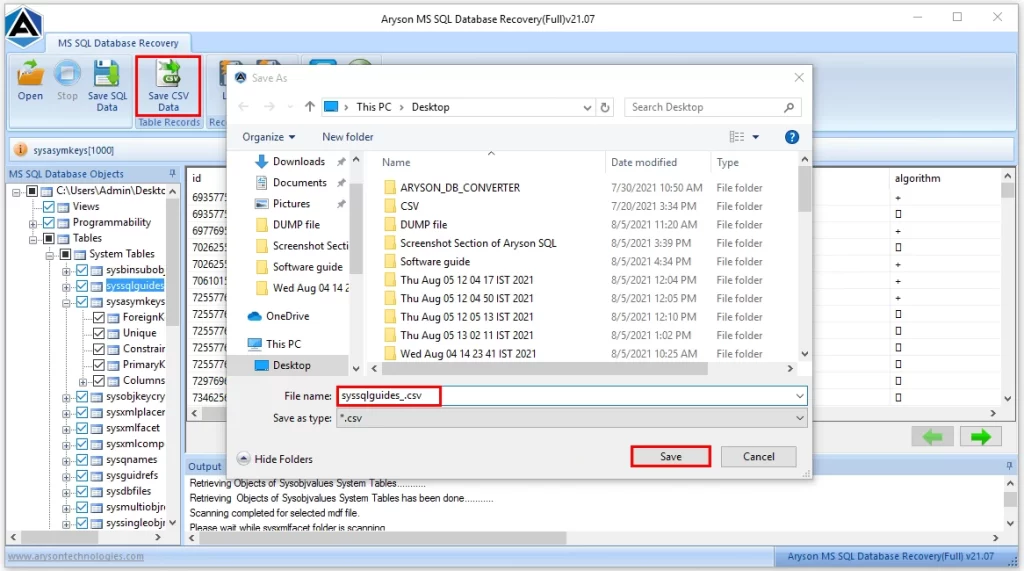
- Choose the Save CSV Data feature to export your recovered content in CSV format.
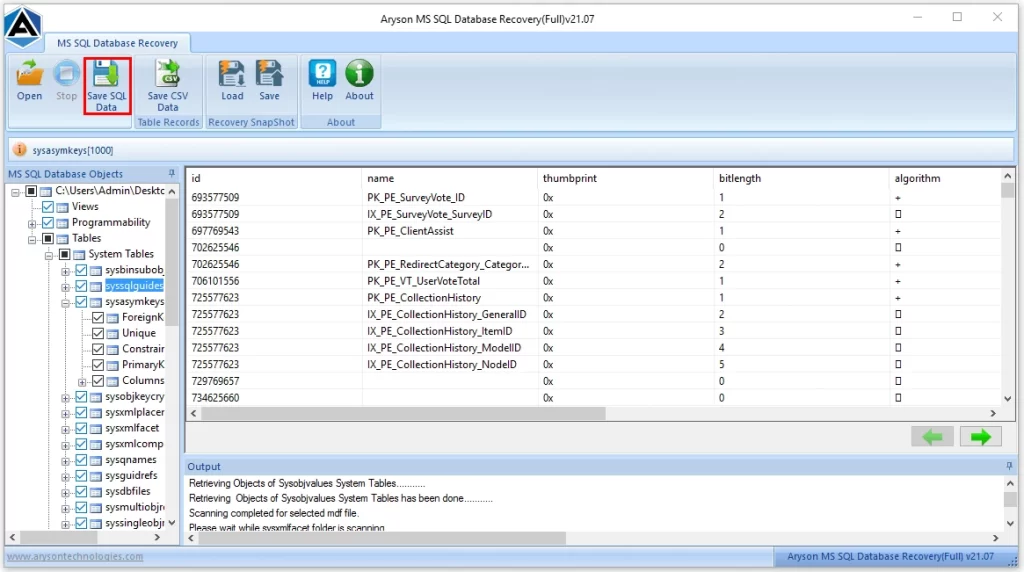
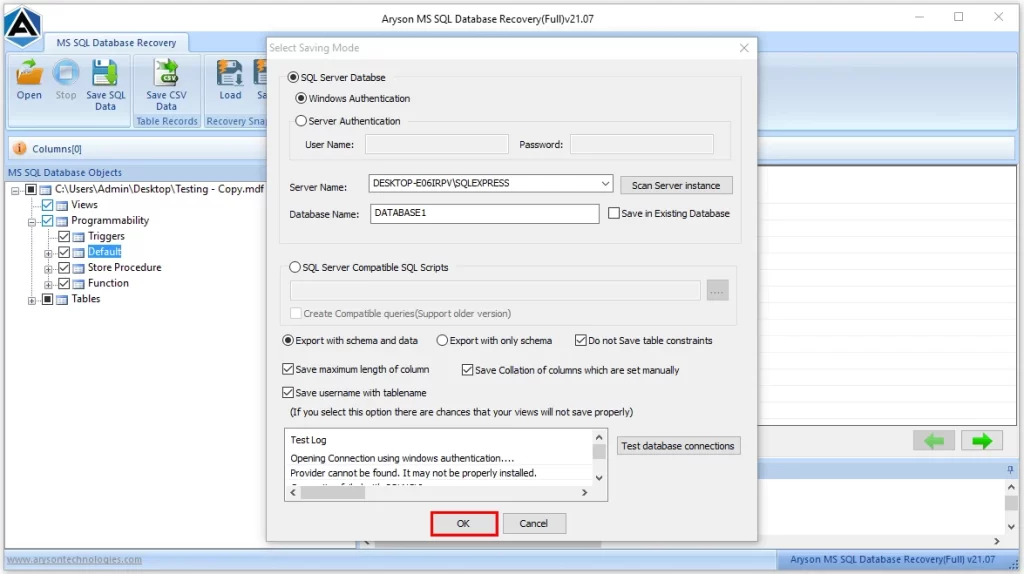
- Select the Save SQL Data option, configure the saving preferences, and hit OK.
- Finally, when the saving process is done, confirm it by clicking the last OK button.
Let’s Sum Up
In the above blog, we explored various solutions to fix the SQL Server Error 9002. You can try all the manual fixes mentioned above, like backing up, resizing, and shrinking logs. And if none of these fixes work in your case, consider using the automated recovery solution provided. These methods make sure to increase the database performance and prevent future log-related issues.
Frequently Asked Questions
Q-1: How to prevent the SQL Server transaction log from filling up in the future?
Ans- To prevent SQL Server transaction logs from filling, schedule regular log backups, monitor log space usage, switch to the simple recovery model if full recovery isn’t needed, and ensure enough disk space is available for growth.
Q-2: Does shrinking the log file fix SQL Error 9002 permanently?
Ans- Shrinking the log file only frees up space temporarily. It doesn’t prevent the error from happening again. Permanent prevention requires proper log management, regular backups, and monitoring to keep the transaction log from repeatedly filling.
Q-3: Can SQL Error Log 9002 cause database downtime?
Ans- Yes, SQL Error 9002 can cause downtime because the database stops processing transactions once the log is full. Without resolving the issue quickly, users may experience blocked queries and system unavailability until the log is cleared.
Q-4: How do I clear the SQL Server transaction log safely?
Ans- To clear the log safely, perform a log backup in full recovery mode or truncate it in simple recovery mode. Avoid immediate shrinking unless necessary, and always monitor database integrity before applying any cleanup operation.
Q-5: Why does the SQL Server transaction log get full?
Ans- The SQL Server transaction log full issue takes place when backups aren’t taken, long-running transactions remain active, disk space runs out, or when the recovery model requires continuous logging. Poor monitoring and insufficient space allocation often make the issue worse.
4.9 based on 1809 user reviewsAbout The Author:

Rohan Wiese is a content and website optimization expert who helps blogs and businesses grow organically. He specializes in enhancing content quality, improving site structure, and increasing online visibility through smart, practical, and easy-to-implement strategies that drive long-term results.
Related Post