-
Written By Isha Singh
-
Updated on March 6th, 2026
How to Fix SQL Server Error 601 (Could Not Continue Scan with NOLOCK)
 4.9 based on 1809 user reviews
When IT administrators work with a database in Microsoft SQL Server, they often encounter several errors that interrupt operations. Among these errors, one common error is SQL Server Error 601, which occurs when queries use the NOLOCK table hint. In this guide, we will discuss all about the error and how you can resolve it with the help of SQL Recovery Software that resolves the error in a hassle-free way.
What is SQL Server Error 601?
It is a database engine error that occurs when SQL Server tries to read a data page but finds that its location has changed during the scan. In simple terms, the query was scanning a table or index, but the underlying data moved or changed while SQL Server was still reading it.
Error Message:
Msg 601, Level 12, State 1
Could not continue scan with NOLOCK due to data movement.
Why does SQL Server Error 601 NOLOCK occur?
- Heavy read and write operations increase the chances of data loss.
- Multiple users run UPDATE, DELETE, and INSERT simultaneously may cause this error.
- Index organization may rearrange data pages through active query execution.
- When scanning a large table with NOLOCK, it increases the risk of data movement.
Best Methods to Fix Error 601 SQL Server
Now, we will discuss several effective methods to resolve SQL Error 601 with ease.
Method 01: Remove the NOLOCK Table Hint
Use this query to remove the NOLOCK hint
|
Instead of: SELECT * FROM Orders WITH (NOLOCK); Use: SELECT * FROM Orders; |
This allows SQL Server to apply a shared lock and make sure data consistency during the scan.
Method 02: Use READ COMMITTED Isolation Level
The READ COMMITTED isolation level prevents unstable reads and makes sure that queries read only committed data.
Example:
|
SET TRANSACTION ISOLATION LEVEL READ COMMITTED; SELECT * FROM Customers; |
This approach reduces the risk of SQL Server Error 601.
Method 03: Rebuild or Reorganise Indexes
When indexes become fragmented, data pages may move; rebuilding helps them maintain structural stability.
Rebuild indexes:
|
ALTER INDEX ALL ON TableName REBUILD; |
Reorganise indexes:
|
ALTER INDEX ALL ON TableName REORGANIZE; |
This improves database performance and reduces the page movement issues.
Method 04: Restart the SQL Server
Temporary inconsistencies in the system memory can sometimes trigger this error at the time of execution. Restarting the SQL Server service can clear temporary states.
- First, open the SQL Server Configuration Manager.
- After that, you have to locate the SQL Server service.
- Then, you need to restart the service.
This method is effective for small temporary scan failures.
When you restart the SQL Server, it may temporarily clear memory-related inconsistencies, but it does not resolve the root cause.
Method 05: Update the SQL Server
Typically, the SQL Server error 601 occurs due to internal bugs or outdated versions.
Updating SQL Server to the latest version can resolve the known issues.
Method 06: Automated Software for SQL Error 601
If error 601 occurs due to database corruption, SQL Recovery Software repairs MDF files. It is secure software that is created to recover database objects while maintaining data integrity. Moreover, this software uses an advanced algorithm to detect the corrupt files and repair them. It fixes all the major and minor issues that prevent the database operation on the Microsoft SQL Server. If you face the DBCC CHECKDB error, then go through this article: Repair SQL Database with DBCC CHECKDB.
Steps to Repair SQL Error 601:
- First, launch the SQL Recovery Software on your computer.
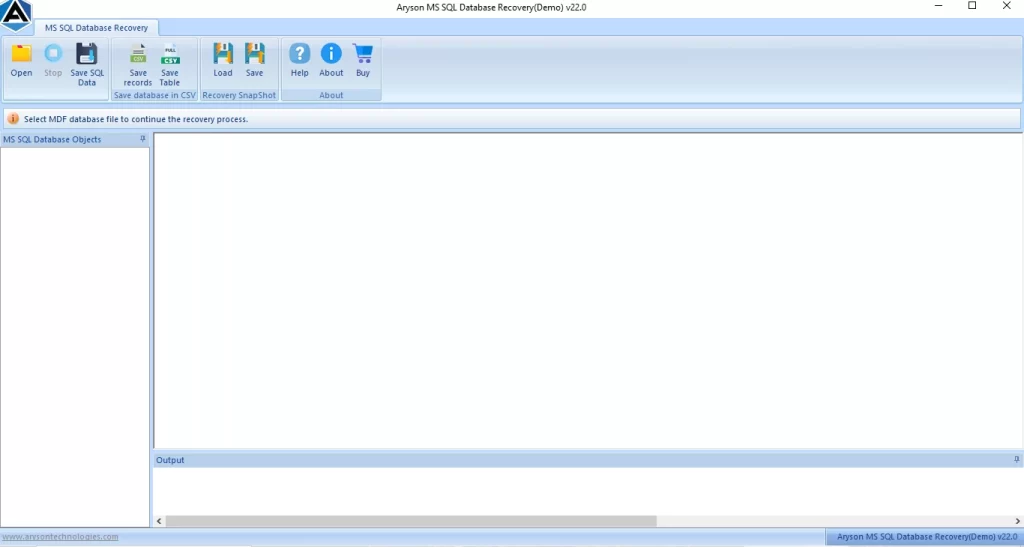
- After that, click on Open from the menu bar and navigate the .mdf files.
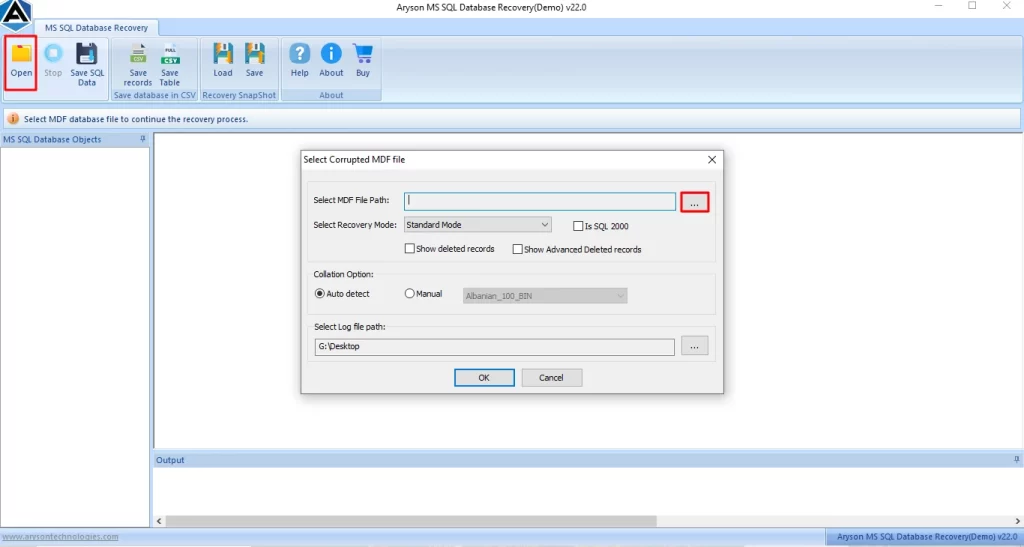
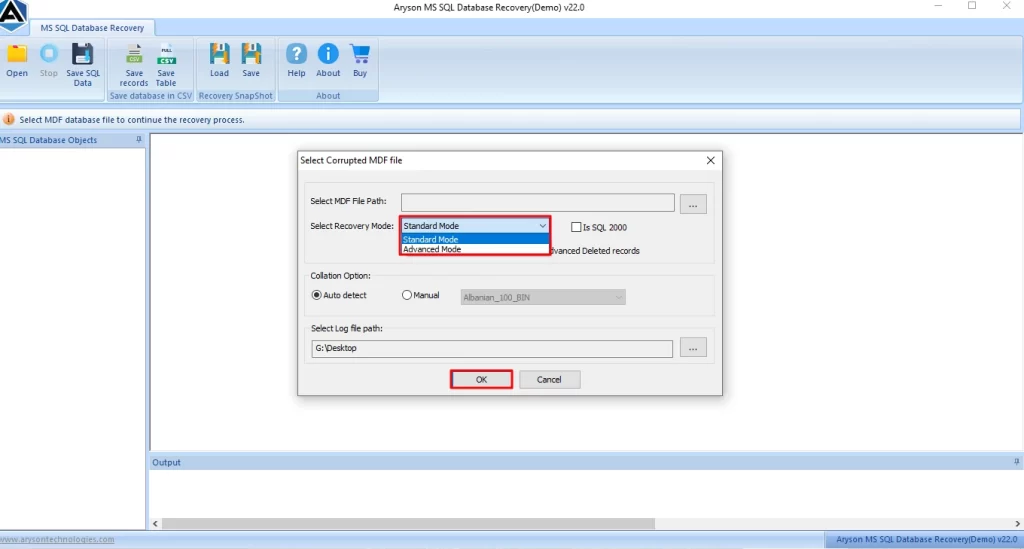
- Thereafter, select either Standard or Advanced scanning mode and click OK.
- After the complete scan, you can preview the recovered files in table form.
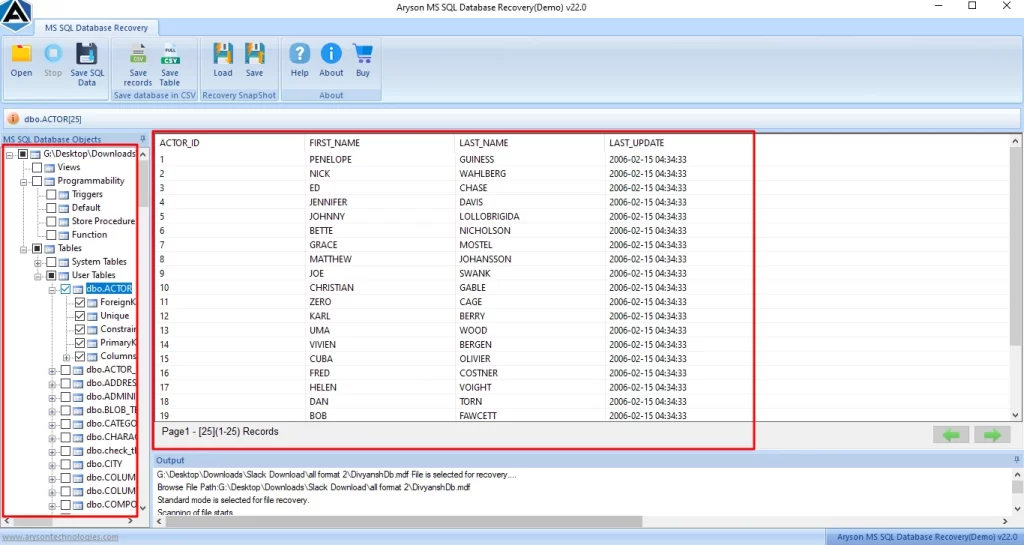
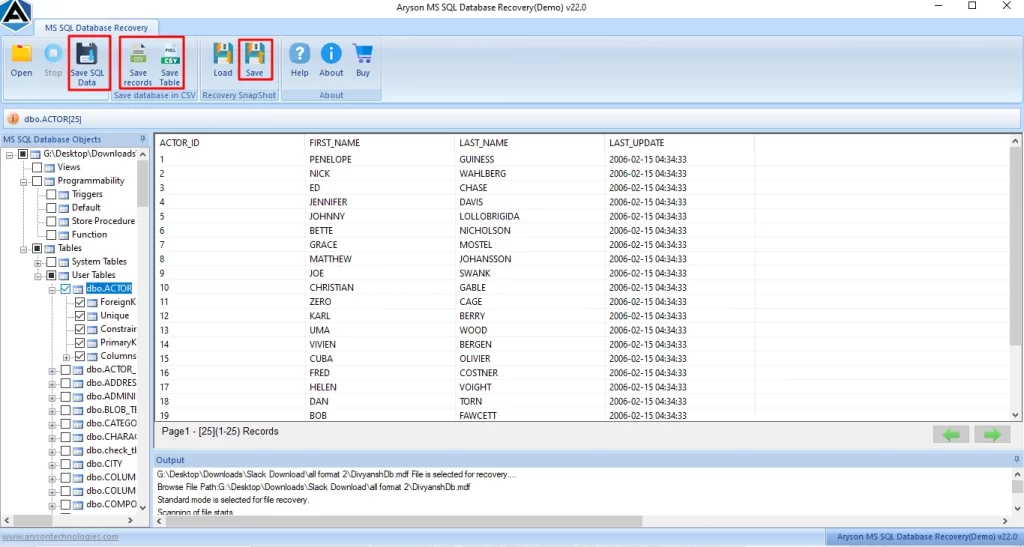
- Lastly, click on Export or Save to store the recovered files on your device.
Best Practice to Prevent SQL Server Error 601
- You have to make sure to avoid the unnecessary use of NOLOCK hints.
- Keep in mind to maintain regular index maintenance to prevent error 601.
- Moreover, modify queries to improve efficiency and limit unnecessary scans.
- Furthermore, you should schedule routine integrity checks with DBCC CHECKDB.
Conclusion
SQL Server Error 601 appears when the server fails to complete a table or index scan due to data movement. Although NOLOCK can improve the performance, it also introduces the risk of data inconsistency and scan failures. However, in this article, we discuss the method to fix the error. By following these solutions, administrators can diagnose the issue and maintain stable performance.
Frequently Asked Questions
1: What does “Could not continue scan with NOLOCK due to data movement” mean?
Ans. This message means that Microsoft SQL Server was scanning a table using the NOLOCK hint, but the data moved or changed during the process. Because the row location changed, SQL Server could not continue the scan and stopped the query.
2: Can rebuilding indexes fix SQL Server Error 601?
Ans. Yes, in some cases, rebuilding indexes can help resolve Error 601. Index rebuilding reorganises the data structure and can remove inconsistencies that occur due to page movement or fragmentation.
3: Is SQL Server Error 601 a corruption issue?
Ans. Not always. Error 601 is usually caused by data movement during a scan, not database corruption. However, if the problem occurs frequently or after system failures, a SQL recovery tool can help repair damaged database objects.
4: What causes SQL Server Error 601 when using NOLOCK?
Ans. The main cause is the NOLOCK hint, allowing SQL Server to read uncommitted data while other transactions are modifying the same table. This can move rows or pages during the scan and trigger Error 601.
5: Does heavy transaction activity lead to Error 601?
Ans. Yes, a database with heavy read and write operations increases the chances of data being modified. This can move rows or pages during the scan and trigger Error 601.
6: Does regular database maintenance prevent Error 601?
Ans. Yes, the regular maintenance, such as index rebuilding and monitoring transactions, can reduce the chances of Error 601 and keep the database stable.
4.9 based on 1809 user reviewsAbout The Author:

Isha Singh is a content and website optimization expert who helps blogs and businesses grow organically. She specializes in enhancing content quality, improving site structure, and increasing online visibility through smart, practical, and easy-to-implement strategies that drive long-term results.
Related Post