-
Written By Rohan Wiese
-
Updated on September 16th, 2025
Fix SQL Server 926 Error: Step-by-Step Guide
 4.9 based on 1809 user reviews
User Query: Whenever I try to access my SQL Server database, I encounter Error 926 stating that the database cannot be opened as it is marked SUSPECT. I’m not sure whether this is due to corruption, missing files, or a failed recovery process. Can anyone explain why this error occurs and guide me with reliable methods to fix it without risking data loss?
Overview: In the above case, an SQL user came across the SQL Server 926 Error while attempting to open their SQL Server database. If you are also facing the same issue, continue reading this write-up. Here, you will be provided with some of the Fixes to get rid of this error. Along with that, you can also use the DataRecoveryFreeeware SQL Recovery Tool mentioned below to recover all your SQL Databases.
What do you mean by Microsoft SQL Server Error 926?
SQL Server Error 926 takes place when a database is marked as SUSPECT, which means the system cannot open or recover it. This issue generally indicates that SQL Server was unable to complete the recovery process and bring the database online. Eventually, it affects the functioning of the SQL Server, making it inaccessible to users.
Why does it happen?
Before trying to fix this SQL Server 926 Error, let’s first understand the root causes behind this error. Here are several triggers for this issue to take place:
- Maybe your DATABASE file is not accessible.
- Your database File got corrupted, or some disk issues are there.
- Hardware failure and sudden shutdown may result in this error.
- Database header corruption or mistakes during attach/detach operations.
- Malware infections or incorrect file permissions may also make the database inaccessible.
Fix 1: Fixing SQL Server Error 926 with SSMS
Open SQL Server Management Studio (SSMS) and in the Object Explorer, right-click on the connected server instance and select Stop.
- Go to your computer’s Control Panel → Administrative Tools → Services.
- Find SQL Server (MSSQLSERVER) in the list, right-click on it, and choose the Stop option.
- Then, navigate to the following path on your system:
C:\Program Files\Microsoft SQL Server\MSSQL10.MSSQLSERVER\MSSQL\DATA |
- Transfer the MSDBData.mdf and MSDBLog.ldf files to a temporary location.
- Copy them back from the new location and paste them again into the original DATA folder.
- Return to SSMS, right-click on the server instance in Object Explorer, and select Start.
- Simply refresh the database. You can now detach the MSDB file securely, if needed.
Fix 2: Run the DBCC CHECKDB Command
Step 1: Remove the Suspect Status from your database
Then run a new command prompt or SSMS query window and run the following :
EXEC sp_resetstatus 'DB_Name'; |
Using this command will simply alter the status column in sys. databases and clear the suspect status of the database. And remember, you can perform this action only if you have sysadmin rights.
Step 2: Put the Database in Single User Mode
ALTER DATABASE DB_Name SET SINGLE_USER WITH ROLLBACK IMMEDIATE; |
This command sets the required database in single-user mode, making sure that only one session can access it while recovery is in progress.
Step 3: Change Database to Emergency Mode
ALTER DATABASE DB_Name SET EMERGENCY; |
Switching the database to Emergency mode makes the database read-only and accessible only to members of the sysadmin role. This step is crucial when the database is not accessible under normal conditions.
Step 4: Run DBCC CHECKDB
DBCC CHECKDB ('DB_Name');
|
This command verifies both the logical and physical integrity of database objects and helps detect corruption or consistency problems.
Step 5: Attempt Repair with Data Loss Option
DBCC CHECKDB ('DB_Name', REPAIR_ALLOW_DATA_LOSS);
|
This command tries to fix corruption but may cause data loss, so use it only if no recent backup exists.
Step 6: Restore Multi-User Access
ALTER DATABASE DB_Name SET MULTI_USER; |
Finally, switch the database back to multi-user mode so that it can be accessed normally by all users.
Using this fix, you can simply get rid of SQL Server 2008 R2 Error 926. Still, if this error doesn’t get resolved, you can use the below-mentioned solution to recover your important data.
Advanced Method to Troubleshot SQL Server 926 Error
In case neither of the above fixes helps you, it becomes essential for you ot recover your data using an advanced solution, that is, DataRecoveryFreeeware SQL Recovery Tool. This software helps you recover as well as restore corrupted or damaged MDF files without any data loss. It can restore views, tables, rules, indexes, queries, and much more. Additionally, you can use this software to save the recovered SQL database into SQL Server, Excel, CSV, or SQL-compatible script files.
Effective Steps to resolve this error are as follows:
- Download and run the DataRecoveryFreeeware SQL Recovery Tool on your PC.

- Then, browse and open your corrupt MDF File by clicking the Open button.
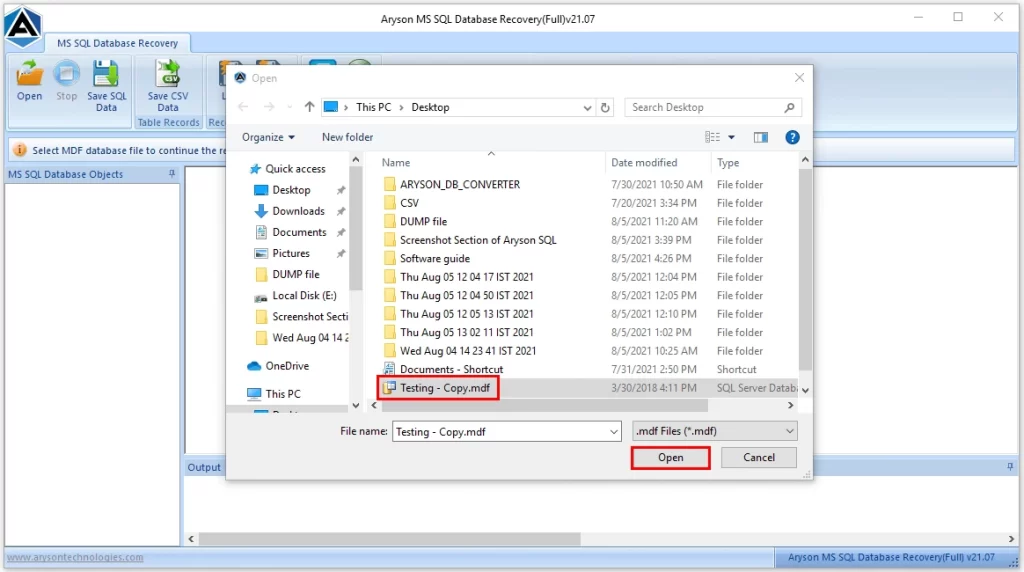
- After that, select recovery mode: Standard or Advanced & click Ok to start the scanning.

- Now, if you want to save your data in CSV Format, click on the Save CSV Data.

- Next, click on the Save SQL Data button and adjust settings if you want & hit Ok.
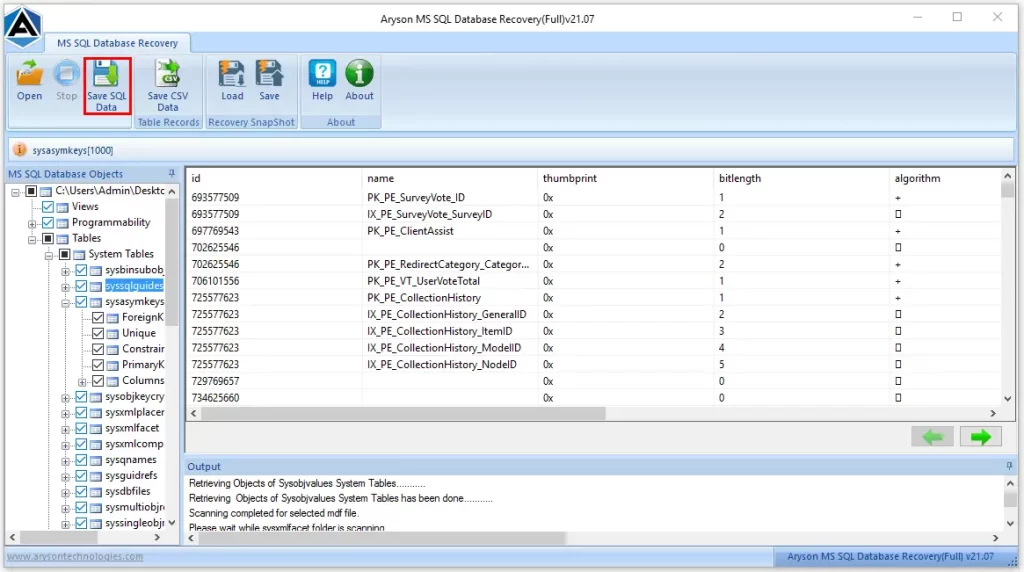
- Once the saving process completes, finally, hit OK.
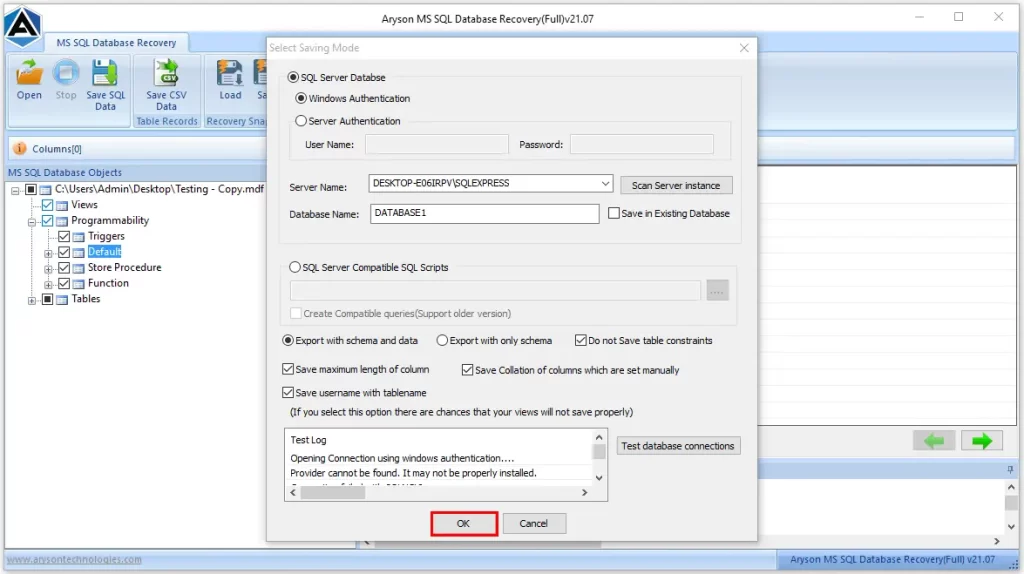
Following the above steps, you can easily recover your corrupted database files.
And, if you are encountering the 0x8004de40 OneDrive Error, you must use the OneDrive Migration Tool.
Conclusion
In the above write-up, we discussed different ways to fix the SQL Server 926 Error. Also, we explored an advanced solution, which is the DataRecoveryFreeeware SQL Recovery Tool to recover your database files without losing any data. The solution offered you various useful features which you can utilize as per your needs and convenience. Lastly, don’t forget to check out the FAQs section to get more insights on the error and its fixes.
Frequently Asked Questions
Q.1 What causes Microsoft SQL Server Error 926?
Ans. It occurs when a database is marked SUSPECT, often due to corruption, missing files, failed recovery, permission errors, or sudden server shutdowns.
Q.2 Does SQL Server 2008 R2 commonly show Error 926?
Ans. Yes, it can occur in SQL Server 2008 R2, especially if the database faces corruption, improper shutdown, or file access issues.
Q.3 What log files should I check when troubleshooting Error 926?
Ans. To troubleshoot Error 926, review the SQL Server Error Log for details on why the database was marked SUSPECT. Additionally, check the Windows Event Viewer logs for disk errors, permission issues, or unexpected shutdowns that may have triggered the problem.
Q.4 How do I fix SQL Server Error code 926?
Ans. You can fix this error by stopping and restarting SQL Server through SSMS, or by using the DBCC CHECKDB command with recovery steps. If these don’t work, use an advanced SQL Recovery Tool to repair corrupted database files securely.
4.9 based on 1809 user reviewsAbout The Author:

Rohan Wiese is a content and website optimization expert who helps blogs and businesses grow organically. He specializes in enhancing content quality, improving site structure, and increasing online visibility through smart, practical, and easy-to-implement strategies that drive long-term results.
Related Post