-
Written By Rohan Wiese
-
Updated on July 17th, 2025
Backup and Restore SQL Database from One Server to Another
 4.9 based on 1809 user reviews
Summary: SQL databases play a critical role in effective project management, storing data in tables and allowing CRUD operations with ease. However, users have to frequently restore SQL database from one server to another for multiple operational purposes. This blog provides various ways to accomplish SQL database restoration with simplicity and precision. It also features a professional SQL Server Database Migration Tool that effectively restores your database structure, queries, and commands. This guarantees safe and reliable data transmission between various server platforms.
Needs to Restore SQL Database from Another Server
Here are some key reasons to restore an SQL database from another server:
- To recover your sensitive and critical data from the server.
- If you want to move an old server to a new one.
- To create a separate environment for the developer or tech team.
- Need to archive or back up the required data for safety.
- To prevent any impact from changes, proper configuration of the database system is essential.
Free Method to Restore SQL Database from One Server to Another
To restore an SQL database on a different server, ensure you have a valid backup of the original SQL Server database. First, take all the backups of your sensitive data and then upload them to your new server. Follow the guide and steps to do it manually and easily.
- Download and install the SQL Server Management Studio (SSMS) on your system.
- After installation, open SSMS and log in to your SQL Server instance using the appropriate credentials.

- Go to the Object Explorer panel and click on the Databases section to view available databases.

- Next, right-click on the selected database and click on the Tasks option from the context menu.

- From the Tasks menu, select the Back Up option to initiate the backup process.

- Browse to your desired location and select the folder where you want to save the backup file.
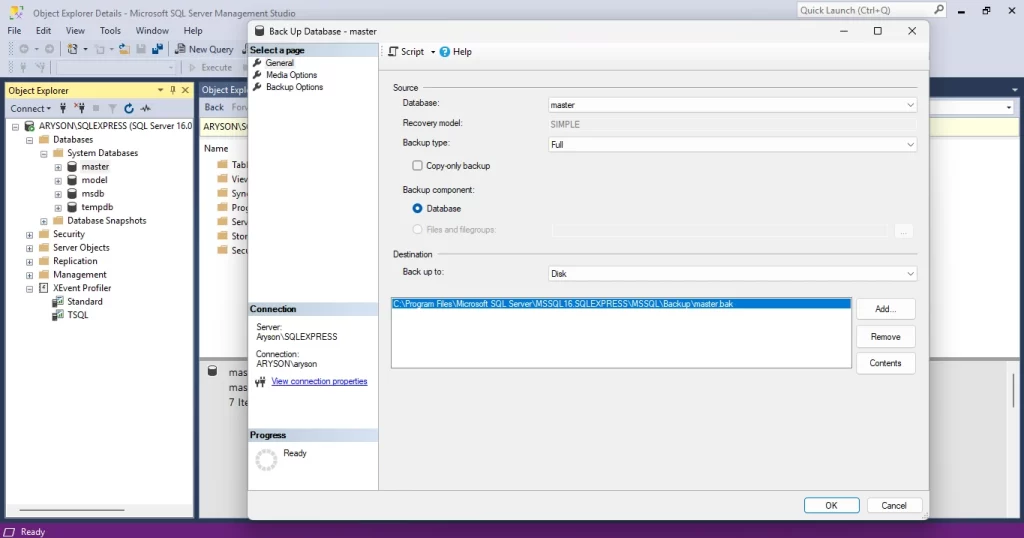
- Now, transfer the backup file to the destination system where the target SQL Server is installed.
- After that, launch SQL Server Management Studio (SSMS) on the new system.
- Then, expand the Databases folder and select the New Database option to create a placeholder for the restore.
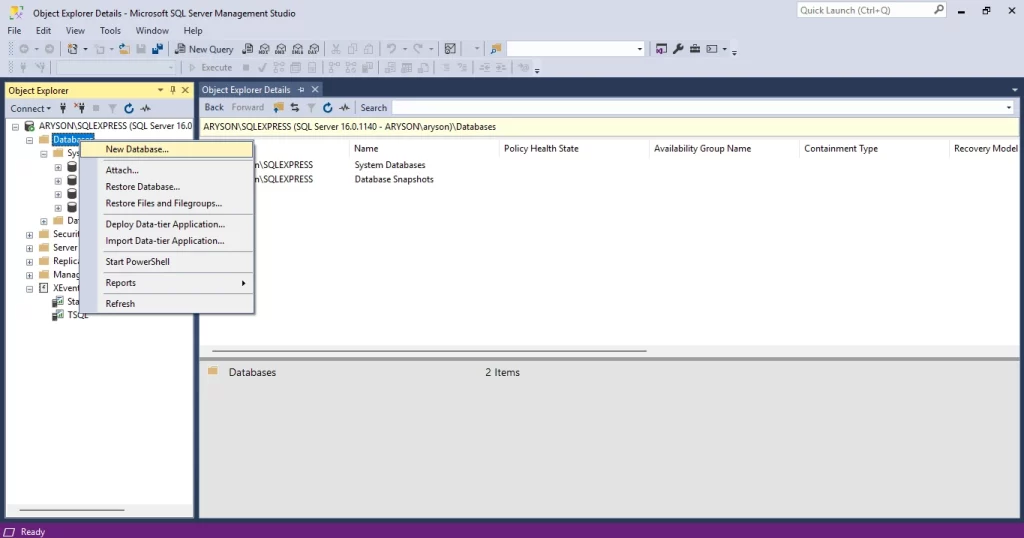
- At this stage, browse to the location of the transferred `.bak` file and select it to access it on the new server.
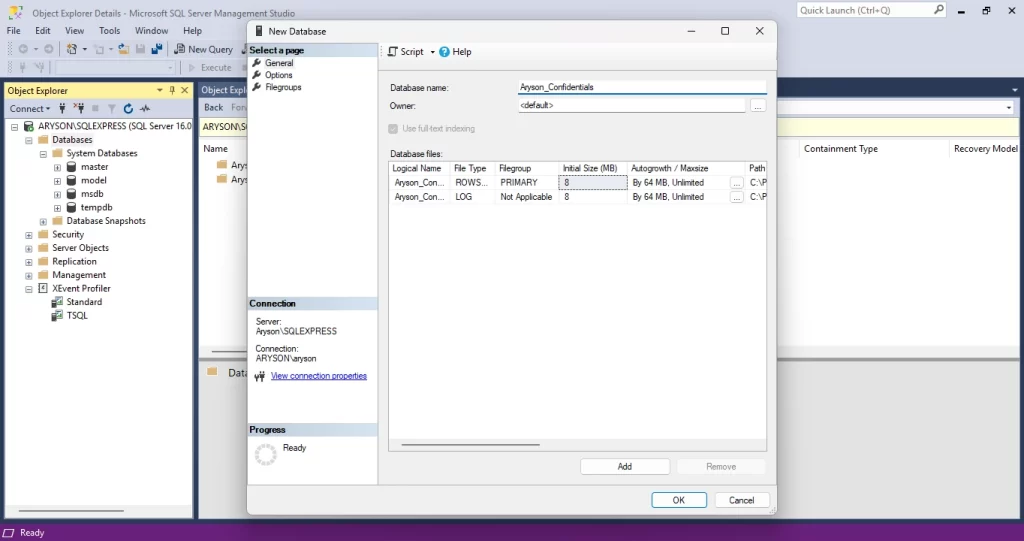
- Click OK to start the synchronization process in SQL Server Management Studio.
- Finally, verify that all data from the `.bak` file is fully accessible and intact on the new server.
Professional Method to Restore SQL Database from One Server to Another
The manual method consists of several limitations that prevent users from restoring the SQL database efficiently. Use the expert-recommended professional SQL Server Database Migration Tool. The expert solution is easy to perform and access all your data from the server database and save it on another server system. Whether you are a tech enthusiast or a novice user, the tool is operable for both the users. Moreover, the software can also fix SQLite error malformed database schema. Use the alternative and take a backup for direct access to a new or another database.
Steps to Backup SQL Server Database and Restore to Another Server
- Run the SQL Server Database Migration Tool as an administrator after installing it.
- Choose the authentication mode that suits your setup from the two available options.
- Then, provide the required login credentials and click Connect to proceed.
- In the Data Transfer Mode, choose whether to migrate specific tables or the entire database.
- Set the destination format to MySQL or MySQL Script, then click Connect again.
- Finally, click the Start button to begin the migration process.
Conclusion
To summarize, there are several methods available to restore SQL database from one server to another. However, for a more secure and dependable approach, using a professional SQL Server Database Migration Tool is highly recommended. Preferred by many professionals, this tool helps maintain data security and integrity during the entire migration process. Although manual restoration is possible, it can be complex and is often limited in functionality.
Frequently Asked Questions
Q.1 How to transfer SQL database from one server to another?
Ans. There are multiple approaches to move a SQL database from one server to another. However, the professional approach becomes beneficial in terms of restoration, as it provides various functionalities.
Q.2 How do I restore a SQL Server database from another computer?
Ans. To restore the SQL Server database from another computer, you have to access both server instances. Additionally, you have to take a backup of the SQL Server to restore it without affecting the data integrity.
Q.3 How to restore multiple databases in SQL Server?
Ans. To restore multiple SQL Server database backups, several methods are available. For this, use an expert-recommended professional tool that provides a smooth experience and takes a backup of multiple accounts simultaneously. You can also use the manual method to take a backup.
4.9 based on 1809 user reviewsAbout The Author:

Rohan Wiese is a content and website optimization expert who helps blogs and businesses grow organically. He specializes in enhancing content quality, improving site structure, and increasing online visibility through smart, practical, and easy-to-implement strategies that drive long-term results.
Related Post