-
Written By Isha Singh
-
Updated on February 12th, 2026
How to Backup and Restore Database in SQL Server
 4.9 based on 1809 user reviews
In today’s digital era, 2026 data is the backbone of organisations, and protecting that data is essential. In the SQL Server management, issues such as accidental deletion and hardware failure can occur at any time. If you have a reliable strategy to backup and restore database in SQL Server , it ensures business continuity. In this guide, we will discuss some of the reliable approaches to accomplish the backup and restoration of your emails, including the SQL Recovery Software to recover your data without any loss data.
Reasons for SQL Server Backup and Restore Database
Essentially, a backup of SQL Server is a copy of your database that allows you to restore data when an unexpected error occurs. Otherwise, if you didn’t perform a backup, there might be a risk of data loss.
Key benefits include:
- It protects your data from corruption and accidental deletion.
- Help you recover quickly from the sudden system crash and hardware failure.
- Make database upgrade and migration easier without any risk of data loss.
Types of SQL Server Database Backups
Before you begin with the backup, understand the available backup options:
- Full Database Backup – It creates a complete copy of your database, including data and objects.
- Differential Backup – Only backs up the changes made sice last full backup and uses less storage.
- Transaction log Backup – Additionally, it captures transaction log records and allows point-in-time recovery.
Native Methods to Backup and Restore Database in SQL Server
Generally, you can backup your emails using an SQL SSMS and T-SQL commands:
Method 01: Use SSMS ( SQL Server Management Studio)
- First, launch SSMS on your computer and connect to your instance.
- Then, right-click on the database >> Task >> Backup.
- Now, select the backup type and select the destination (URL or Disk).
- Click on the OK button to start the backup process.
Method 02: Use T-SQL Commands
Write this command in T-SQL to back up your Server database:
| Backup Database YourDatabaseName To Disk = ‘C:\Backup\YourDatabase.bak’ With INIT; |
Thus, these commands will help you to back up your SQL Server database.
Methods To Backup SQL Server Database
Similarly, emails can be restored through SQL Server Management Studio or T-SQL commands. Follow the techniques to restore your emails.
Method 01: Restore SQL Server Database using SSMS
- To start the restoration, open SQL Server Management Studio on your system.
- After that, right-click on the Database >> Restore Database.
- After that, choose the required Device and navigate to the saved .bak file.
- Then, select the backup set and configure the restore options if needed.
- Click on the OK button to restore the SQL Server Database.
Method 02: Restore the SQL Server Database from Backup using T-SQL
| RESTORE Database YourDatabaseName From Disk = ‘C:\Backup\YourDatabase.bak’ With Replace; |
As a result, these commands will help you to restore your database.
Limitations of these Methods
- Unfortunately, the backup files may get corrupted due to a sudden system failure.
- SQL Server doesn’t support the old version for backup and restoration.
- The uncompressed backup can consume an excessive amount of disk space.
- Moreover, when you restore large files, it will take a lot of time.
Automated Software to Backup and Restore Database in SQL Server
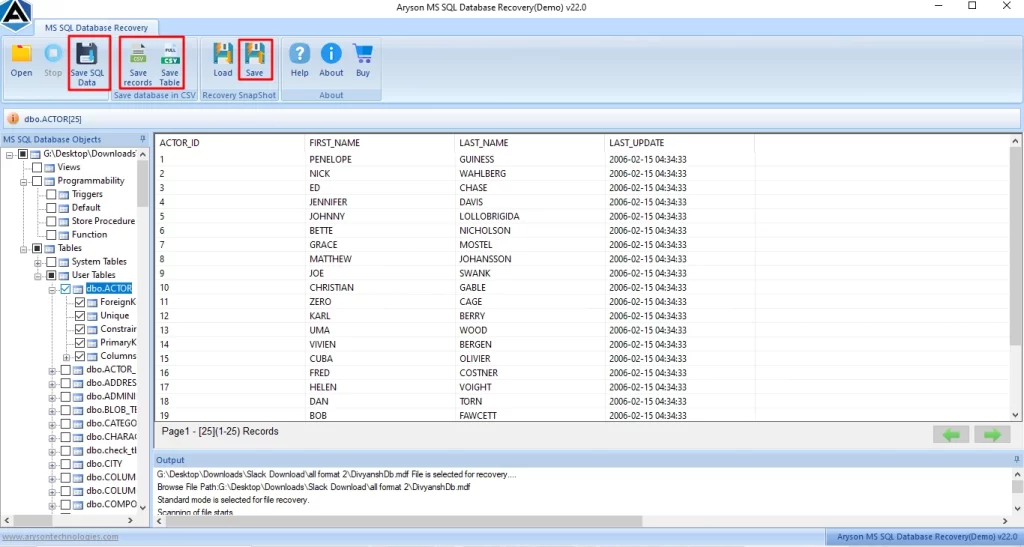
If you are having corrupt files for backup and restoration, use the SQL Recovery Software to restore corrupt SQL Backup file database. This software is made to repair all types of minor and major corrupted files with data security. The advanced scanning option of this software scans the file and provides a preview of it. Therefore, if you want to know how this software works, see the steps below:
Simple Steps to Restore SQL Server Database from Backup:
- To initiate the process, download the SQL Recovery Software.
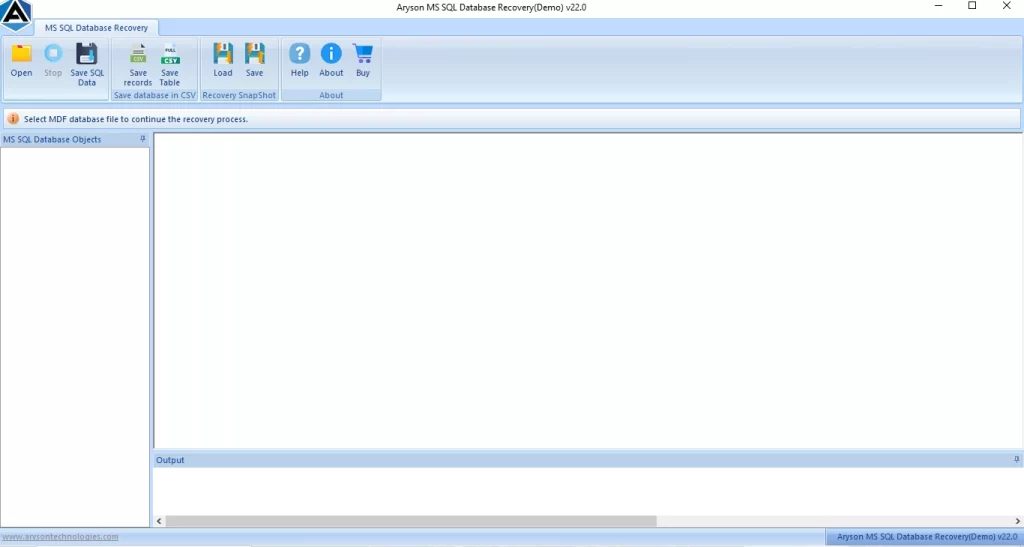
- Now, click on Open from the menu bar, and browse the .mdf files on your system.
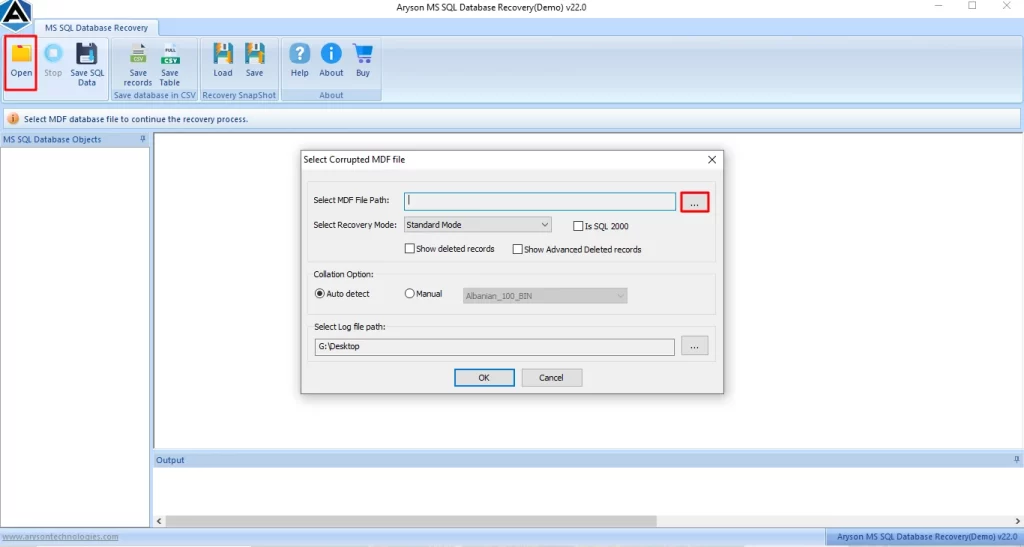
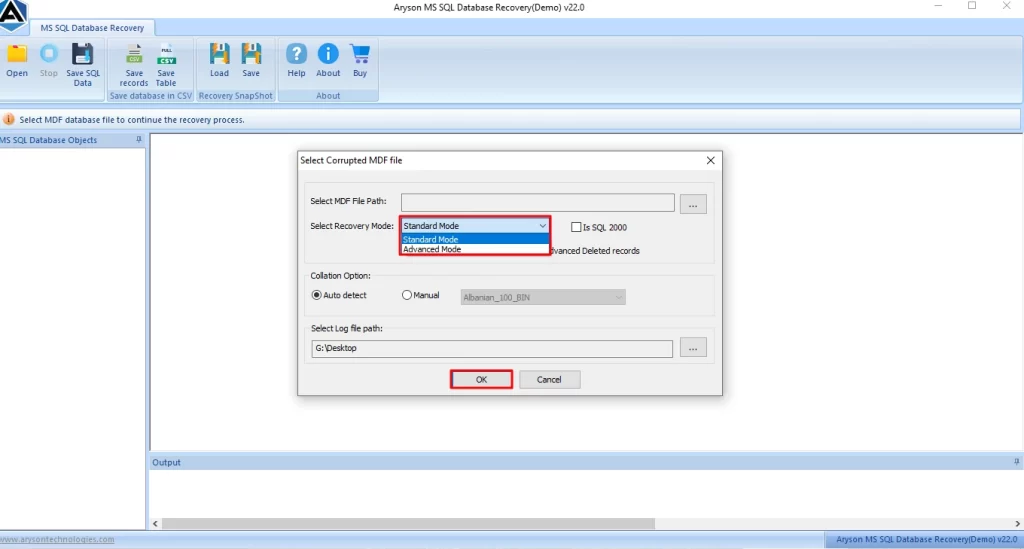
- After that, select the scanning option – Standard & Advanced Mode, and click OK.
- Then, preview the scanned folder data and view the attachments by clicking on any folder.
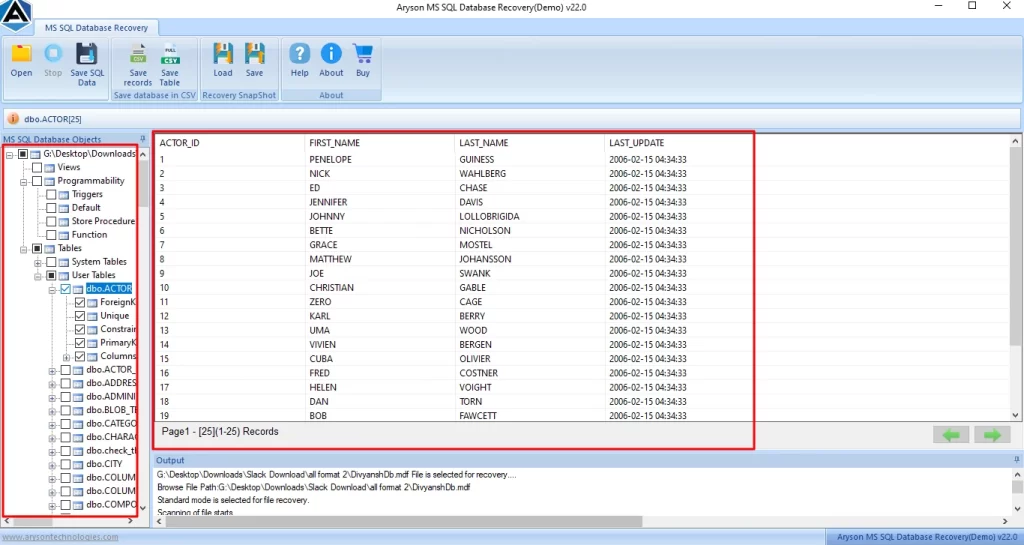
- Finally, you can click on the Save button from the menu bar to save recovery files.
How is this software useful to you?
- Its scanning option helps users to scan their corrupt .mdf files.
- Keeps the original data folder layout intact and maintains the proper folder order.
- Moreover, it allows you to view the files in advance before completing the save process.
- Additionally, it safely restores database tables, indexes, views, and triggers without data loss.
Best Precautions for SQL Server Backup and Restore
- You should take a backup on a regular basis.
- It is advised to store backup on a different physical drive or cloud storage.
- Moreover, you must enable the compression to save disk space.
- Furthermore, to enhance security, take encrypted backups.
Conclusion
In conclusion, we have discussed how you can backup and restore database in SQL Server . Now, it is important to choose the right approach to prevent data loss and recover quickly. However, if the standard backup and restore SOL server fails due to corruption, you can use the reliable automated software to prevent critical data from loss or damage.
Frequently Asked Questions
1. Can I restore a SQL Server backup on a different version of SQL Server?
Ans. Yes, but only when restoring from an older version to a newer version. Restoring from a newer version to an older one is not supported.
2. Why does my SQL Server backup fail with permission errors?
Ans. Generally, this usually happens when SQL Server does not have read/write permissions for the backup destination folder. Ensure proper NTFS and SQL Server service account permissions.
3. What do I do if SQL Server backup or restore takes too long?
Ans. In such cases, check disk I/O performance, available system resources, backup compression settings, and database size. Using faster storage and splitting backup files can help.
4. Can SQL Server backups be encrypted or compressed?
Ans. Yes. SQL Server supports both backup compression and backup encryption, helping reduce storage usage and improve security.
5. How much disk space should I allocate for SQL Server backups?
Ans. Ideally, you can allocate at least 1.5 to 2 times the size of your database, depending on backup type, retention policy, and compression settings.
4.9 based on 1809 user reviewsAbout The Author:

Isha Singh is a content and website optimization expert who helps blogs and businesses grow organically. She specializes in enhancing content quality, improving site structure, and increasing online visibility through smart, practical, and easy-to-implement strategies that drive long-term results.
Related Post


