-
Written By Isha Singh
-
Updated on March 17th, 2026
How to Quickly Repair SQL Database using DBCC CHECKDB
 4.9 based on 1809 user reviews
SQL Server databases are the backbone of most enterprise applications. However, database corruption can occur due to hardware failures or bugs in software. When corruption happens, administrators quickly identify and repair the issue to prevent data loss. Moreover, it checks the physical and logical integrity of a database and provides repair options when inconsistencies are found. In this blog, we will explain how to repair SQL database using DBCC CHECKDB, which includes SQL Recovery Software without data loss.
TL;DR: Use the DBCC CHECKDB to detect and repair SQL Server database corruption, makes sure to maintain integrity, minimal data loss, and improved database performance.
What is SQL Server Database Corruption?
It occurs when data stored in the database becomes unreadable. Corruption can affect database pages, tables, or metadata. When this happens, SQL Server may fail to read the data correctly or report the database as inaccessible. Common symptoms of database inaccessibility are the database entering suspect mode and resolve SQL Server consistency errors. To diagnose such problems, database administrators rely on the DBCC CHECKDB command.
How SQL Server DBCC CHECKDB Works
The DBCC CHECKDB performs multiple phases for verification to make sure the database structure is consistent.
- When the command runs, SQL Server creates a snapshot of the database so integrity checks can occur without any interruption in active user operations.
- The command validates allocation pages, such as GAM, SGAM, and IAM, to make sure database pages are properly assigned.
- Moreover, it examines system metadata tables to verify the integrity of the database schema.
- In addition, the process scans B-tree index structures to identify pointer errors and corrupt index entries.
- Furthermore, SQL Server reads each page and checks its checksum to confirm data integrity.
Best Solutions to Repair SQL Database Using DBCC CHECKDB
If you detect the corruption in the database, then SQL Server may recommend a specific repair option. Now, follow these steps to repair an SQL database with the help of the provided commands.
Fix 01: Run DBCC CHECKDB to Identify the Error
First, you need to run DBCC CHECKDB without any repair option to identify database inconsistencies.
|
DBCC CHECKDB (DatabaseName) |
This command scans the entire database and reports allocation errors or structural issues.
Fix 02: Take a Complete Database Backup
It is essential to create a full backup of the database. Moreover, the repair commands may modify or remove corrupted data.
Example backup command:
|
BACKUP DATABASE DatabaseName |
Fix 03: Set the Database to SINGLE_USER Mode
Before repair commands, you must place the database in SINGLE_USER mode. This prevents other users from accessing the database during repair.
|
ALTER DATABASE DatabaseName |
This command terminates the exit connections and makes sure that no new connections interface with the repair process.
Fix 04: Run DBCC CHECKDB with Repair Options
When you switch to SINGLE_USER mode, then run a DBCC CHECKDB with repair options.
Option 01: REPAIR_FAST
DBCC CHECKDB (DatabaseName, REPAIR_FAST)
- It maintains backward compatibility.
- Moreover, it does not perform any actual repair.
- Along with that, it is mainly used for legacy syntax.
Option 02: REPAIR_REBUILD
DBCC CHECKDB (DatabaseName, REPAIR_REBUILD);
This option repairs minor corruption, rebuilds non-clustered indexes and metadata inconsistencies, and does not cause data loss.
It is considered the safest repair option. However, it may take considerable time depends on the data size.
Fix 05: Return Database to MULTI_USER Mode
After the repair process completes, you can switch the database back to multi-user mode.
|
ALTER DATABASE DatabaseName |
Fix 06: Verify Database Integrity Again
Lastly, you have to run DBCC CHECKDB again to confirm that all issues have been resolved.
|
DBCC CHECKDB (DatabaseName) |
If no error appears, then the repair process was successful.
Fix 07: Professional Solution to Repair SQL Database using DBCC CHECKDB
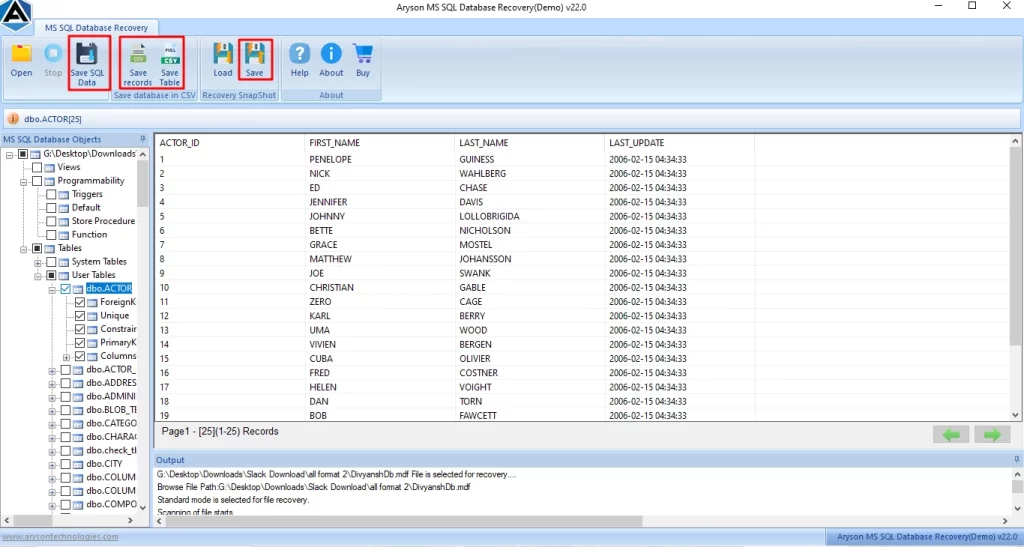
If the above fixes do not resolve the error, then use the SQL Recovery Software. It is reliable software that does not store users’ data and adheres to a privacy policy. This software offers advanced utilities that help to recover major and minor corruption. Additionally, it protects the folder structure after the scan. You can use the demo version of this software to explore its features. In case you encounter the SQL Server Error 601, then use the same software. Now, follow the steps to repair corrupt Microsoft SQL Server database.
- To initiate the process, download and install the SQL Recovery Tool on your system.
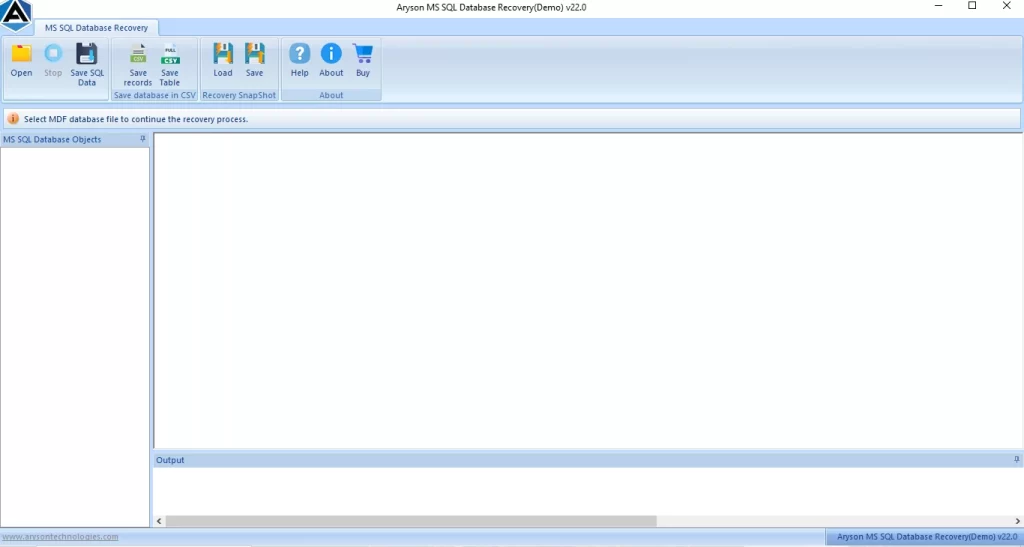
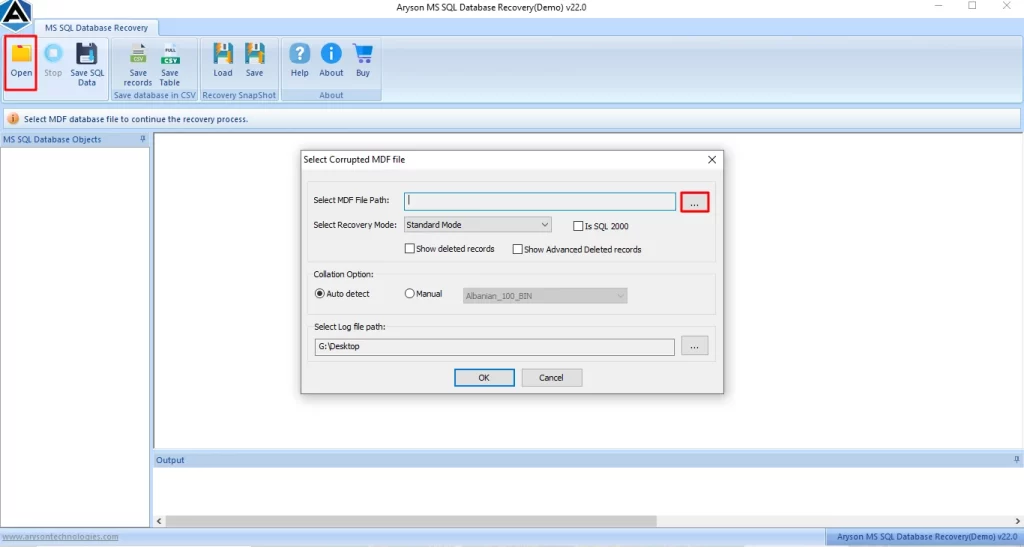
- Further, click on Open from the menu bar and select the corrupted .mdf file.
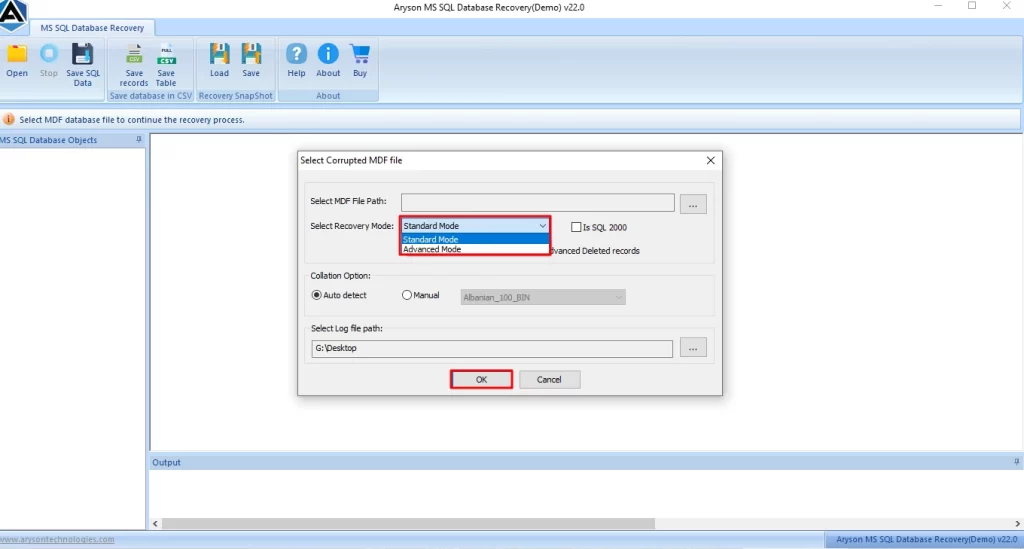
- Then, select the mode to scan the MDF file: the Standard Mode or the Advanced Mode.
- Now you can preview scanned MDF files in the tree structure.
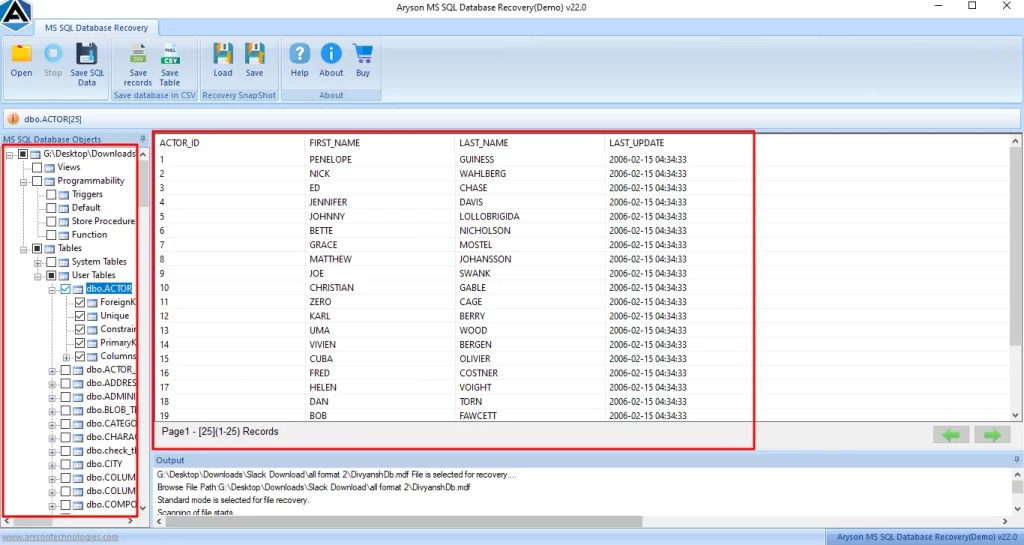
- Lastly, save the file by clicking on Save CSV data or Save SQL data on the computer for future access.
Best Practices for Using DBCC CHECKDB
Follow these best practices to avoid any major data loss or downtime:
- Make sure to run DBCC CHECKDB regularly to detect corruption early.
- You should always keep multiple backups to restore the database safely.
- Moreover, disk failures are one of the most common causes of database corruption.
- Furthermore, avoid the use of REPAIR_ALLOW_DATA_LOSS frequently, as this option should be used only when backups are unavailable, and data recovery is critical.
Limitations of BSCC CHECKDB
Although DBCC CHECKDB is a powerful command, it still has certain limitations:
- When you use the database, repair operations may cause data loss.
- Along with that, it may not repair severe corruption.
- Moreover, the process may take a lot of time for large databases.
- Furthermore, it requires advanced DBA knowledge.
- Additionally, it does not recover deleted database objects.
Therefore, administrators must carefully evaluate repair options before execution.
When Should You Use DBCC CHECKDB?
Use the repair corrupt SQL database method when:
- When the SQL Server shows consistency errors.
- Apart from that, when the database enters Suspect Mode.
- Moreover, the database performance suddenly drops.
- When there is an issue with hardware or disk failures.
- Additionally, regular integrity checks help you to prevent serious corruption issues.
Conclusion
To sum up, SQL Server Database corruption can lead to severe operational disruptions and potential data loss. Fortunately, SQL Server provides a powerful built-in command, DBCC CHECKDB, to detect and repair database inconsistencies. In this guide, we covered all aspects that Repair SQL database using DBCC CHECKDB. You can analyse the problem and use the related method to resolve the Server database issues.
Frequently Asked Questions
1: Can DBCC CHECKDB detect hardware-related corruption?
Ans. Yes. DBCC CHECKDB can detect corruption caused by hardware issues, such as disk failures, memory errors, or storage problems, by validating database pages and their checksums. However, it cannot fix hardware problems itself.
2: Can DBCC CHECKDB fix all database corruption?
Ans. No. DBCC CHECKDB can repair many structural and allocation issues, but severe corruption may require restoring the database from a backup or using specialised recovery tools.
3: What causes SQL Server database corruption?
Ans. Common causes include:
- Disk or storage failures
- Unexpected system shutdowns
- Faulty hardware or RAM
- Malware or malicious activity
- SQL Server bugs or software conflicts
- Improper database shutdowns
4: How long does DBCC CHECKDB take?
Ans. The duration depends on several factors, such as database size, server hardware performance, number of tables and indexes, and storage speed. The large enterprise databases may take several hours to complete the process.
5: What are the prerequisites before running DBCC CHECKDB?
Ans. Before executing DBCC CHECKDB:
- Ensure you have a full database backup
- Check available disk space
- Run the command during low server activity
- Confirm sufficient system resources
- Identify recommended repair options
6: Where to find detailed logs after running DBCC CHECKDB?
Ans. You can find DBCC CHECKDB results in:
- SQL Server Management Studio (SSMS) query output
- SQL Server Error Logs
- SQL Server Agent job history
- Windows Event Viewer
These logs provide detailed information about detected errors and repair recommendations.
4.9 based on 1809 user reviewsAbout The Author:

Isha Singh is a content and website optimization expert who helps blogs and businesses grow organically. She specializes in enhancing content quality, improving site structure, and increasing online visibility through smart, practical, and easy-to-implement strategies that drive long-term results.
Related Post