-
Written By Isha Singh
-
Updated on December 24th, 2025
How to Fix Outlook Keeps Asking for Password Issue
 4.9 based on 1809 user reviews
Overview: Microsoft Outlook sometimes keeps prompting for a password when it cannot connect smoothly with the mail server. This issue occurs due to unstable internet connectivity, incorrect login, or profile-related problems. Frequent password requests interrupt email access and reduce work efficiency. In this blog, we explain the causes of the Outlook keeps asking for password issue and provide a solution. To get the recovery in a faster way, use the Outlook PST Password Recovery Tool.
Why does Outlook Keeps prompting for a Password
Not only a single reason, but several reasons exist to cause the issue. There are many reasons why Outlook login keeps failing. Some main factors are given in points. Analyse them and understand which one is the reason for your Outlook error.
- Problems arise when the internet connection is lost.
- This cause occurs due to a corrupt or old password stored in the Windows Credential Manager.
- Maybe your Outlook Profile data is damaged.
- An Outdated Outlook version does not handle modern authentication.
- The problem arises with Microsoft 365, Exchange server, or 2-factor Authentication.
- Moreover, the account setting is misconfigured, or “Always prompt for credentials” is checked.
Now, we will discuss the method to fix the Outlook password prompt keeps popping up.
Method to Fix Outlook Asking for Password Repeatedly
Here, we will discuss several methods that help you to fix the Outlook keeps asking for password issue. Go through each of the methods to understand where the problem arises in your Outlook to fix the issue.
Fix 01 – Check the Internet Connection
- Firstly, check the internet connection.
- Then, open a web browser and try loading any website to confirm connectivity.
- If the website loads slowly, change the current network.
- Connect with a stable internet connection, such as Wi-Fi.
- Now, restart your Microsoft Outlook and enter the credentials if prompted.
- Monitor Outlook to ensure it connects to the mail server without asking for the password again.
Fix 02 – Clear Cache Password
- To start with, click on the Start menu and open Control Panel.
- Now, open the User Account and go to the Credential Manager.
- Under the Manage credentials, look for the Outlook Credentials and remove them.
Fix 03 – Disable Login Credentials
- Open Microsoft Outlook and click on your Info.
- Then select Account settings, and then select Email.
- Further, open the Change Account window and click on More Settings.
- Now, the Microsoft Exchange Server page is open.
- Lastly, navigate to the security tab and disable the “Always prompt for credentials”, then click on the Ok button.
Fix 04 – Use Outlook in Safe Mode
- First, press Windows+R to open the Run dialog box.
- Then, type Outlook.exe/safe and click OK to execute the command.
- Now, choose the profile window and select the Outlook profile from the list.
- Finally, click OK to open Outlook in Safe Mode.
Fix 05 – Sync Outlook from NTLM Authentication
NTLM (NT LAN Manager) is a Microsoft authentication protocol using a challenge-response mechanism to verify user identity without knowing the password.
- Start by launching Outlook and selecting the File.
- Then, go to Account Settings and pick it from the dropdown list.
- Find your Exchange account and hit Change.
- Next, click on More Settings and go to the Connection.
- Further, look for the ‘Exchange Proxy Settings’ button and click it.
- Locate the Proxy Authentication settings within the Proxy and select NTLM Authentication.
Fix 06 – Create New Outlook Profile
- To initiate this process, open the Control Panel and click on the User Accounts.
- Now, select the Mail and go to the Profile and click Show Profile.
- To add a profile, click on the Add section and enter the profile name.
- Then, configure the email for Outlook.
- Further, pick the Profile and confirm by hitting the Ok button.
- To finish the process, again open Outlook to check if the problem resolved.
Fix 07 – Update Outlook Application
- First, open Outlook and then go to the File menu.
- Then select the Office and “Update Now” from the updates.
- It will update the app.
Fix 08 – Use the Outlook PST Password Recovery Tool to Resolve the Issue
If the above fixes don’t resolve the Outlook crashes issue, then use the Outlook PST Password Recovery Tool to recover the password. It is easy-to-use software that easily recovers or updates the Outlook password. The tool ensures that data is not lost. To proceed with the process, follow the given steps:-
- Download and install the Outlook PST Password Recovery Tool and run it as an administrator.
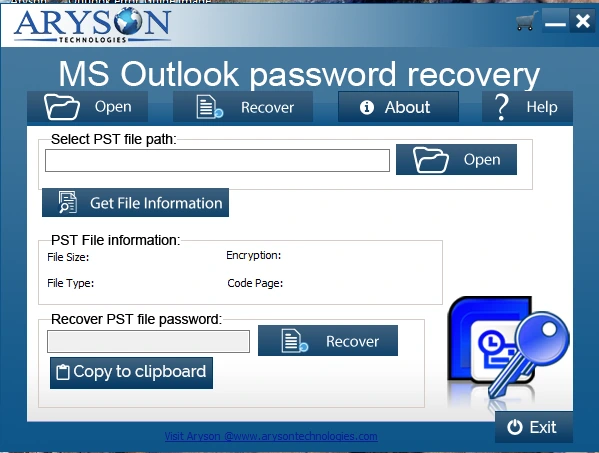
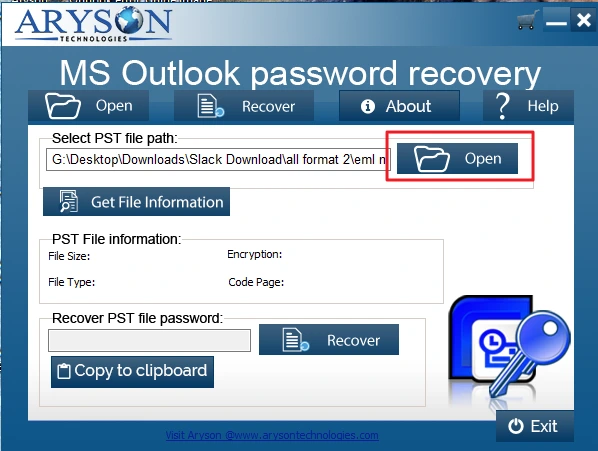
- Now, click Open to select the password-protected file.
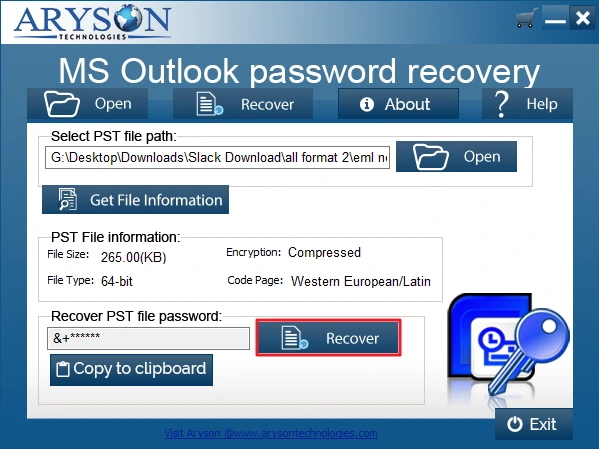
- Then, click on the Recover button to recover the password.
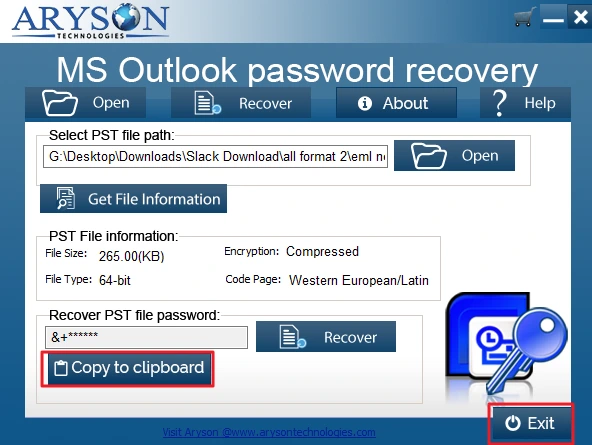
- Finally, click on the copy to clipboard to save the recovered password, and click exit.
Conclusion
To sum up, here we discussed the many solutions that will resolve the password issue. To overcome the Outlook keeps asking for password, follow this blog. You can analyse your problem and then pick the reliable solution for you. For a quick solution, use the recovery tool.
Frequently Asked Questions
Q1: How can I stop Outlook from repeatedly prompting for my password?
Ans. You can stop repeated password prompts by recovering or resetting the Outlook password using the Password Recovery Tool.
Q2: Is there a way to save my password in Outlook permanently?
Ans. Yes. Once you recover or remove the PST password with the automated Tool, Outlook no longer requires manual password entry.
Q3: Could antivirus or firewall settings be causing Outlook to ask for a password repeatedly?
Ans. If the issue relates to a protected or corrupted PST file, the Outlook PST Password Recovery Tool resolves it by unlocking the file and restoring normal access.
Q4: Why does Outlook work on my phone but keeps asking for a password on my computer?
Ans. Mobile apps often use cached credentials, use Outlook PST Password Recovery Tool fixes this by recovering or removing the PST password.
4.9 based on 1809 user reviewsAbout The Author:

Isha Singh is a content and website optimization expert who helps blogs and businesses grow organically. She specializes in enhancing content quality, improving site structure, and increasing online visibility through smart, practical, and easy-to-implement strategies that drive long-term results.
Related Post