-
Written By Rohan Wiese
-
Updated on December 24th, 2025
How to Resolve Outlook Error Code 0x80004001 Easily
 4.9 based on 1809 user reviews
Overview: Outlook displays the error 0x80004001 when it fails to upload or access PST files to Outlook. This error arises due to a corrupt PST file, system file damage, or an Outlook Windows glitch. In this blog, we will provide the methods to resolve the Outlook Error Code 0x80004001. For a corrupt PST file, you can use the Aryson Outlook PST Repair Tool to resolve the error and recover all the corrupted files.
Why does Error 0x80004001 in Outlook occur?
There are several factors due to which this error occurs in Outlook. We will discuss a few of them that will not allow you to add PST files in Outlook.
- In case Outlook has corrupt or damaged PST files.
- The PST store on a network or any external device.
- You add incorrect or faulty Add-ins.
- May be a hardware failure or a disk error.
- Moreover, an antivirus or firewall is block outlook operation.
Therefore, we will discuss the methods to resolve the Error Code 0x80004001 in Outlook one by one.
Top 6 Methods to Resolve the Outlook Error Code 0x80004001
Here, we have discussed the best methods to resolve the Outlook error that will help you solve your Outlook issues.
- Open Outlook in Safe Mode
Opening Outlook in safe mode will help to fix the offline mode issue to prevent the add-in from interfering with the normal Outlook. To open Outlook in safe mode steps are discussed below:
- First, close Outlook.
- Then, press the Windows+R key or search for the command prompt from the search bar, type Outlook.exe/safe, and click Enter. This will open Outlook in Safe mode.
- At last, click the Send/Receive option to check the status.
- Enter Correct Detail in the Outlook Account Settings
- Disabled Antivirus Setting
- Temporarily disable the scanning in the antivirus and try to import.
- If the Import is successful, add the PST files to the antivirus/Firewall.
- After testing, re-enabled all the security testing.
- Try Outlook Version 2016 to add a PST File
- To begin with, Open Outlook 2016.
- Go to File tab >> Info >> Account Settings drop-down >> Account Settings.
- Click on the Data file tab >> Add and Add PST file, then click Ok.
- Finally, close the Account Settings Window.
- Check & Install Pending Status
- Repair Corrupt PST File Using Aryson Outlook PST Repair Tool
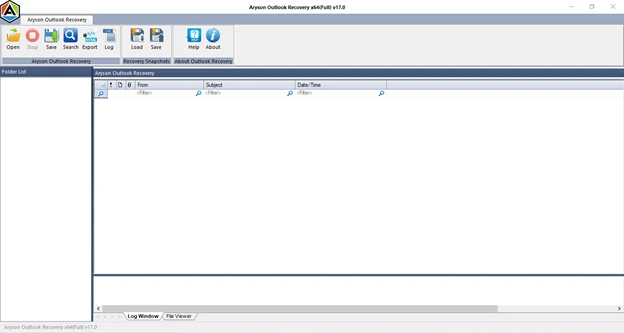
- To start, download the Aryson PST Repair Tool and select the PST File to recover.
- Then, select the Scanning Mode and click Ok.
- Now, preview the Email from the tree structure and click Save to recover the email.
- Lastly, choose the saving format and apply additional filters, and click Ok.
Go to the Outlook Account settings to check that all the details are entered correctly. If you find any mistakes, please enter the correct details to resolve the issues.
| Point to Remember: Using this method, you can recover your PST file and prevent the Error Code 0x80004001. |
Sometimes, not updating Outlook can lead to many problems in Windows. It is suggested to update Outlook and install the updates to fix the issues. After installing the updates, if you face any problems, then it is advised to reinstall the updates to fix the issues.
If you have corrupt PST files in your Outlook that show Outlook Error 0x80004001, then use the Aryson Outlook PST Repair Tool, which will help to repair your PST file. This tool is designed to handle the alignment error in PST files and has additional features to ease your work. You can fix Outlook Error 0X8004011d, which allows you to restore the file. The software is suitable for both Windows and Mac.
| Note: The Demo Version offers standard, advanced, and deep file scanning options, which will make you understand the working of the tool. |


To Sum Up
In conclusion, we have discussed several reasons why Outlook Error Code 0x80004001 occurs. To overcome issues like not being implemented, antivirus/firewall issues, system file corruption, and improper Outlook setup. You can use the above method to resolve the issues, or for corrupted files, you can use Aryson Outlook PST Repair Tool. This tool comes with many additional features to get specific data.
4.9 based on 1809 user reviewsAbout The Author:

Rohan Wiese is a content and website optimization expert who helps blogs and businesses grow organically. He specializes in enhancing content quality, improving site structure, and increasing online visibility through smart, practical, and easy-to-implement strategies that drive long-term results.
Related Post