-
Written By Isha Singh
-
Updated on May 11th, 2026
How to Open and Read MS SQL Server Error Log File – Ultimate Guide
 4.9 based on 1809 user reviews
SQL Server maintains detailed diagnostic records that capture everything from startup events to critical warnings. Whether you are a database administrator troubleshooting a connectivity issue or monitoring system health and understand the SQL Server Error Log File is an essential skill. Moreover, this guide walks you through everything you need to know and provides methods to accomplish the recovery, which include SQL Log Analyzer Software for quick recovery.
What is the SQL Server Error Log?
The error log in SQL Server is a plain-text diagnostic file that SQL Server generates automatically. It records server startup and shutdown events, login activity, backup and restore operations, database integrity checks, and system-level warnings. Each SQL Server instance maintains its own set of log files, making it a reliable source for auditing and diagnostics.
How to Open MS SQL Error Log File
Use the methods given below to open the SQL Server error logs file on your device.
- SQL Server Management Studio
- Disable File Access
- Professional Software
Method 01: SQL Server Management Studio (SSMS)
This is the most user-friendly approach to resolve the SQL Server error log location.
- To begin the process, open SSMS >> connect to your SQL Server instance.
- After that, in Object Explorer, you need to expand Management.
- Then, click on SQL Server Logs.
- Thereafter, double-click Current to open the active error log.
- At last, you can use the Filter option to search by date or keyword.
SSMS displays log entries in a readable grid format, which makes it straightforward to scan through large volumes of data.
Method 02: Direct File Access
As you know, the ERRORLOG file is plain text; you can open it with any text editor such as Notepad or Notepad++. You just have to locate the file at the path mentioned earlier and then open it directly. Moreover, this approach works well when SSMS is unavailable or when you access logs on a remote server via a file share.
Reading and Interpreting Log Entries
Each log entry follows a consistent structure:
| Date/Time | Source | Message |
| 2025-04-10 08:12:33.47 | Server | SQL Server is starting at normal priority base… |
Key terms to recognize:
- spid – Server Process ID; you need to identify the session that generated the entry.
- Severity levels – Messages are labeled as informational, warnings, or errors.
- Recovery messages – It appears at the time of startup and confirm the database states.
You have to focus on messages with words like “failed”, “error”, or “warning” when the issue is diagnosed.
Method 03: Professional Software to Open SQL Server Error Log Files
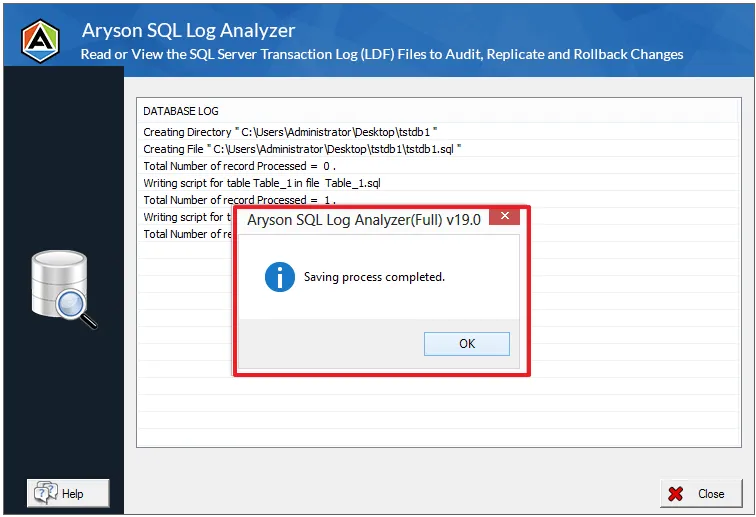
Use SQL Log Analyzer Software to open your SQL Server log files. This software helps you to recover and open your files. You can use this software when your log files are inaccessible or corrupted.
Process to Open Server Log Files
- To initiate, install the SQL Log Analyzer Software.
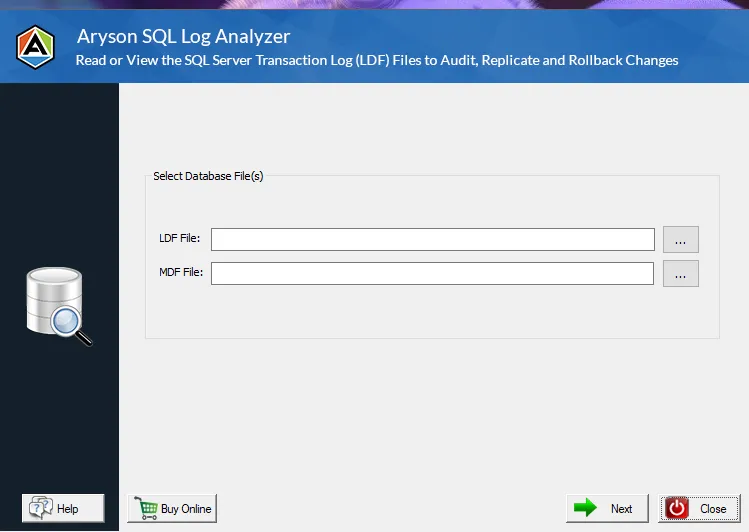
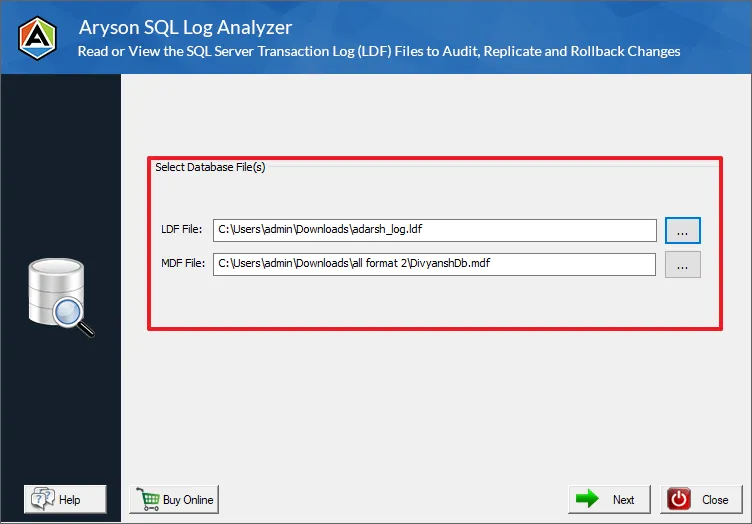
- Then, you have to add .ldf and .mdf files from your system.
- Afterward, you can preview the files that appear on the screen and click Save.
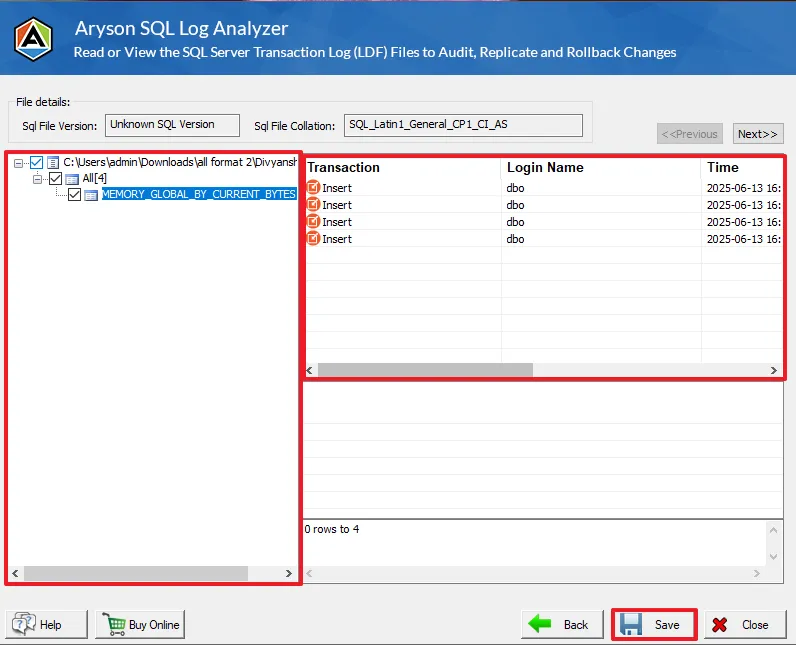
- In the end, the files are saved successfully on your system.
Also Read: In the long run, transaction log files can consume significant disk space. However, if you need that space after reviewing your error logs, refer to the guide on how to Shrink Log File in SQL Server.
Conclusion
Overall, the MS SQL Error Log File is a very useful tool available to database administrators. Knowing the SQL Server error log location, being able to open SQL Server error log files through SSMS or T-SQL, and understanding how to interpret individual entries helps you to understand better or proactively manage your database. Regular review of these logs supports both compliance requirements and long-term performance stability. To quickly recover the server log, you can use professional software for smooth and simple recovery.
Frequently Asked Questions
Q1: How many error log files does SQL Server keep?
Ans. By default, SQL Server keeps 6 archived logs and 1 active log, totalling 7 files.
Q2: What information is stored in SQL Server error logs?
Ans. It stores startup events, login failures, backups, restores, configuration changes, and SQL Server errors.
Q3: How to check the SQL Server error log for login failures?
Ans. Use EXEC xp_readerrorlog 0, 1, N’Login failed’; to view login failure entries.
Q4: What causes SQL Server error log to grow large?
Ans. Frequent restarts, login failures, trace flags, and heavy backup activity can increase log size.
Q5: How does error log help in performance tuning?
Ans. It helps identify issues like blocking, memory pressure, and I/O delays affecting performance.
4.9 based on 1809 user reviewsAbout The Author:

Isha Singh is a content and website optimization expert who helps blogs and businesses grow organically. She specializes in enhancing content quality, improving site structure, and increasing online visibility through smart, practical, and easy-to-implement strategies that drive long-term results.
Related Post