-
Written By Isha Singh
-
Updated on June 5th, 2026
How to Import MSG Files to Gmail Easily (2026 Guide)
 4.9 based on 1809 user reviews
User query: I have multiple MSG files from Outlook and I want to upload them to Gmail in bulk. What is the easiest and safest method to do this without data loss?
MSG files are usually created by Microsoft Outlook. They store a single email with its content, attachments, and metadata. The problem starts when you want to move your MSG files into Gmail because Gmail does not support the MSG format directly. So if you are switching from Outlook to Gmail, you need a way to transfer your MSG files. This guide explains simple ways to import MSG files to Gmail, which include the manual method and the professional DataRecoveryFreeware MSG Converter Tool to import your emails in a hassle-free way.
Why Import MSG to Gmail?
- Move emails from Outlook to Gmail when switching platforms.
- User can access their old MSG emails anytime from any device through Gmail.
- It creates a secure cloud backup of important Outlook messages.
- Moreover, you can manage all emails in one place with Gmail’s search and filters.
- Avoid dependency on Outlook and keep data more portable.
Benefits of Using Gmail
|
Method 01: Import MSG Files to Gmail (Manual way)
This method is the most basic method to move MSG files into Gmail. It doesn’t require any extra tool or conversion, which is why many users try it first. But it can get slow very quickly if you have more than a few emails.
It works by opening each MSG file inside Microsoft Outlook and then manually forwarding it to your Gmail address. You basically treat each MSG file like a normal email and resend it.
Working Process to Open MSG Files in Gmail
- Open Microsoft Outlook on your system.
- Locate the MSG file you want to import.
- Thereafter, double-click on the MSG file to open it in Outlook.
- Make sure your Gmail account is already added to Outlook.
- Open the email content from the MSG file.
- Click on the “Forward” button in the message window.
- Enter your Gmail email address in the recipient field.
- Add a subject or note if needed >> Click Send.
- Wait for the email to arrive in your Gmail inbox.
Important points to keep in mind:
- Each MSG file must be opened and sent one by one.
- There is no bulk option in this method.
- Gmail may take a few seconds or minutes to receive the email, depending on the size.
- Attachments inside MSG files may sometimes not upload correctly or may get delayed.
- Formatting of emails can slightly change during forwarding.
Limitation:
- It is very time-consuming when you deal with multiple MSG files.
- Not practical for large email backups or business data migration.
- Easy to make mistakes when forwarding many files manually.
- Attachments are not always reliable and may fail to transfer properly.
- Requires Outlook to be installed and configured correctly.
Professional Software to Import MSG Files to Gmail
The professional MSG File Converter Tool is suitable for bulk import. By using this software, one can easily import MSG files in Gmail without any hassle. Its GUI is user-friendly, which means a non-tech user can also use it easily. You can also import MSG to Microsoft 365, to view your MSG files in Microsoft 365 environment. It comes with some great features, which are given below:
Features of the MSG File Converter Tool
- It keeps the folder hierarchy maintained throughout the process.
- Allows the users to execute the MSG to Gmail conversion smoothly.
- It can convert the MSG files into different file formats like PST, EML, MBOX, PDF, etc.
- Directly import MSG to Yahoo Mail, Gmail, Hotmail, Thunderbird, IMAP, and other email clients.
- Also converts the large-sized MSG files to import Outlook MSG Files into Gmail.
Steps to Transfer MSG Files to Gmail
- Initially, visit the website and download the MSG Converter Tool.
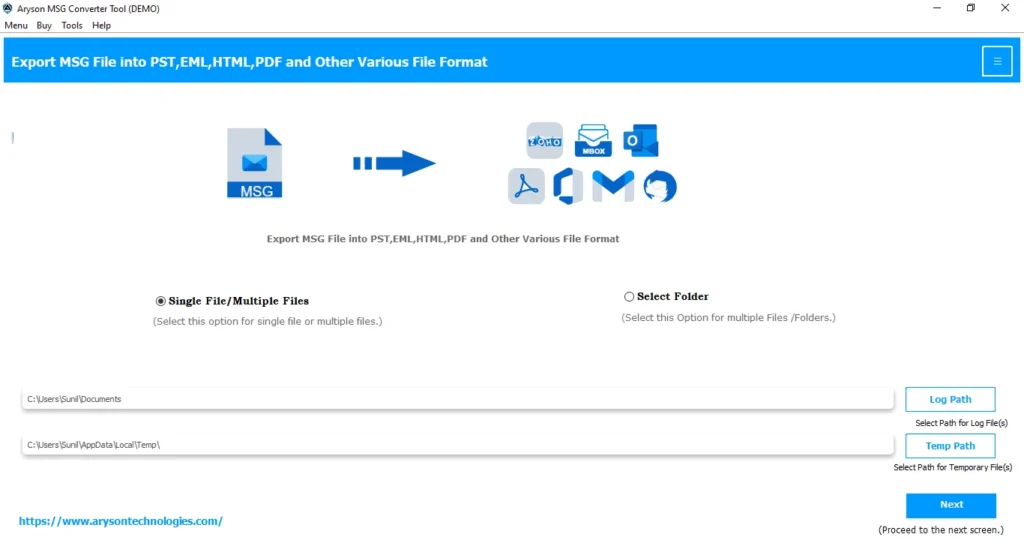
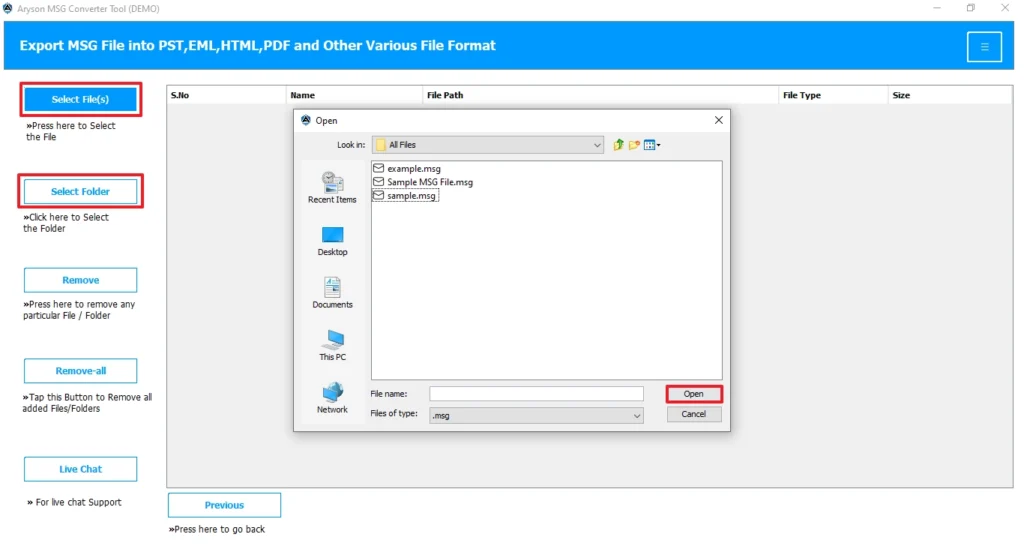
- Now, select the File/Folder to open MSG from the system and click Open.
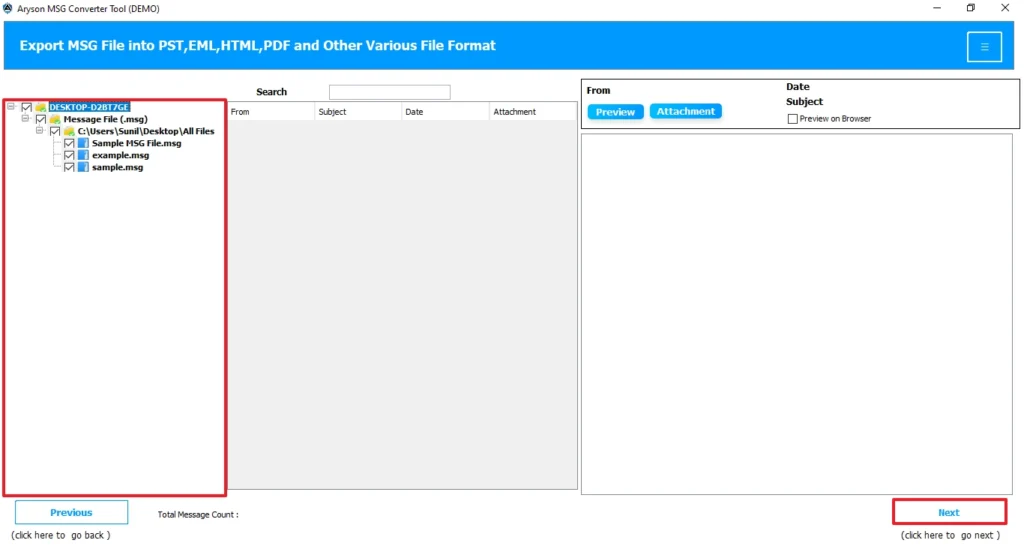
- Further, you can select the mailbox data you want to convert from the Preview table and click Next.
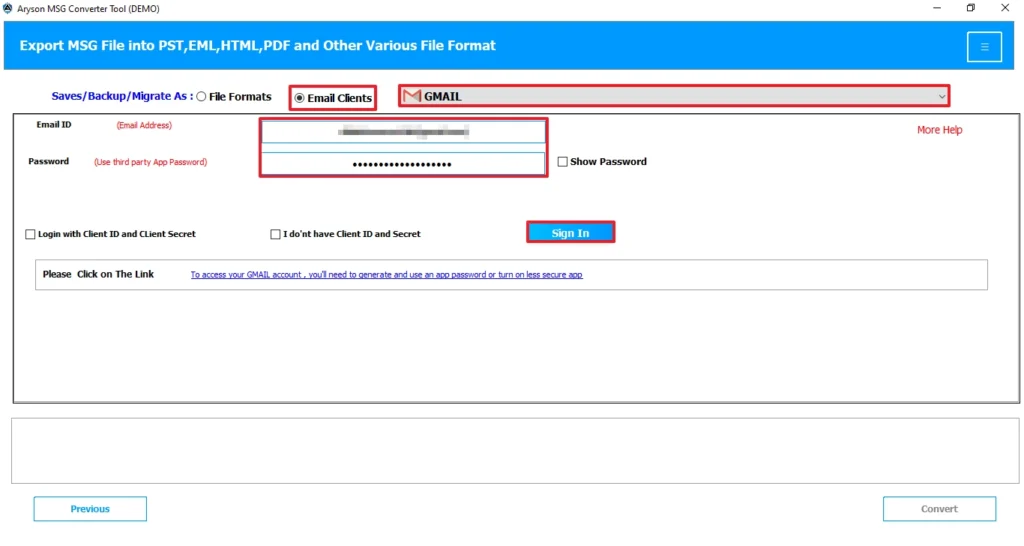
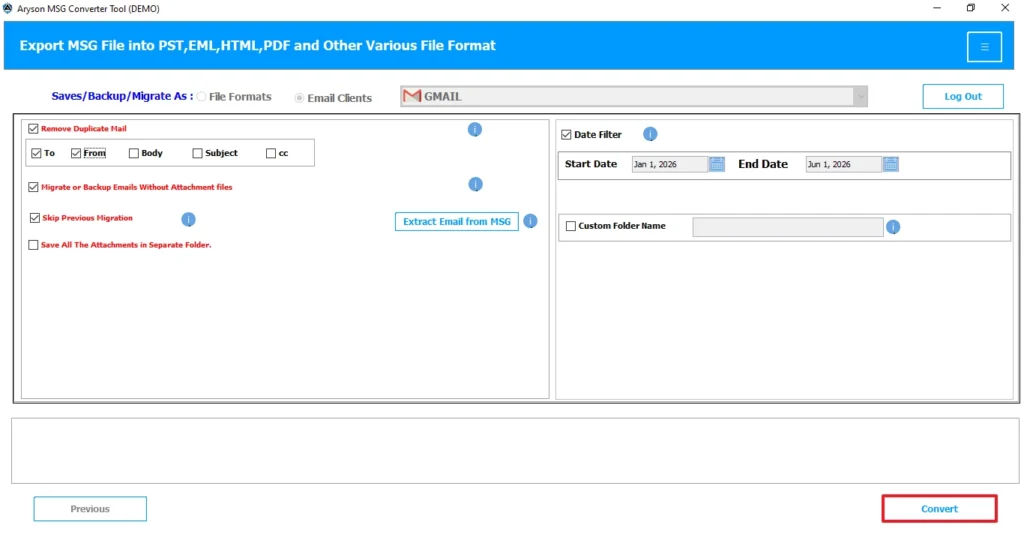
- From the email client, you have to select Gmail as the output saving option.
- After that, you can use the advanced filters of this tool to obtain the specific data.
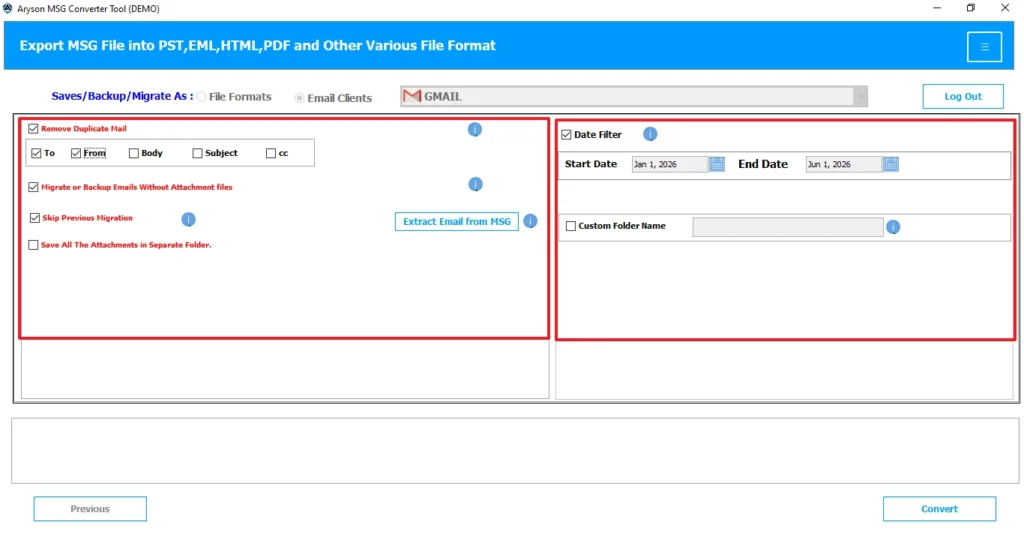
- Finally, click Convert to obtain data in Gmail.
Conclusion
We provided you with the best methods to import MSG files to Gmail account easily. If you use the manual process, there is a chance you may lose your data. It also doesn’t provide any guarantee to execute the process completely. So use the automated method to open MSG to Gmail easily. The best thing about this utility is that it always maintains the original property of the file.
Frequently Asked Questions
1: Is Outlook required to import MSG files into Gmail?
Ans. Outlook is not strictly required; you can also use the MSG conversion tool to move files into Gmail.
2: How long does it take to import MSG files to Gmail?
Ans. It depends on file size, number of emails, and internet speed; small imports take minutes.
Bulk migrations can take several hours or more.
3: What should I do if some MSG files fail to import?
Ans. First, check if the MSG file is corrupted and try opening it in Outlook again. If it still fails, convert it to another format like EML and import it individually.
4: Can I import MSG files on Windows and Mac?
Ans. Yes, MSG files can be handled on both Windows and Mac using email clients or conversion methods. Windows supports Outlook natively, while Mac often needs file conversion for smooth import.
4.9 based on 1809 user reviewsAbout The Author:

Isha Singh is a content and website optimization expert who helps blogs and businesses grow organically. She specializes in enhancing content quality, improving site structure, and increasing online visibility through smart, practical, and easy-to-implement strategies that drive long-term results.
Related Post