-
Written By Rohan Wiese
-
Updated on May 1st, 2026
How to Convert OST Files to PDF in Simple Steps (2026 Guide)
 4.9 based on 1809 user reviews
Outlook works well if you’ve ever tried to share or access emails stored in an OST file. These files aren’t built for easy portability, which creates a real problem when you need to send data to someone or just open it on a different device. Converting OST files to PDF is one of the easiest ways around this. In this guide, you’ll find straightforward steps that actually work, which include the OST to PST Converter Tool to convert OST files to PDF in a hassle-free way.
TL;DR: Most of the users switch from the OST format to PDF to easily access their files anytime, anywhere. To perform the conversion, you can use Outlook or a professional OST Converter Tool.
Brief About the OST File
An OST (Offline Storage Table) file is used to store a copy of your mailbox data on your device. Also, it lets you access emails, contacts, and calendars when you are offline. However, OST files are tied to a specific Outlook profile, which makes them difficult to open. This is the reason most of the users prefer to convert OST files to PDF format.
Why do users convert OST to PDF?
- OST files store your Outlook data locally, but PDF makes it easy to share with anyone.
- You can convert individual emails to PDF directly from the Outlook print menu.
- Moreover, converted PDF keeps your email content intact, along with subject & date.
- Lawyers and compliance teams often request emails in PDF because it’s a password-protected format.
- Always preview a few converted files before closing out your original OST for good.
- The whole process takes under an hour, even if you’re dealing with a large mailbox.
Best Solutions to Convert OST Files to PDF
This guide walks you through the most effective solution that will smoothly export your data.
- Manual Method (Outlook)
- Professional Software
Method 01: Manual Method (Outlook) to Convert OST Emails to PDF
Use active Microsoft Outlook to perform the conversion process.
- To initiate the process, you need to launch Microsoft Outlook.
- After that, go to your mailbox and open the specific email that you want to convert.
- Now, click on the File tab in the top menu >> select Print from the sidebar.
- Next, in the Printer section, select Microsoft Print to PDF as the output option.
- Thereafter, you can change the settings of a specific email style if needed.
- Afterward, click on the Print button. Outlook will prompt you to save the file.
- In the end, choose the destination folder, enter a file name, and click Save.
Drawback of the Manual Method
- With this method, you can convert only one email at a time.
- This method works only if you have a valid Outlook account.
- Moreover, you need to repeat the same process for multiple files.
- Fewer filter options are available for custom conversion.
Method 02: Professional Software to Convert OST Files to PDF
With the help of the OST to PST Converter Tool, user can easily convert their data in bulk. This software is made to maintain the folder structure and hierarchy. It offers multiple file formats to convert OST to EML, PST, EMLX, and other output formats. Also, it offers various advanced filters that help users to convert specific data and save a lot of time. In addition, this software works with corrupted or orphaned OST files.
Process to Export OST File to PDF
- To initiate, download and run the OST to PST Converter Tool on your computer.
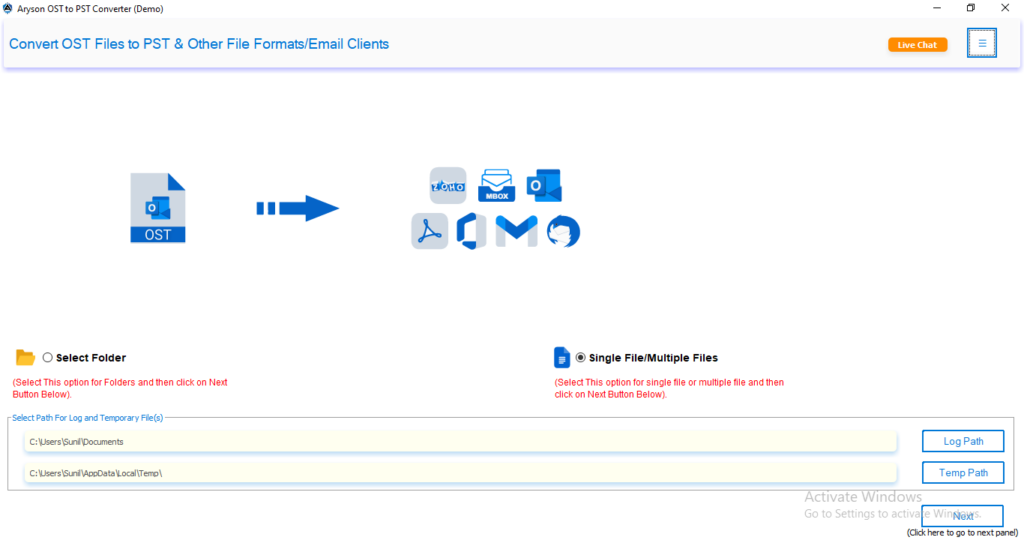
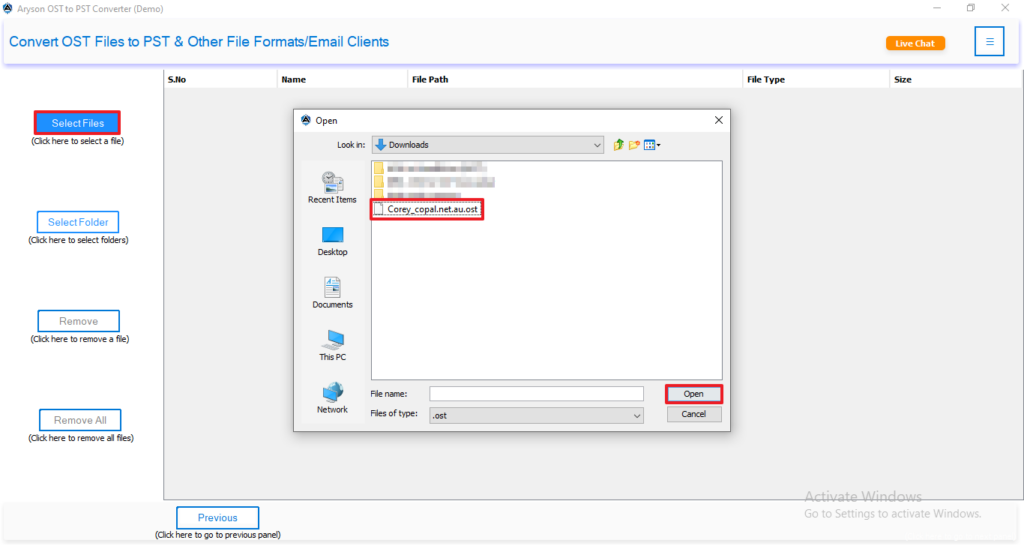
- Now, select a file/folder and navigate to the .ost file on your system, and click open.
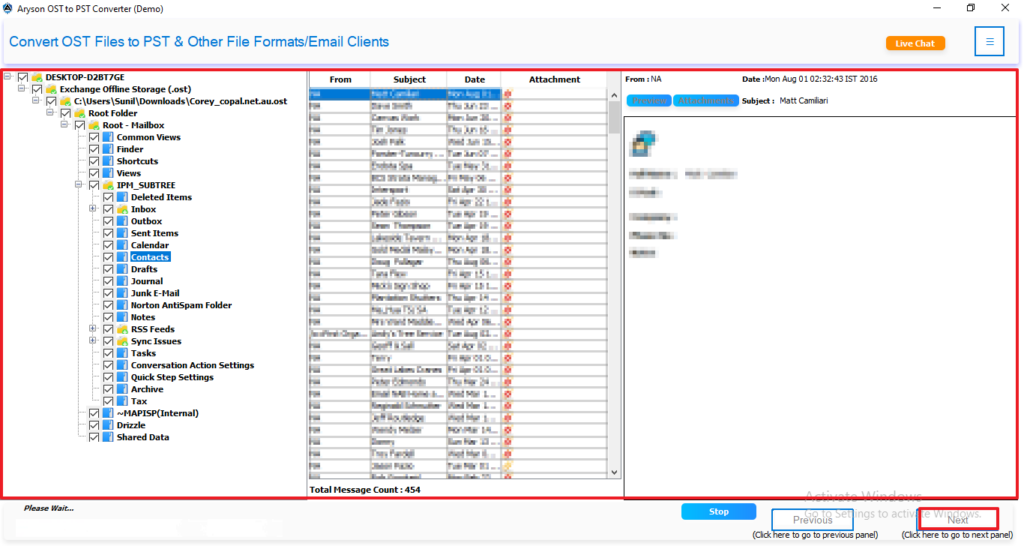
- Next, preview the folders along with complete attachments and click Next.
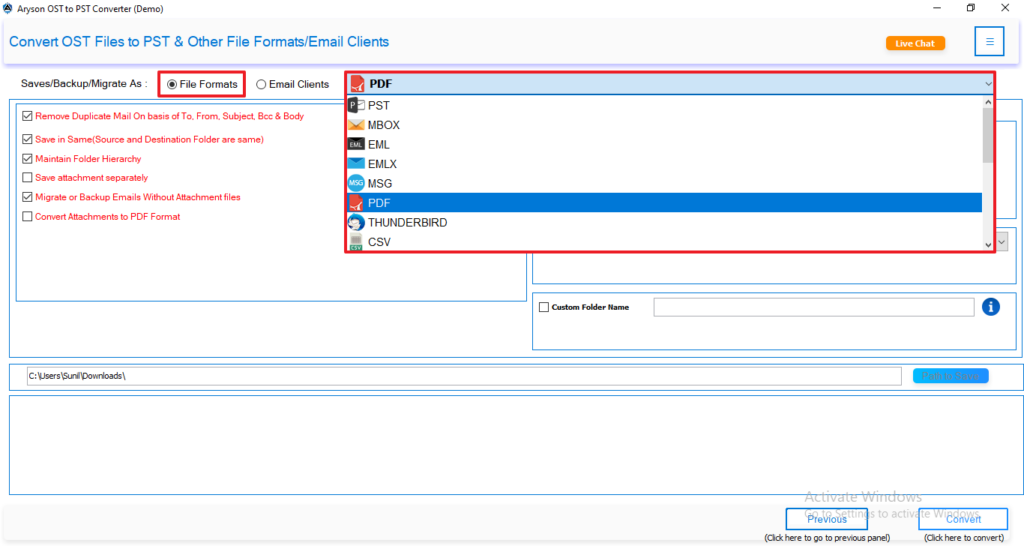
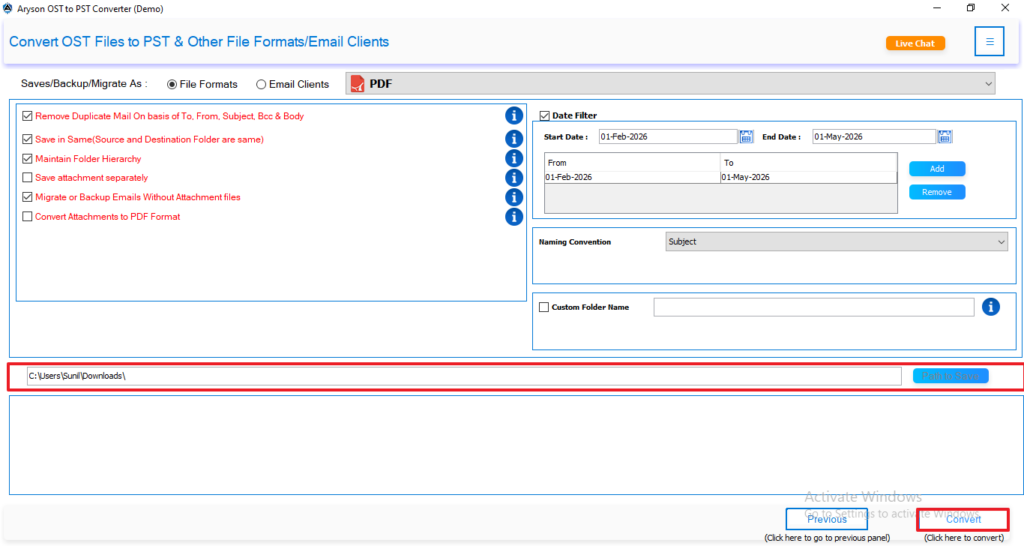
- After that, select PDF as the output file format from the given options.
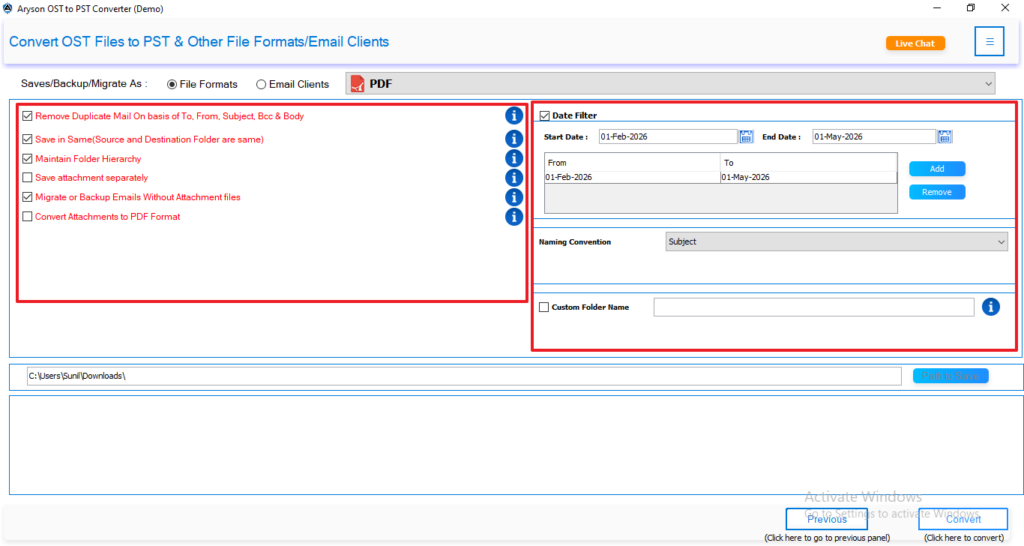
- Thereafter, apply the filters for specific data conversion as needed.
 .
.
- In the end, select the path to save the resultant file & click Convert to start the process.
Also Read: If you want to export OST files into email clients, then read our detailed guide on import OST to Office 365.
Tips to Save Outlook OST Files to PDF
- It is important to always keep a backup of your OST file.
- Make sure your system has enough storage space before conversion.
- Moreover, you must use filters to avoid unnecessary data export.
- Additionally, keep in mind to avoid interrupting the process midway.
Conclusion
In the end, converting OST files into PDF makes it much easier to view, store, and pass along your Outlook emails. If you only have a few messages, the manual method will work well to convert OST Files to PDF. But when you’re dealing with larger data or need more flexibility, the advanced software can save a lot of time and effort.
Frequently Asked Questions
1: Why can’t I open the OST file in Outlook?
Ans. OST files are linked to a specific Outlook profile and Exchange account. If the connection is lost or the profile is deleted, the file becomes inaccessible.
2: Why is Outlook creating OST instead of PST?
Ans. Outlook creates OST files when using Exchange, IMAP, or Office 365 accounts to allow offline access and synchronization with the server.
3: What happens if the OST file is corrupted?
Ans. If an OST file gets corrupted, you may lose access to emails. In such cases, using a reliable conversion or recovery tool can help extract the data.
4: Will the OST to PDF conversion work on Mac systems?
Ans. Most manual methods are Windows-based. However, some professional tools offer Mac-compatible versions or web-based solutions.
5: What happens to deleted emails when converting OST to PDF?
Ans. Deleted emails are usually not included unless they are still present in the “Deleted Items” folder. Some tools may allow recovery of deleted data if available.
4.9 based on 1809 user reviewsAbout The Author:

Rohan Wiese is a content and website optimization expert who helps blogs and businesses grow organically. He specializes in enhancing content quality, improving site structure, and increasing online visibility through smart, practical, and easy-to-implement strategies that drive long-term results.
Related Post