-
Written By Rohan Wiese
-
Updated on July 30th, 2025
How to Extract Data from VMDK File – Step-by-Step Tutorial
 4.9 based on 1809 user reviews
Summary: VMDK (Virtual Machine Disk), which contains all the data stored by a Virtual Machine. VMDK stores the OS, applications, user data, and virtual machine data. If you are trying to extract data from VMDK file or to recover lost files without VMware, it can be a challenge. In this blog, we will walk you through multiple methods to extract your VMDK data, using both manual techniques and specialized tools. The expert’s suggested solution is the VMDK Recovery Tool. To make this process easier, it allows users to extract data from healthy or damaged VMDK files with data integrity.
What is VMDK file in VMware?
VMware uses the VMDK file as the virtual hard drive. It contains the OS, applications, and data of the virtual environment. There are two types of VMDK files:
- Monolithic: A single large file.
- Split: Several 2 GB segments used for portability.
Understanding the Need to Extract Files from VMDK
There are several reasons why users might want to extract data from a VMDK file:
- When you need to access files without starting the virtual machine
- To recover data from a damaged or deleted VM
- Move files to another system or environment
- Back up important files without restoring the whole VM
- Retrieve important data from an inaccessible virtual machine
- Save specific files or folders directly
- Free up space by removing unwanted data
- Use extracted files on different platforms or in different formats
Methods to Extract Data from VMDK
There are different methods to open VMDK File in Windows. It depends on its condition; it can be healthy, split, or corrupted. If the file is in good shape, you can mount it directly using tools like VMware or VirtualBox and access the files just like a normal hard drive, but if the file is corrupted or damaged, or not opening properly, then you can move to the automated solution as well. If the VMDK file got deleted, Recover Deleted VMDK Files from Datastore.
Method 1: Using VMware Workstation
VMware Workstation Player allows you to open and extract content from VMDK file without booting the virtual machine.
- Firstly, download and launch VMware Workstation.
- Go to File, then click on Map Virtual Disks.
- In the new window, click the Map tab.
- Click Browse to locate and select your VMDK file.
- Set the maximum volume size, then uncheck Read-only mode.
- Check Open drive in Windows Explorer after choosing the Drive later and click OK.
- A warning pop-up appears; click OK to proceed.
- Your VMDK will open as a virtual drive.
- Now you can easily copy and extract files from it.
- Now navigate to the File Explorer and right-click the mounted disk.
- Lastly, pick the Disconnect Virtual Disk.
Method 2: Extract Data from VMDK Using 7-Zip Utility
7-Zip is a free, open-source tool that treats .vmdk files like archives, allowing direct access to their content.
- Install and launch the 7-Zip utility.
- Locate your VMDK file in File Explorer.
- Right-click the .vmdk file.
- Select Open archive from the 7-Zip Menu.
- A new window will open showing the contents of the VMDK file.
- Browse through folders and copy files to a desired location.
- Once done, close the 7-Zip program.
Drawbacks of Manual Methods
However, these methods work for healthy files and experienced users. If you have a corrupt VMDK, then you will face these issues:
- However, manual extraction methods require technical tools like VMware Workstation, VDDK, or 7-Zip.
- Moreover, the process can be time-consuming, especially when dealing with large or split VMDK files.
- In addition, there’s a risk of data corruption if the files are not handled properly.
- Users need a fair amount of technical knowledge, particularly when working with command-line utilities.
- As a result, there is a high possibility of human error during such manual operations.
Method 4: Reliable Solution to Extract Content from VMDK
If manual methods fail or prove inefficient, the Aryson VMDK Recovery Tool offers a quick and reliable solution for extracting data from corrupt or inaccessible VMDK files. This tool supports both monolithic and split VMDK files, which makes it appropriate for VMware users dealing with various disk formats. It can open and scan corrupted or unreadable VMDK files, displaying all the recoverable items before saving them. It can efficiently recover data with minimal technical effort. Here are the steps to extract data from VMDK:
- First of all, launch Aryson VMDK Recovery Software.

- After that, select the VMDK file and click Open to add them.
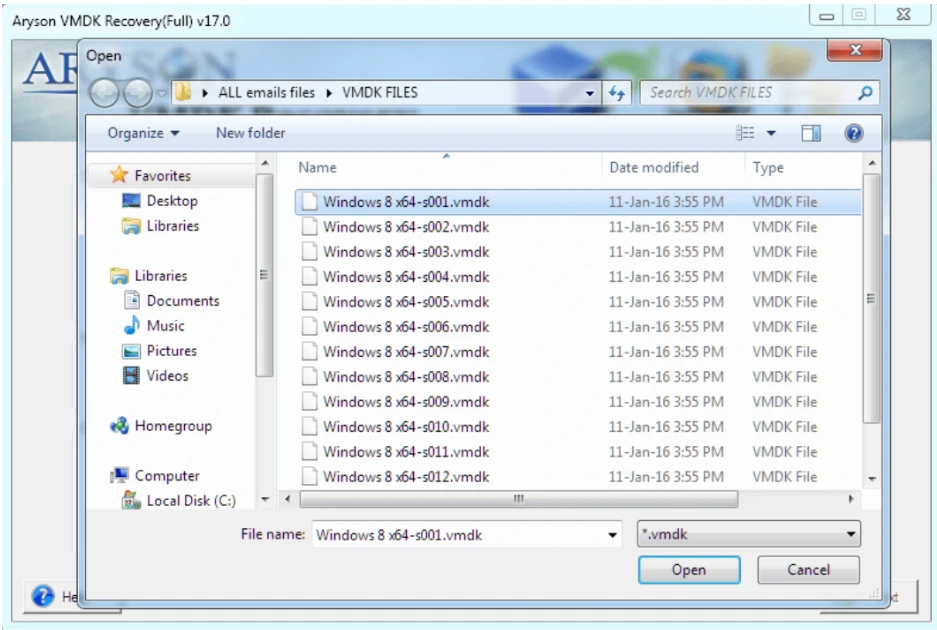
- Once the file is loaded, select the VMDK you want to repair and choose a recovery mode based on the level of corruption:
- Standard
-
- Advanced
-
- Deep

- Deep
- After scanning, preview the recoverable data. Pick the data you need to recover and hit OK to start the scanning process.


Conclusion
We have gone through various methods to extract data from VMDK files. When the file can be healthy, split, or corrupted. Although the manual techniques work well, they are inefficient when accessing damaged or complex VMDK formats. Therefore, the more practical solution is to use a reliable solution to ensure complete and secure extraction. Choosing the right method ensures data safety, reduces the risk of errors, and simplifies the recovery process.
Frequently Asked Questions
Q.1 Can I open a VMDK file in Windows without VMware?
Ans. Yes, you can use tools like 7-Zip or VMDK Recovery software to open and extract data without launching VMware.
Q.2 Can I extract files from a corrupted VMDK file?
Ans. Yes, manual methods may not work, but tools like Aryson VMDK Recovery can recover files from corrupted or damaged VMDK files.
Q.3 How can I extract data from a VMDK file?
Ans. You can extract VMDK data using the following steps:
1. Launch the Aryson VMDK Recovery Tool on your system.
2. Click the Add File(s) button to browse the VMDK file. Click OK to confirm.
3. Once the file is loaded, select the VMDK you want to extract and click OK.
4. Choose a recovery mode based on the level of corruption.
5. Click OK to start the extraction process.
4.9 based on 1809 user reviewsAbout The Author:

Rohan Wiese is a content and website optimization expert who helps blogs and businesses grow organically. He specializes in enhancing content quality, improving site structure, and increasing online visibility through smart, practical, and easy-to-implement strategies that drive long-term results.
Related Post