-
Written By Isha Singh
-
Updated on January 20th, 2026
How To Convert OLM To MBOX File (Complete Guide)
 4.9 based on 1809 user reviews
OLM is a Mac Outlook default file format. Since OLM files are not compatible with Thunderbird, when users switch to Thunderbird, they need to convert OLM data to MBOX. However, Outlook does not offer a direct option to convert OLM to MBOX. This calls for the need to use an easy and safe way for conversion. Among the various ways available to convert OLM files. In this blog, we will discuss the most effective ones, including the Data Recovery Freeware OLM Converter Tool. This way, it will be helpful for users to keep emails, folders, and attachments unchanged.
Brief About OLM & MBOX
OLM (Outlook for Mac)
- An OLM is a default file format for Mac Outlook.
- This format is used to store Outlook emails, attachments, journal, calendars, etc.
- Further, it is suitable for Mac Outlook data backup and archive.
MBOX (Mailbox Associated with Thunderbird & others)
- The MBOX format stores plain text as a message.
- In addition, it is useful to store a message for long-term use.
- Moreover, this format is compatible with both Mac & Windows operating systems.
Importance of OLM to MBOX Converter
- The MBOX is accessible in different email clients, such as Thunderbird and Apple Mail.
- It is reliable for users to switch between email clients on any operating system.
- Thus, the MBOX files are easily manageable, and their cost value is affordable for users.
- Moreover, there is no need to access Outlook for MBOX files.
- Consequently, the email structure and folder hierarchy remain intact after conversion.
How Many Ways are there to Convert OLM File to MBOX
Although many reliable solutions accomplish the conversion process. We will discuss the most appropriate methods in detail.
- Drag & Drop Method
- Configure IMAP for Gmail & Outlook
- Automated Software
Solution 01: Drag & Drop Method to Convert OLM File to MBOX
- To perform the conversion process, open Mac Outlook and click on Tools >> Import.
- Select the option Outlook for Mac archive file (.olm) and click Continue for further processing.
- Then, you can browse the .olm file that you want to convert and press the Import button.
- Again, open Outlook for Mac and open the imported OLM file.
- Now, select the desired folder and drag and drop it to the desired location.
Note: All your imported files are shown on My Computer in the Mac Outlook.
In this way, you can convert your .olm files to MBOX. But it does not convert files in bulk; you have to perform multiple steps.
Solution 02: Configure IMAP to Convert OLM to MBOX Using Outlook
However, you can convert files by configuring IMAP for Mac Outlook and then exporting the OLM files. Now, follow the steps to convert your OLM files to MBOX.
Step 01: Enable IMAP in Gmail Account
- To initiate, open Gmail and then click on the Settings icon, and then click on See all Settings.
- Navigate to the Forward POP/IMAP and under IMAP access, enable IMAP and click Save changes.
Step 02: Configure IMAP in Outlook for Mac
- For this, open Outlook and from the menu bar select Tools.
- Now, click on Account and then Email and enter your Gmail account credentials.
- Next, add your account and select the desired files to convert to MBOX, and then double-click on them to move them.
- After that, tap on the control panel option, and then click on Mail, and then Open an account.
- Moreover, click on the New option and then apply the required settings; doing this, IMAP is set up in Windows Outlook.
- Now, create a new .pst file from the Import/Export option in Outlook.
- Lastly, you can export the PST file into MBOX.
Limitations of this method
- This method is complex for users to configure IMAP.
- Moreover, it takes a generous amount of time to perform the conversion.
- Furthermore, there is a risk of data loss during the conversion process.
Solution 03: Automated Software for OLM to MBOX Conversion
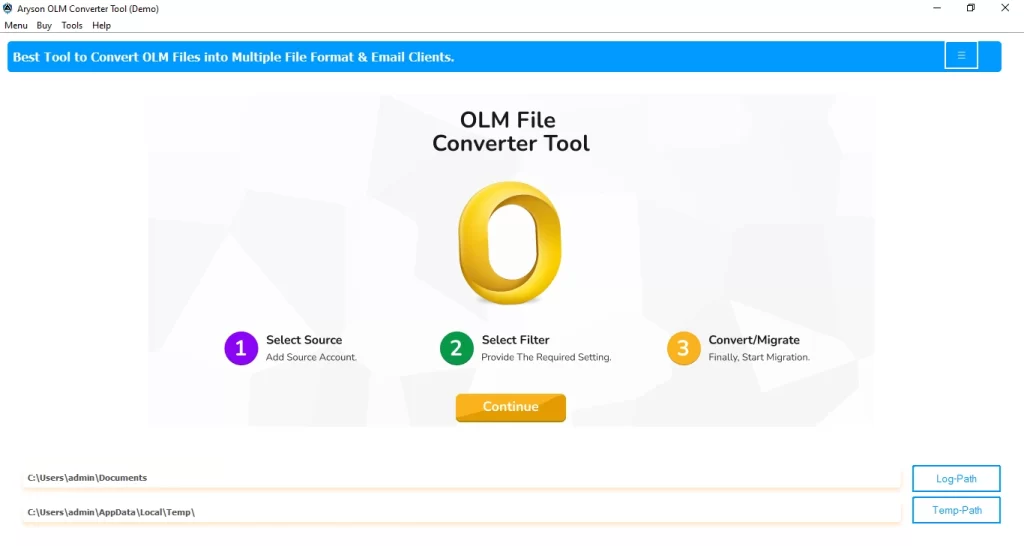
Both the manual methods come with several limitations; it is suggested to use the Data Recovery Freeware OLM Converter Tool. Moreover, it provides a batch conversion of multiple files, and its embedded features make the conversion process simple and faster. Also, it can convert OLM to EML and other file formats, such as PDF, PST, etc., and email clients, such as Thunderbird, Apple Mail, etc. Apart from that, this software is compatible with all operating systems.
Simple Steps to Export OLM to MBOX
- Download and install the OLM Converter Tool on your system.
- Then, select the File/Folder and browse the .olm file on your device and load it.
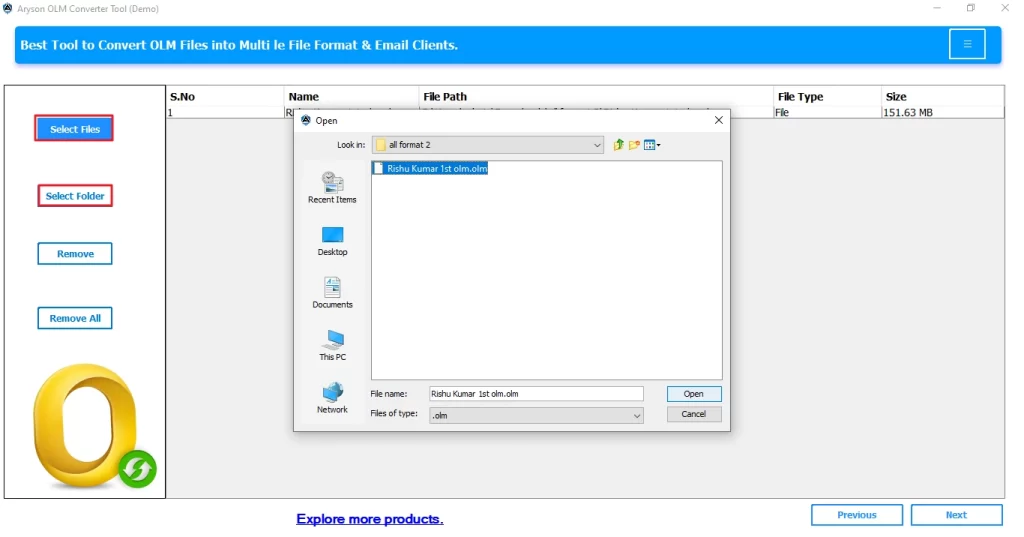
- After that, it will load the files, which you can preview before the conversion process, and then click Next.
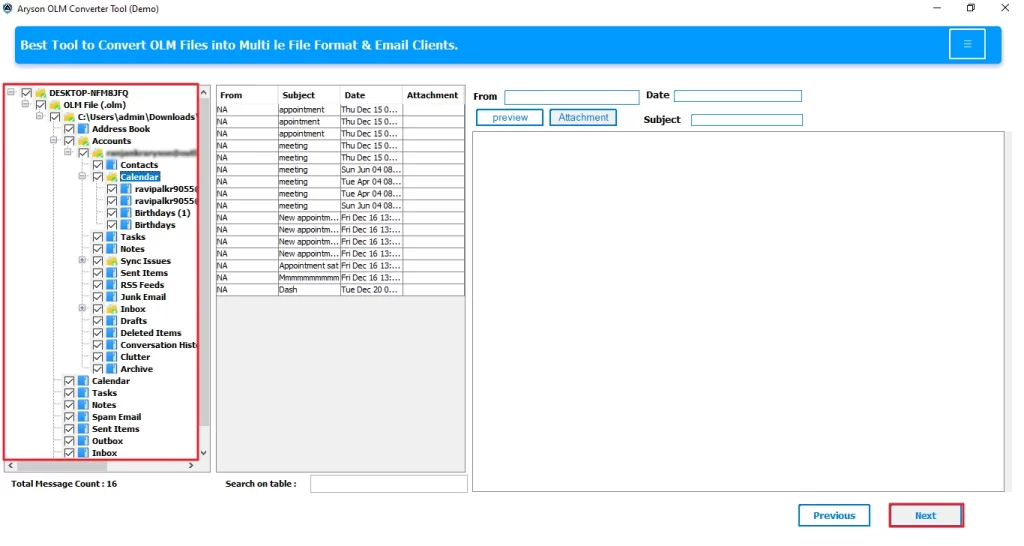
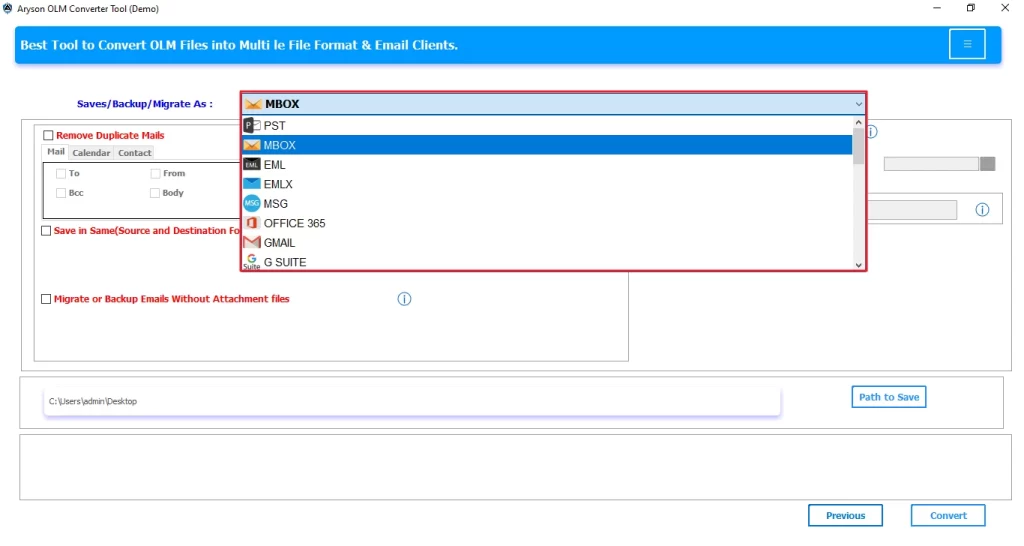
- Now, from the drop-down menu, select MBOX as the output file format.
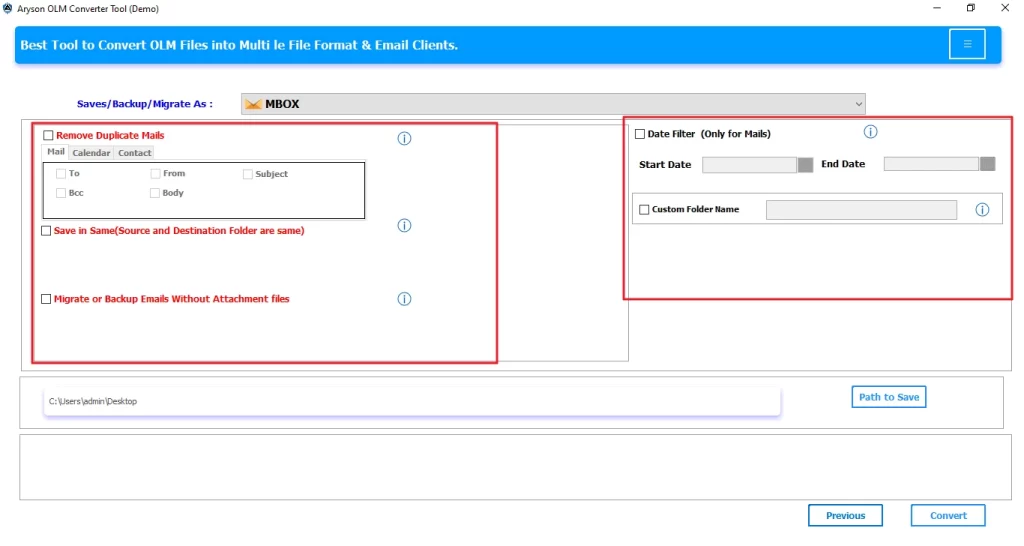
- For selective data migration, apply the required advanced filters.
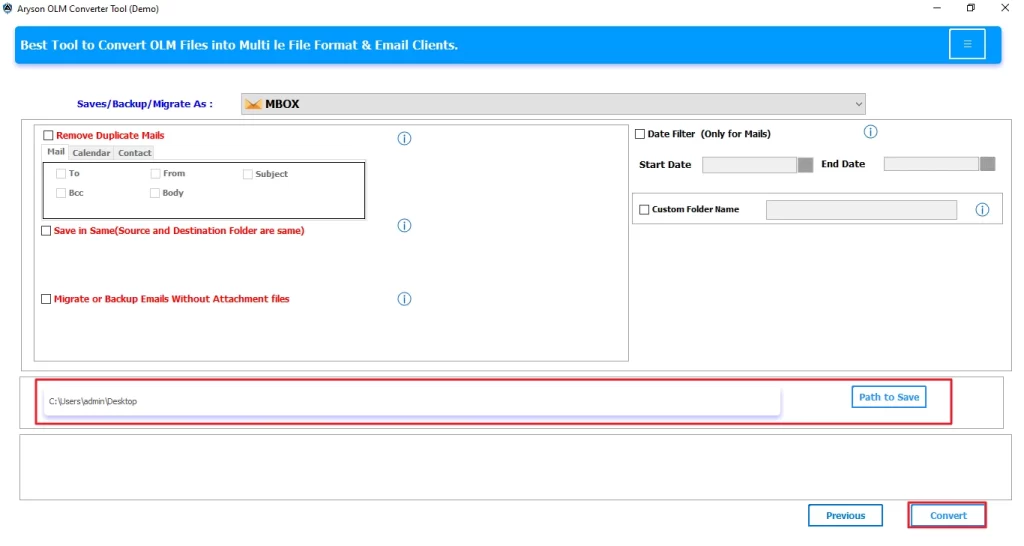
- At last, select the destination Path to save the resultant file and then click Convert.
How is this Software is beneficial for you?
- It is suitable for bulk conversion of your mailbox data.
- In addition, it consist for different file formats and email clients.
- The user interface is simple and helps every user to use this software.
- Moreover, it remove the duplicates files to make space in server and eliminate repetition.
Conclusion
In this blog, we covered every solution in detail for your ease in exporting your data. We discuss the three methods that help you to convert OLM to MBOX. It is important to always opt for the right method for conversion. Therefore, it is recommended to use the automated software that will convert your data while maintaining the folder hierarchy.
Frequently Asked Questions
1. Can I export OLM files to MBOX without Outlook?
Ans. Yes. The OLM Converter converts Mac Outlook OLM files directly to MBOX format without requiring Microsoft Outlook to be installed or running.
2. Which email clients support MBOX files?
Ans. There are many email clients that the OLM Converter tool supports, such as Thunderbird, Office 365, Yahoo Mail, etc.
3. What errors occur during OLM to MBOX conversion?
Ans. During OLM to MBOX conversion, users may face errors such as corrupted or unreadable OLM files, incomplete email conversion, missing attachments, or slow processing when the OLM file is very large.
4. How long does it take to convert an OLM file to MBOX?
Ans. Conversion time depends mainly on file size and system performance. Data Recovery Freeware OLM Converter Tool is made for efficient processing, but very large mailboxes will naturally take longer.
5. Do I need technical knowledge to convert OLM to MBOX?
Ans. No, you don’t need deep technical expertise. The OLM converter tool is built with an intuitive user interface for non-technical users as well as advanced users.
4.9 based on 1809 user reviewsAbout The Author:

Isha Singh is a content and website optimization expert who helps blogs and businesses grow organically. She specializes in enhancing content quality, improving site structure, and increasing online visibility through smart, practical, and easy-to-implement strategies that drive long-term results.
Related Post