-
Written By Rohan Wiese
-
Updated on August 4th, 2025
Fix 0x80040115 Outlook Error: Complete Troubleshooting Guide
 4.9 based on 1809 user reviews
Summary: If the 0x80040115 Outlook error appears when sending or receiving emails, know that you’re not the only one facing it. Outlook fails to connect to the mail server, and the process stops right there. It’s annoying, but not impossible to fix. This guide walks you through a few quick fixes that anyone can try, even without tech skills. We’ll also explain what’s causing the problem in the first place. If none of the manual steps work, there is DataRecoveryFreeware OST File Recovery that can restore your Outlook files and get things back to normal.
What’s Causing the Outlook 0x80040115 Error?
In this paragraph, we will see how this error usually shows up when there’s a problem between Outlook and your email server. However, that could mean a bad network connection, corrupted files, or activating the antivirus could be a problem. To understand it better, here are some common reasons:
- Your internet keeps cutting out
- Outlook’s data file is oversized or broken
- There are outdated or clashing add-ins
- Your Outlook profile is acting up
- DNS settings are off
- IPv6 settings or firewalls are in the way
- You’re using an outdated version of Outlook
Now that you know what might be causing it, let’s move on to the solutions.
How to Fix 0x80040115 Outlook Error
Try these easy solutions first. For this you do need to be a tech expert.
Method 1: Launch Outlook in Safe Mode
Safe Mode disables all add-ins and helps you to fix the Outlook unable to contact server 0x80040115 issue.
- To start Outlook in Safe Mode, press Windows + R, type outlook.exe /safe, and press Enter. Once it opens, navigate to File >> Options > Add-ins and check which extensions are active.
- After that, choose COM Add-ins >> Go
- Uncheck all, then restart Outlook
- If Outlook works now, one of those add-ins was the cause of the problem.
Method 2: Check Your Internet Connection First
Before trying anything advanced, check your connection. Outlook needs a steady internet link to reach the server properly.
- Restart your Wi-Fi router or modem.
- Make sure other apps or websites are working fine.
Method 3: Fix Your Outlook Profile
Outlook errors often come from a corrupted user profile. When it is fixed, it can help restore proper function.
- Start by opening the Control Panel.
- Then go to Mail and click on Show Profiles.
- Choose the profile and click Properties
- Go to Email Accounts and tap Repair
- Follow the steps that are on the screen
- Restart Outlook to fix the 0x80040115 Outlook Error.
Method 4: Make Sure Outlook is Updated
An outdated Outlook version might not sync properly with servers.
- Once Outlook is open, click File and select Office Account from the options on the left side.
- Next, find Update Options and select Update Now from the dropdown.
- Restart Outlook after the update.
Method 5: Fix Outlook Error 0x80040115 with the Automated Solution
If you have already tried all the above fixes and Outlook still gives you the 0x80040115 Outlook Error, it means that your OST file is corrupted. Relying on a trusted repair method can be a dependable way to fix the issue. A reliable option many users trust is the DataRecoveryFreeware OST Recovery Tool. With the help of this tool, you can also fix Outlook Error 0X8004011d and more. This software is designed to repair inaccessible or corrupted OST files without any risk of data loss.
Follow the given Steps to Repair the Outlook Data File:
- Install and launch the DataRecoveryFreeware OST Recovery software on your computer.
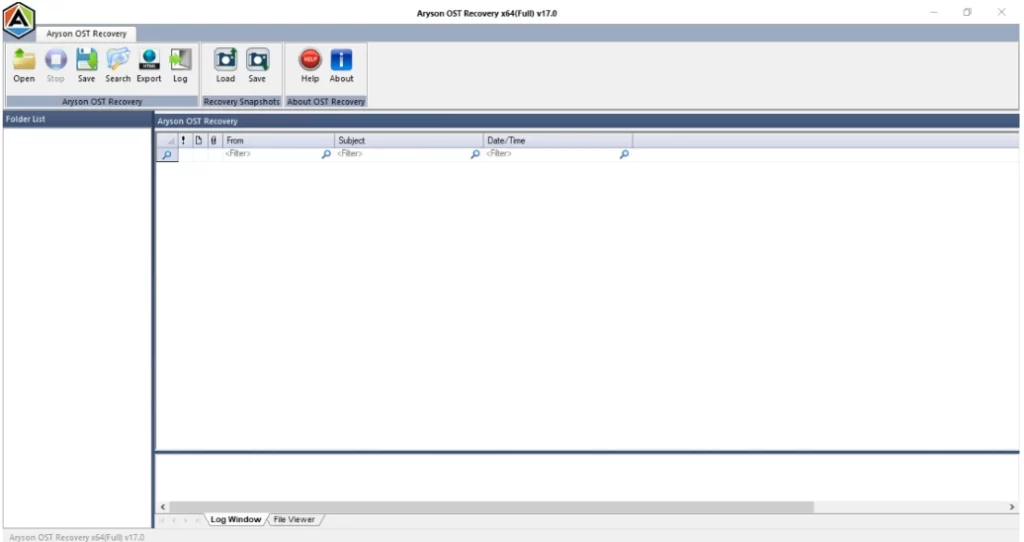
- Click the ‘Open’ button and locate the OST file you wish to repair.

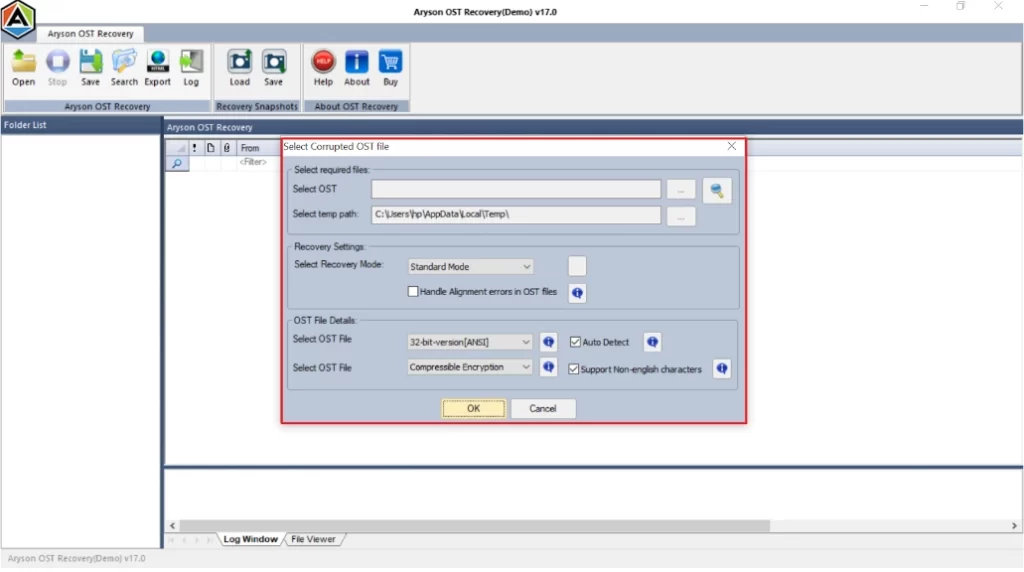
- Select the appropriate recovery mode and review the file’s information.
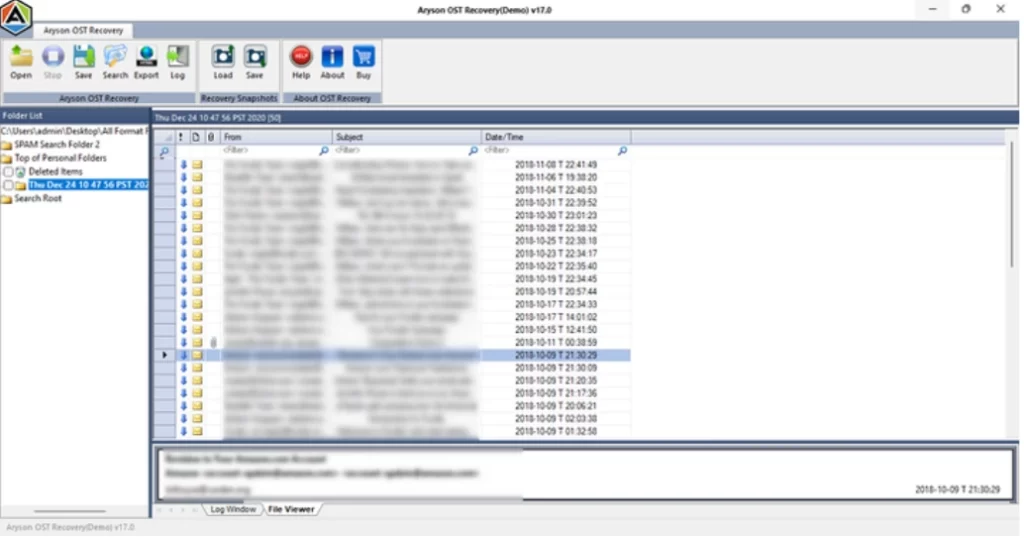
- Now, scan the file and show a preview of all the retrievable mailbox content.
- Choose the specific folders or items you want to recover, then hit Save.
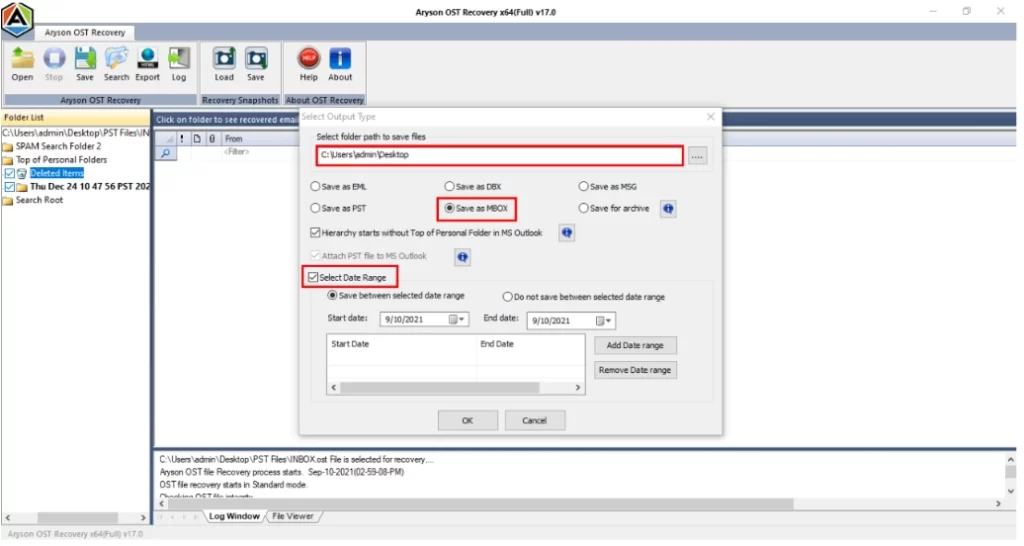
- Finally, your OST file data is restored successfully.
Conclusion
In this technical blog, we have seen that the 0x80040115 Outlook Error is usually fixable with a few straightforward steps. In most situations, adjusting a simple setting, updating Outlook, or repairing your profile can restore normal functionality. These fixes resolve the error for a large number of users without the need for advanced tools. However, if the problem continues even after trying all standard methods, a more thorough approach is needed to ensure your mailbox remains intact and nothing important is lost.
Frequently Asked Questions
Q.1 How do I fix Outlook error code 0x80040115?
Ans.
1. Download and run Aryson OST Recovery on your system.
2. After that, click Open to browse OST files from your system.
3. Choose the mode of recovery and view the OST file details.
4. Now, it will scan the OST file and display a preview of all recoverable mailbox data.
5. Select the folders or items you want to restore and click Save.
Q.2 Can disabling IPv6 fix the 0x80040115 error?
Ans. Yes, in some cases. Outlook might have trouble communicating with the server due to IPv6 settings. Turning it off has helped many users resolve this particular error.
Q.3 Can antivirus or firewall software cause error 0x80040115?
Ans. Absolutely, Security software can sometimes block Outlook’s connection to the server. Temporarily disabling your antivirus or firewall can help identify if it’s the cause. Just make sure to turn them back on afterward.
Q.4 Will repairing the Outlook profile help to fix Outlook Error 0x80040115?
Ans. Yes, repairing your Outlook profile can often solve the issue. A corrupted or misconfigured profile is a common trigger for this error. The built-in repair feature in Outlook can help fix it quickly.
4.9 based on 1809 user reviewsAbout The Author:

Rohan Wiese is a content and website optimization expert who helps blogs and businesses grow organically. He specializes in enhancing content quality, improving site structure, and increasing online visibility through smart, practical, and easy-to-implement strategies that drive long-term results.
Related Post