-
Written By Isha Singh
-
Updated on June 2nd, 2026
How to Convert OLM files to ICS Calendar Format in 2026
 4.9 based on 1809 user reviews
Summary: If you are wondering how to convert OLM file to ICS, then look no further. Through this blog, we will explain the simple and secure methods to convert OLM files into ICS files. It includes a manual and a professional solution to convert OLM files to ICS on Mac. In addition, the professional solution consists of the best DataRecoveryFreeware OLM Converter Tool.
What is an OLM File?
Microsoft Outlook for Mac uses OLM files to store email messages, contacts, journals, calendar data, and other user application data. OLM files are made for Mac and cannot be opened directly in Windows OS. Therefore, you need to convert an OLM file to view it on other email clients.
What is an ICS File?
ICS is a file extension also known as iCalendar. It is a calendar file saved in a universal calendar format used by several email and calendar programs, which include Microsoft Outlook and Apple Calendar. Moreover, it allows you to import, export, and share calendar entries with other users and publish and approve entries.
Why Convert OLM to ICS Format?
- ICS works with every calendar app out there, which includes Google Calendar and Apple Calendar.
- Users switch because they want to stop depending on Outlook for Mac.
- Once your calendar is in ICS format, appointments and schedules with others become much simpler.
- If you’re switching devices or just want to save your calendar data somewhere safe, ICS files hold all the important details.
Now, let’s move on to the next part to learn the methods to save the OLM files in ICS file format.
Proven Methods to Convert OLM Files to ICS
There are various ways to convert an OLM file to iCal (ICS). So here we are going to explain the most secure and straightforward methods for exporting OLM files to ICS.
Method 1: Convert Outlook OLM Calendar to ICS Manually
To perform this method, you need to have the MS Outlook application installed on your Mac. After that, using the drag-and-drop procedure, convert OLM to ICS.
- Launch your Mac Outlook account on the system.
- Go to the Calendar icon in the bottom-left corner of your email client interface.
- Now, you can see your calendar data on the screen.
- Select the data you want to export and then drag and drop it onto the desktop.
- When you drop the file on your desktop, it will automatically save as an ICS file.
Limitations of the Manual Method
- This method requires Microsoft Outlook for Mac to be installed.
- It is not suitable for the bulk conversion of multiple calendars at once.
- Users need to manually select and export calendar items.
- The method may not work for damaged OLM files.
- In addition, users with less technical knowledge may find the process difficult.
Common Errors: When Export Calendar Data from OLM to ICS
- Sometimes, ICS files are not open after conversion.
- In some cases, calendar events may be missing after export.
- There might be an import failure in Google Calendar.
- Maybe OLM files are corrupted.
Method 2: Convert OLM files to ICS Using Advanced Solution
OLM Converter Tool is an easy solution that can efficiently convert your OLM files to ICS. This tool has an advanced algorithm to maximize user orientation for technical and also for non-technical users. Additionally, it provides a user-friendly interface for the safe and smooth conversion of OLM files. If you also need to export to email clients, then check our guide on Convert OLM File to MSG.
Step-by-Step Instructions to Convert Mac OLM File to ICS
- Download and run the OLM Converter Tool on your system.
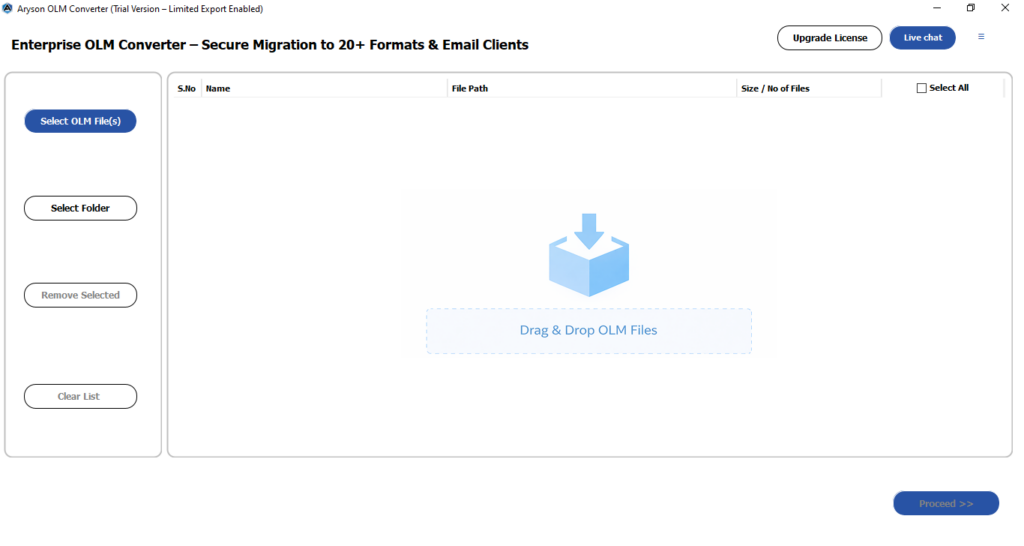
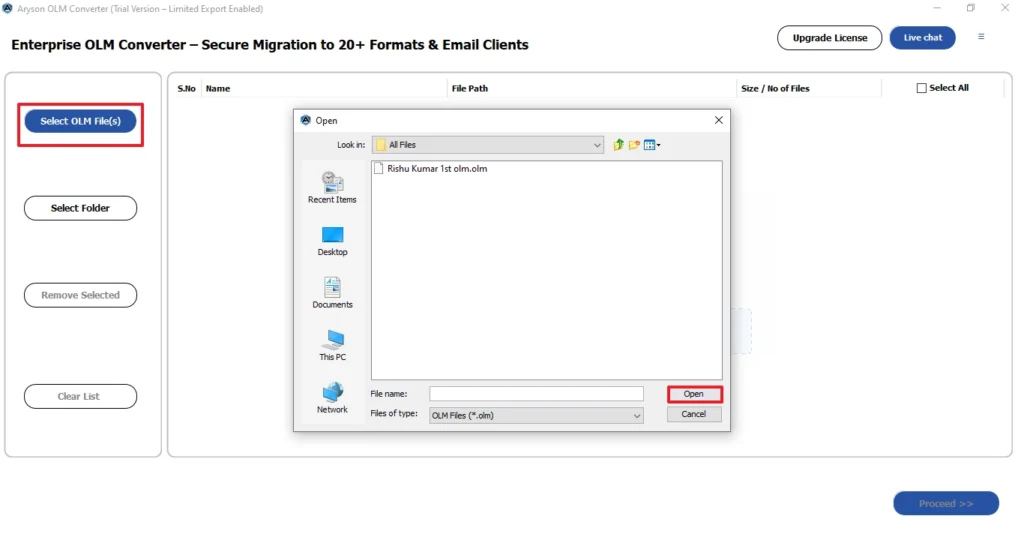
- Click on the Select Files/Folders option to browse OLM files >> click Open.
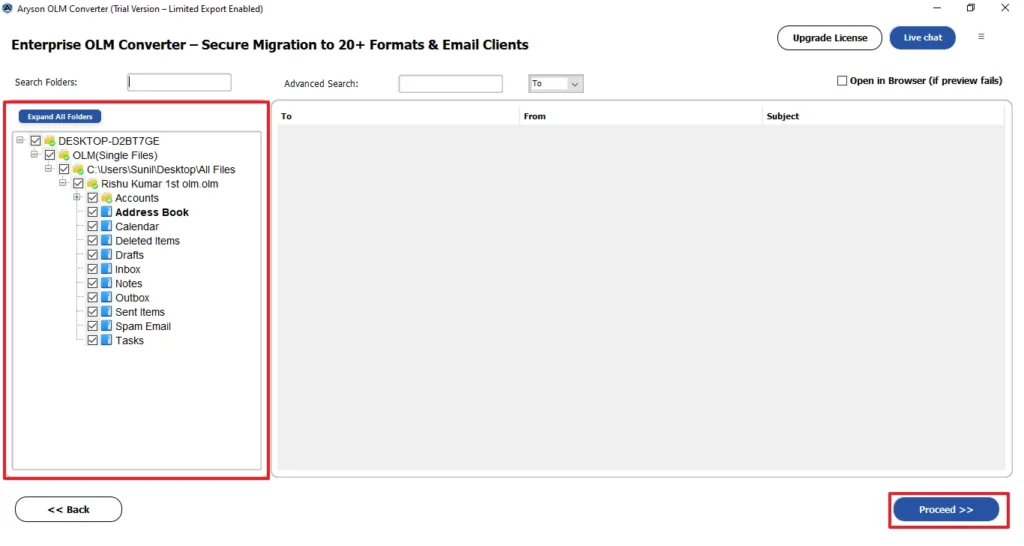
- After adding the OLM file(s), check the folders and preview the details, and click Next.
- Here, select ICS as your saving format from the drop-down menu.
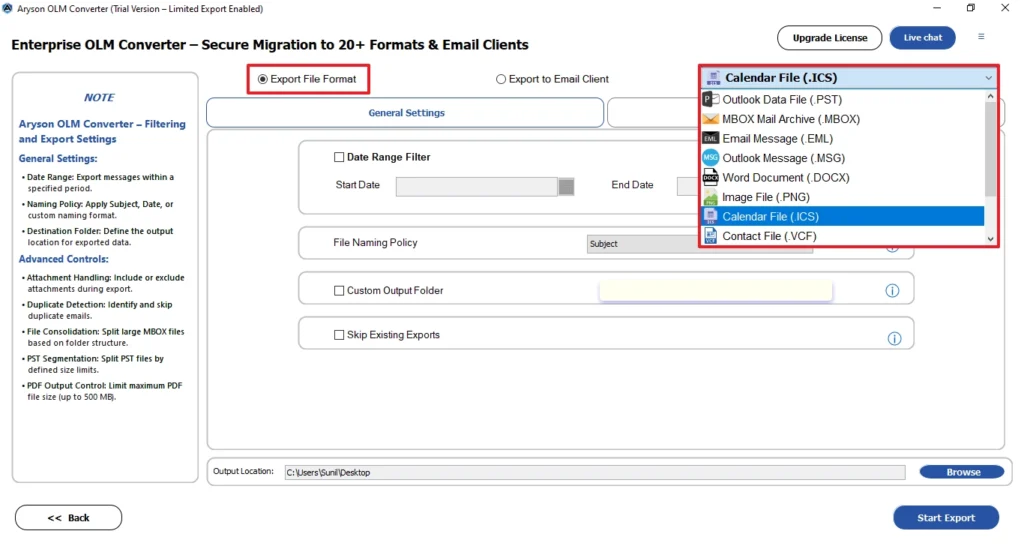
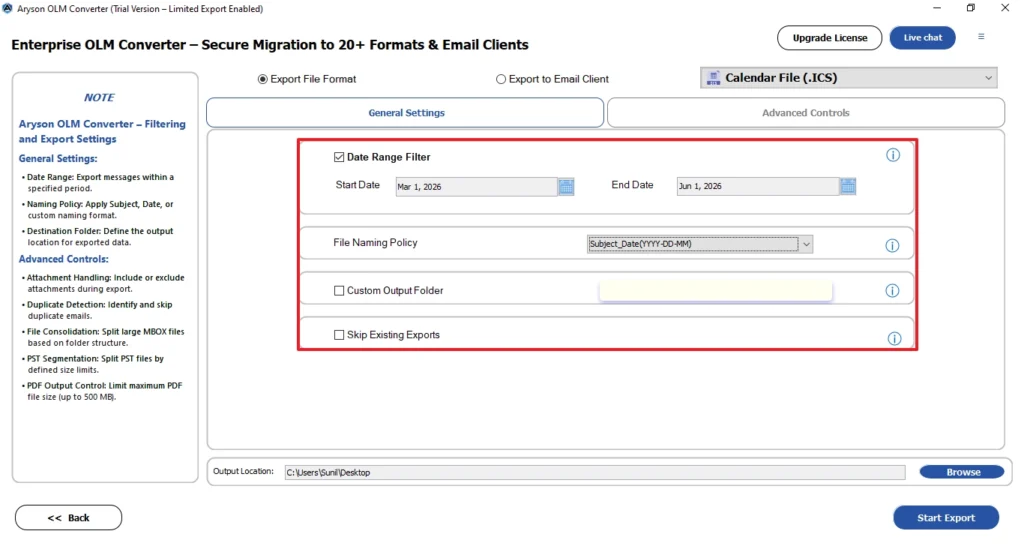
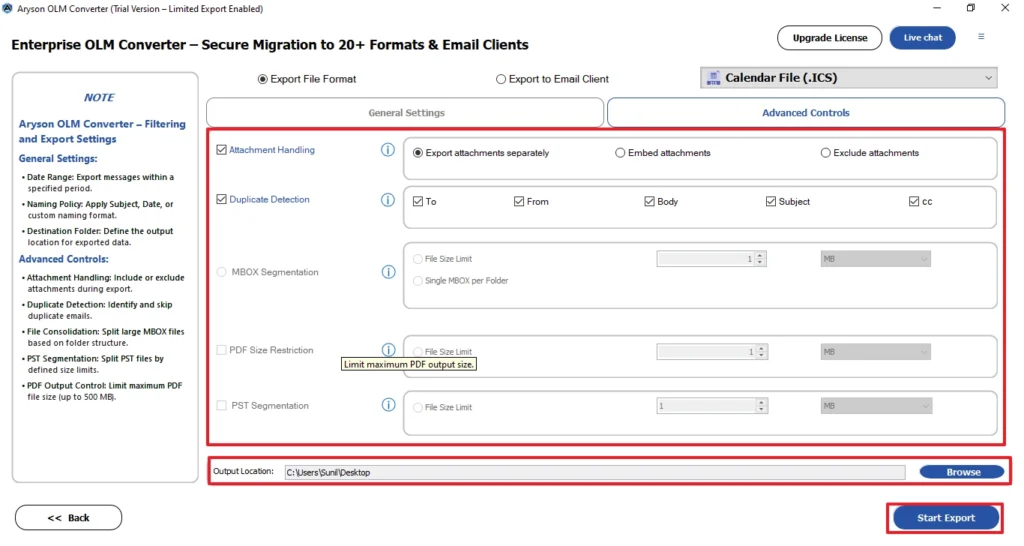
- Use the additional features as per your requirements.
- Finally, select the destination path and click on Start Export to start the process.
Core Capabilities of OLM Converter
- It import OLM contacts to iCloud, Microsoft 365, Gmail, and more.
- Support bulk conversion of files while keeping the folder structure intact.
- This software is available for Windows, Mac, and Linux OS.
- Detect duplicate files based on To, From, Subject, and Body.
Real-Life Scenario: Convert OLM files to ICS
We tested the OLM to ICS conversion by exporting calendar events from an Outlook for Mac OLM file and importing them into Google Calendar and Apple Calendar. All events and appointments were moved over without any issues. A few calendar items were handled through the manual method, which worked fine. Bigger files were easier to manage with an OLM converter tool, keeping everything in order.
Comparison Table For Manual Method & Advanced Solution
| Features | Manual Method | Professional Software |
| Best For | Small Calendar Exports | Individual and Enterprise Migrations |
| Risk of Missing Data | Possible | Minimal |
| Additional Export Formats | No | Yes |
| Bulk Conversion Support | No | Yes |
| Outlook Required | Yes | No |
| Corrupted OLM Files | No | Yes |
| Handles Large OLM Files | No | Yes |
Conclusion
In this guide, we have covered all the aspects of why users export their OLM files to ICS. If you only need to export a few calendar events, the manual method is sufficient. However, for multiple calendar folders or damaged data, a professional OLM converter is the best option. It provides a faster and more reliable way to convert OLM files to ICS while it preserves the calendar information.
Frequently Asked Questions
Q1. Will converting OLM to ICS affect my original OLM file?
Ans. No, converting an OLM file to ICS does not modify the original OLM file. The conversion process creates a separate ICS file while keeping the source data unchanged.
Q2. Can this tool help me import an OLM file into Outlook for Mac?
Ans. Yes, the OLM Converter helps you access and manage OLM files. It also supports exporting and migrating OLM data while maintaining the original folder structure and data integrity.
Q3. What should I do if the ICS file does not import correctly?
Ans. Verify that the ICS file was exported properly and is not corrupted. You can also try importing it again or use a dedicated conversion tool to generate a compatible ICS file.
Q4. What happens if my OLM file contains multiple calendar folders?
Ans. If the OLM file contains multiple calendar folders, each folder may need to be exported separately depending on the method used. Professional tools often support exporting all calendar folders in a single process.
Q5. Can I convert a corrupted OLM file to ICS?
Ans. A corrupted OLM file may not convert successfully using manual methods. In such cases, a professional tool can help access and export the calendar data.
Q6. Can I import ICS files into Google Calendar?
Ans. Yes, Google Calendar allows you to import ICS files. Simply open Google Calendar, go to Settings > Import & Export, select the ICS file, and choose the calendar where you want to add the events.
Q7. Does ICS preserve recurring events?
Ans. Yes, ICS files usually retain recurring events, reminders, meeting details, and other calendar information. However, the exact results may depend on the application used to create or import the ICS file.
Q8. Can I convert OLM to ICS without Outlook?
Ans. Yes, you can convert OLM files to ICS without Outlook by using a professional OLM converter tool. These tools can extract calendar data directly from the OLM file and save it in ICS format.
Q9. Is ICS compatible with Apple Calendar?
Ans. Yes, Apple Calendar fully supports the ICS format. You can easily import ICS files into Apple Calendar to view, edit, and manage your events, appointments, and schedules.
4.9 based on 1809 user reviewsAbout The Author:

Isha Singh is a content and website optimization expert who helps blogs and businesses grow organically. She specializes in enhancing content quality, improving site structure, and increasing online visibility through smart, practical, and easy-to-implement strategies that drive long-term results.
Related Post