-
Written By Rohan Wiese
-
Updated on December 8th, 2025
How To Fix Error Code 0x80070005 On Windows
 4.9 based on 1809 user reviews
Robert’s Query: “Since yesterday, I have been trying to install the latest Windows update. But the Error Code 0x80070005 occurs every time I hit the Retry option. This issue is disrupting my work, & I have no idea about its root cause. Please guide me on how I can resolve this error.”
Overview: In the above query, Robert is encountering an Error with Code 0x80070005 whenever he tries to install updates. Many Windows users and IT admins face this issue frequently, encountering permission issues, blocked updates, or corrupted system files. The Error 0x80070005 is similar to the term “Access Denied.” It usually takes place when the system doesn’t have the required permissions, files, or settings needed to complete a Windows Update, system restore, or application installation. To help users with the troubleshooting process, this write-up provides various fixes and the use of Aryson Windows Data Recovery Software for quick recovery.
Scenarios When Error Code 0x80070005 Occurs
There are numerous scenarios where a user would face the error 0x80070005. Listed below are some of the most common ones. Go through each scenario to identify why this error is occurring on your Windows system.
- There is a requirement for Insufficient admin permissions to accomplish system tasks.
- Installation got blocked due to corrupted Windows Update files.
- The Windows processes are getting restricted by the Antivirus or firewall.
- The needed system files are damaged or missing.
- The user’s Windows settings are incorrectly registered or misconfigured.
Proven Solutions to Windows Error Code 0x80070005
There are several fixes available to resolve the Windows Error 0x80070005, depending on the root cause of the error. Here, we will discuss some of the best working solutions to resolve the error. Go through each solution to resolve the issue by the end of this article.
Fix 1: Backup Your Essential Data
It is important to back up your files before trying any fixes, as Windows update errors can sometimes cause data loss or corruption, especially if you are resetting the system or reinstalling it.
Data You Must Back Up
- Word documents and other text files
- Photos, videos, & personal media
- Application settings and associated data
- Files in the Desktop and Downloads folders
How to Perform Back Up
- You can copy your required files to an external hard drive.
- Or use cloud services like OneDrive or Google Drive for a faster & safer backup
Note: Even if some of your essentials are lost, no need to worry; you can use the recovery solution below to recover your data efficiently.
Fix 2: Advanced Recovery Solution to Fix Error Code 0x80070005
In case some of your important files are left to backup, you can opt for the Aryson Windows Data Recovery Software to recover lost or inaccessible data while fixing Windows errors like 0x80070005. This software aims to recover all your essential files without affecting the data integrity. Moreover, it is compatible with various devices, including SD cards, USB drives, DVDs, CDs, & other drives as well. In addition, it offers multiple recovery modes depending on the extent of data corruption. You can even resolve the File Not Found Error in Windows 10 using the same software. Also, it makes the entire process even simpler for non-technical users with an intuitive interface.
Simplified Guide to Recover Data
- Open the Aryson Windows Data Recovery Software.
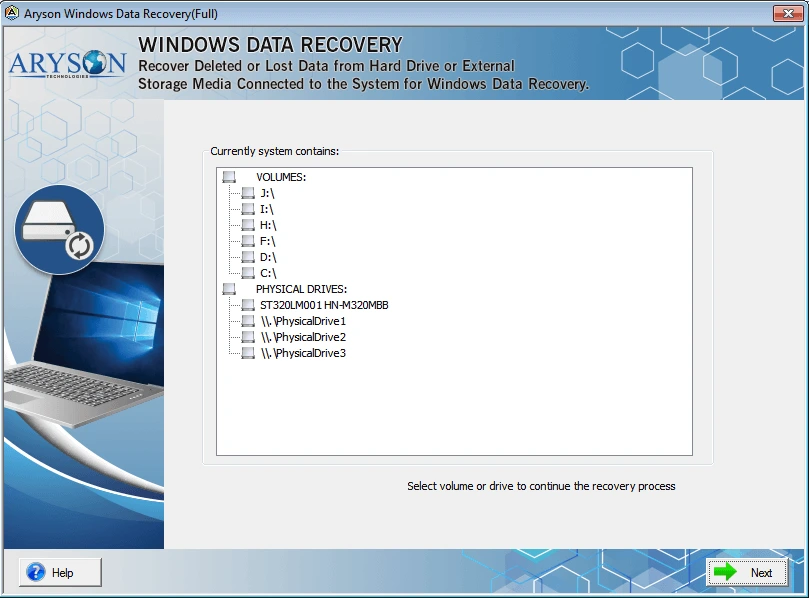
- Then, select the system drive or files you wish to scan >> click Next.
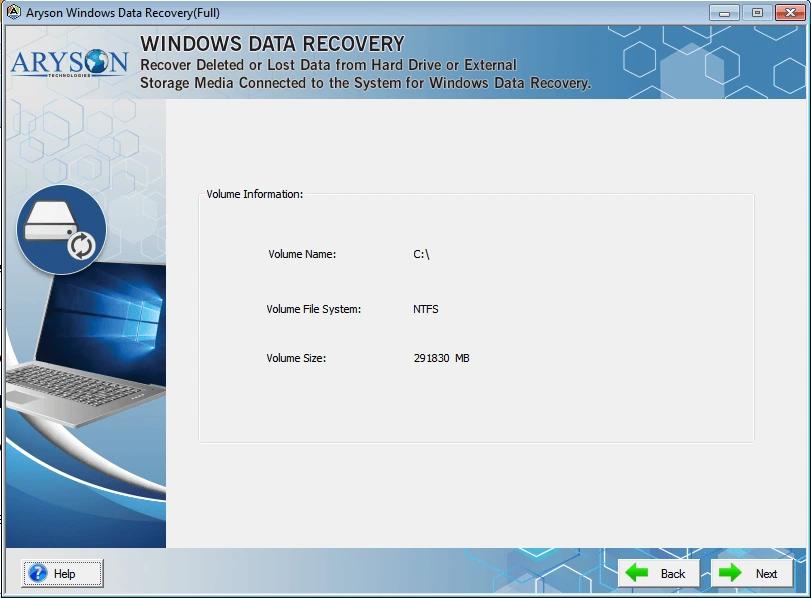
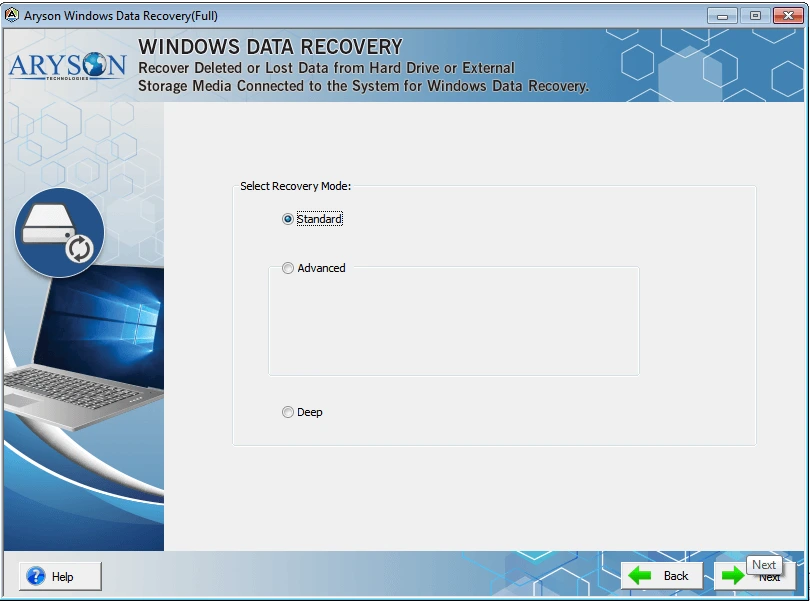
- After that, pick a recovery mode: Standard, Advanced, or Deep.
- Now, select the required files or folders for recovery >> preview them & click Save.
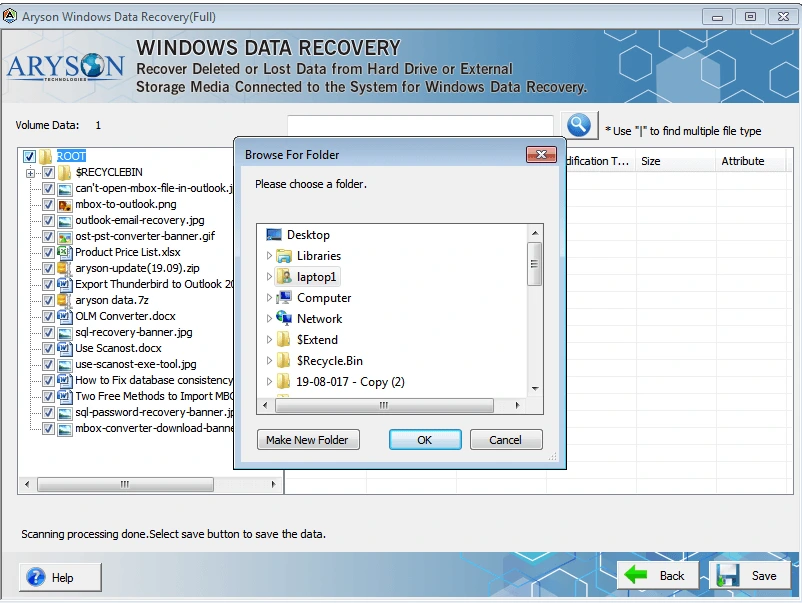
- Next, pick a destination location to store the recovered data.

- At last, click OK to complete the recovery process.

Following the above steps properly will ensure that your important files are safely recovered while you troubleshoot and fix Error Code 0x80070005.
Fix 3: Make Enough Space on Your Hard Disk
Sometimes, the Error 0x80070005 occurs due to a lack of enough storage to download and install Windows updates on your system. Windows updates may need storage up to 7 GB, & in case there is not sufficient space in your C: drive, the update may fail or stop in between.
Steps to follow are:
- To begin, open File Explorer on your system.
- Simply check the available storage space on the C: drive.
- Then, remove the temporary and junk files using Disk Cleanup or Storage Sense.
- After that, delete the applications or large unused files you no longer need.
- Move your photos, videos, & documents to another drive or external storage.
- Clean the Recycle Bin to free up additional storage.
- After clearing enough storage, restart your PC and try the update again.
Fix 4: Use the Windows Update Troubleshooter
Microsoft provides users with a built-in tool to automatically detect and fix update errors, including permission issues and internal conflicts. So, you can use it to resolve the 0x80070005 Error code.
For Windows 10:
- Go to the Settings menu and open it.
- Then, navigate to the Update & Security option.
- After that, click Troubleshoot >> Additional troubleshooters.
- Click on Windows Update >> select Run the troubleshooter option.
- Now, this tool will scan your system >> identify the issues >> apply fixes automatically.
For Windows 7 & 8:
- First, run the Control Panel on your system.
- Then, select System and Security option >> click Troubleshooting.
- Choose “Fix problems with Windows Update”.
- Click “Advanced”, enable the “Apply repairs automatically” option >> and press OK.
- Then right-click and choose “Run as Administrator”.
For Windows 11:
- To begin, go to Start >> open Settings.
- Then, navigate to System >> select Troubleshoot.
- After that, click the Other troubleshooters option.
- Now, you have to search for Windows Update & hit the Run button.
- Once the scan completes, Windows will automatically detect and apply any fixes.
- Now, simply restart your PC to check whether the issue is resolved or not.
Conclusion
In the above blog, we discussed various fixes to resolve the Error Code 0x80070005. The user must find the reason behind the error and back up the important data before performing the troubleshooting practices. In case some important files are left out of the backup, they can recover them with the help of the automated software. Still, if the issue persists, you can try making enough space in your hard disk or using the Windows Update Troubleshooter. Hope you successfully resolved the issue following the above troubleshooting practices.
Frequently Asked Questions
Q-1: Is Error Code 0x80070005 dangerous?
Ans- The error 0x80070005 is not harmful to your hardware, but it can prevent Windows updates, app installations, or access to certain files, potentially disrupting your work.
Q-2: Can Error Code 0x80070005 prevent Windows from updating?
Ans- Yes, this error often appears during Windows Update due to permission issues or corrupted system files, resulting in incomplete updates.
Q-3: Does Error 0x80070005 affect apps from the Microsoft Store?
Ans- Yes, it can block downloading or updating apps from the Microsoft Store if the system lacks the required permissions.
Q-4: Will resetting my PC fix Error Code 0x80070005?
Ans- Resetting can resolve the error, but you must backup your data first or may use the prominent software discussed above to recover your essential data if not backed up.
Q-5: Does Error 0x80070005 occur in Windows 10 and Windows 11?
Ans- Yes, Windows Access Denied Error 0x80070005 can occur in almost all Windows versions, including Windows 10 and 11.
Q-6: Can corrupted user profiles cause Error Code 0x80070005?
Ans- Yes, a damaged or restricted user profile can trigger this error by preventing Windows from accessing necessary files or settings.
4.9 based on 1809 user reviewsAbout The Author:

Rohan Wiese is a content and website optimization expert who helps blogs and businesses grow organically. He specializes in enhancing content quality, improving site structure, and increasing online visibility through smart, practical, and easy-to-implement strategies that drive long-term results.
Related Post